QDS menu
To open the QDS menu, right-click on the QDS icon  in the Windows status toolbar.
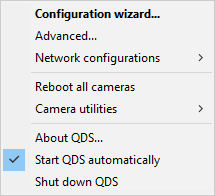
The QDS menu contains the following options:
-
Configuration wizard
The configuration wizard can be used to setup your network interface for Qualisys cameras, to configure an Oqus camera for wireless operation and to setup a virtual wireless access point, see Network configuration wizard.
-
Advanced
Advanced configuration of network interfaces on the computer, see Advanced network settings dialog.
-
Network configurations
Using this sub-menu you can save or load network configurations. Click on Save to save the current configuration and then to load a configuration click on Load.
-
Reboot all cameras
Reboot all Qualisys cameras that have an IP-address.
-
Camera utilities
QDS can control the Qualisys cameras with the following commands. The commands will be sent to all cameras, but only acted upon by the camera models that support the command.
-
Green on
Switch on green LEDs on the LED ring.
-
Green off
Switch off green LEDs on the LED ring.
-
Green pulsing
Pulse green LEDs on the LED ring.
-
Amber on
Switch on amber LEDs on the LED ring.
-
Amber off
Switch off amber LEDs on the LED ring.
-
Amber pulsing
Pulse amber LEDs on the LED ring.
-
Display on
This is the default mode for the Arqus and Oqus cameras. The display is on when you use the camera, but goes into sleep mode if not used for 2 hours.
-
Display off
In this mode the camera display is turned off for Arqus and Oqus cameras. The front LED is also turned off for all Qualisys cameras. Display and LEDs do not turn on unless you enable them with Display on or reboot the cameras.
-
Camera blocklist
The camera blocklist is used to block QDS from distributing IP addresses to specific cameras, see Camera blocklist.
-
Enabled
Enable the camera blocklist.
-
Edit
Open the mac_block.txt file in the default text editor.
-
-
Show IP address on camera display
Switch the display to show the last number in the IP-address of the camera. The Oqus cameras also show the last three numbers in the serial number.
-
Show ID on camera display
Switch the display to show QTM ID of the camera. This is the default for cameras that have been connected to QTM.
-
-
About QDS
Information about QDS.
-
Start QDS automatically
Option for starting QDS automatically on computer startup.
-
Shut down QDS
Shut down QDS.