Advanced network settings dialog
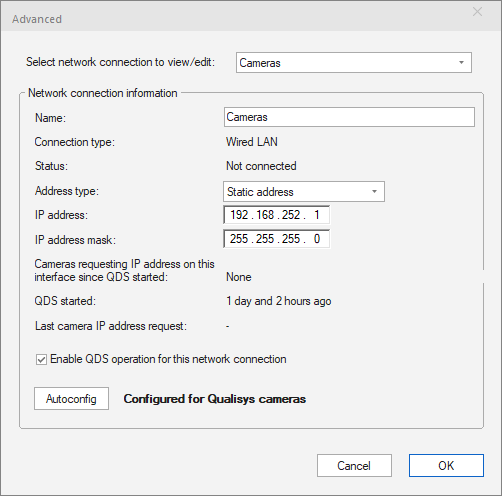
The Advanced network settings dialog is opened with Advanced... in the QDS menu. The QDS dialog contains settings for the enabled network interfaces on the computer. These settings can be used instead of the QDS wizard or the Windows network settings.
-
Select network connection to view/edit
Select the network that you want to edit in the dialog. The list is in the same order as in Windows and if a network interface is disabled in Windows network connections it will not be shown in the list.
-
Name
Current name of the network interface.
-
Connection type
Type of network: wired LAN or wireless LAN.
-
Status
Current status of the connection: Connected or Not connected.
-
Address type
Select the wanted address type between these two types:
-
Received through DHCP
The network will receive its IP address from a DHCP server. The standard setting for many networks.
-
Static address
The network is set to a static IP address with the settings below. This setting must be used for QDS to give IP addresses to Qualisys cameras.
-
-
IP address
Current IP address of the network. The address can be changed when Address type is set to Static address.
-
IP address mask
Current IP address mask of the network. The mask can be changed when Address type is set to Static address.
-
Cameras requesting IP address on this interface since QDS started
Number of Qualisys cameras requesting IP address on the network.
-
QDS started
Time since QDS started.
-
Last camera IP address request
Time since last camera IP address request.
-
Enable QDS operation for this network connection
Activate QDS on the network, i.e. if QDS is disabled for the network, Qualisys cameras connected on that network will not get any IP address from this QDS. When networks with static IP addresses are disabled it will be shown on the QDS icon.
-
 Some network interfaces with static IP addresses have been disabled.
 -
 All network interfaces with static IP addresses have been disabled.
 -
 All network interfaces are physically disconnected or disabled in the Network & Internet Windows settings. Connect or enable relevant network interface(s) to resolve issue.
-
-
Autoconfig
Use this button to configure the network interface for Qualisys cameras.