Project view
The Project view window displays the data files included in the current project. The view consists of two parts: Project data tree and Details. The name of the current project is displayed at the top of the Project view.
To open the Project view window go to View menu and select Project view, the shortcut to toggle the window is Ctrl + R.
Project data tree
The Project data tree window is used to display and open the files in the Data folder of the current project. This includes folders and QTM files, but also all other files. You can drag and drop files to the Project data tree from for example Windows explorer. If the file is dragged from another folder on the same hard drive it is moved to Data folder. You can toggle whether to copy or move the file with the Ctrl key. If the file is on another hard drive or the network then a new copy is made in the Data folder.
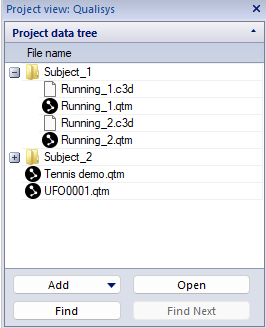
The following buttons are available at the bottom of the data tree: There are two commands at the bottom of the data tree: Add (New folder or New measurement) and Open.
-
Add
-
New folder
When adding a folder it is placed in the currently selected folder, if none is selected it is placed in the root of the Data folder.
-
New measurement
Adding a new measurement is the same as starting a new capture with the Capture command on the Capture menu and the folder to save the file in is set to the currently selected folder in the project view.
-
-
Open
The Open command is only available when a file is selected and it will then open that file. If it is a QTM file it is opened in the current QTM window or a new window, depending on the current settings on the GUI page in Project options. Other files are opened with its corresponding Windows program.
-
Find
The data tree can be searched with Find (Ctrl + F). When searching the first occurrence of the search term will be highlighted in the data tree. The Find function is also available via the Edit menu.
-
Find next
Use Find Next (or F3) to search for the next occurrence of the current search term.
The QTM file that is open in the current QTM window is displayed in bold. If you open a file that is already open in another QTM window you will switch to that window.
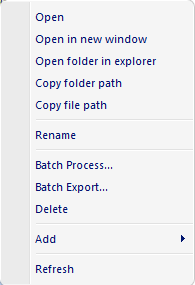
Right-click on a file or a folder to get the following options.
-
Open (only available for files)
Opens the selected file in QTM if it is a QTM file. Otherwise it is opened by its corresponding Windows program.
-
Open in New window (only available for QTM files)
Opens the QTM file in a new QTM window. It overrides the Close current file option on the GUI page.
-
Open folder in explorer
Open the currently selected folder in Windows explorer so that you can for example move the files.
-
Copy folder path
Copy the folder path for the currently selected folder.
-
Copy file path
Copy the file path for the currently selected file.
-
Rename
Rename the selected file or folder.
-
Batch Process...
Batch process the currently selected files. It will open the Batch processing dialog so that you can select which processing steps that you want to apply, for more information about batch processing, see chapter Batch processing.
-
Batch Export...
Batch export the currently selected files. It will open the Batch exporting dialog for selecting the export formats and their options. For more information about batch exporting, see chapter Batch exporting.
-
Delete
Delete the selected file or folder.
-
Add
-
New folder
Add a new folder in currently selected folder. If no folder is selected it is placed in the root of the Data folder.
-
New measurement
Add a new measurement, which is the same as Capture on the Capture menu and the folder to save the file in is set to the currently selected folder in the project view.
-
-
Refresh
Refresh the content in the Project data tree so that it matches the content of the project data folder. This is usually done automatically by QTM.
Details
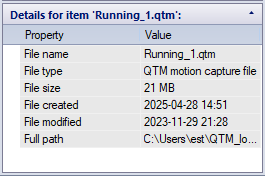
The Details window displays information about the currently selected file. The displayed data is:
-
File name
-
File type
-
File size
-
File created
This is not the time when the data was captured, but when the file was created on the computer which is not the same if the file has been copied.
-
File modified
-
Full path