Calibration results
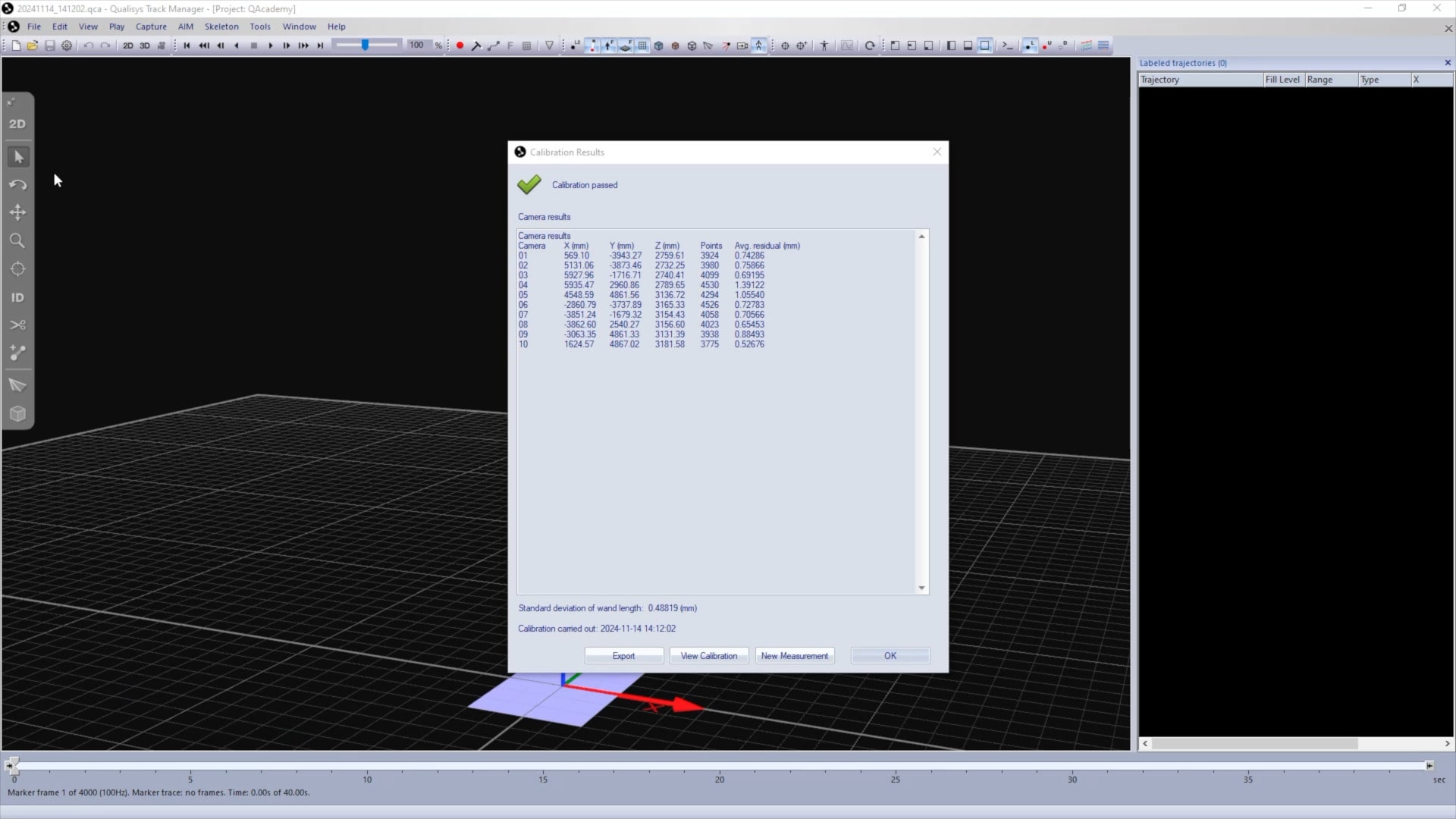
Once a calibration finishes, QTM will automatically process it and open a results window.
-
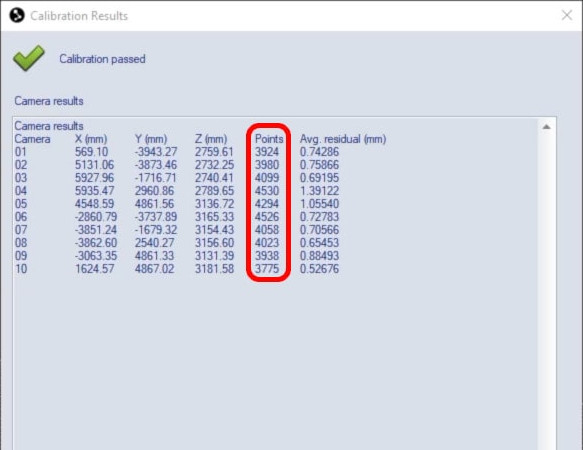
Check the points column, which shows the number of times during calibration that each camera saw the markers. Ideally, there should be large numbers of points, and they should be similarly high for each camera.
-
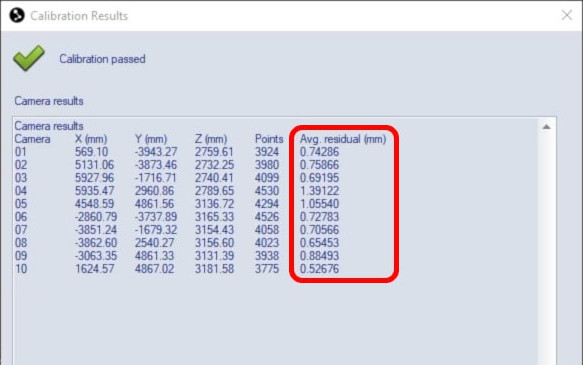
Next, check the average residual of the points, which should be as low as possible for all cameras.
-
Finally, check the standard deviation of wand length, which represents the variation of the measured wand length in QTM. Acceptable values for this depend on your setup, but smaller numbers indicate more precise calibration results.
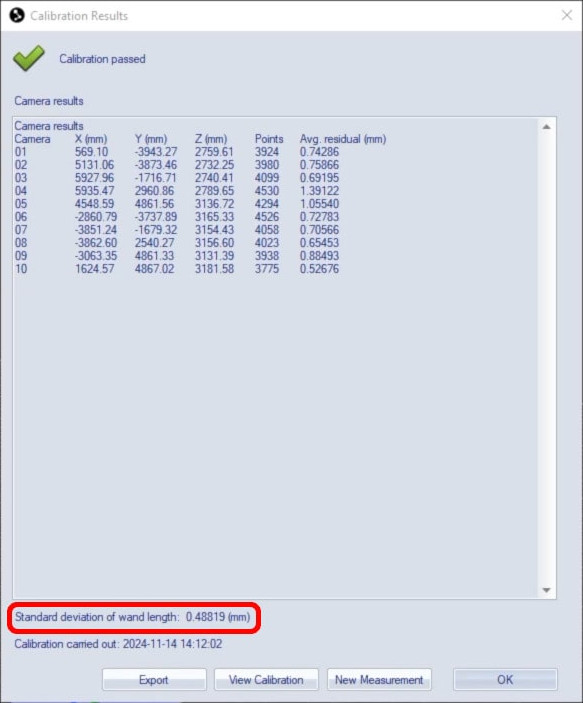
If you see any unexpected numbers in the results window or if QTM shows a failure message, it is best to redo the calibration. When redoing a calibration, double-check first for unwanted reflections and try moving more slowly. You can also consult the QTM user manual for troubleshooting tips.
To visualize your calibration in the 3D viewer, click the Calibrated Volume icon in the top toolbar.
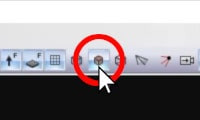
QTM will display the area in which the wand was moved.
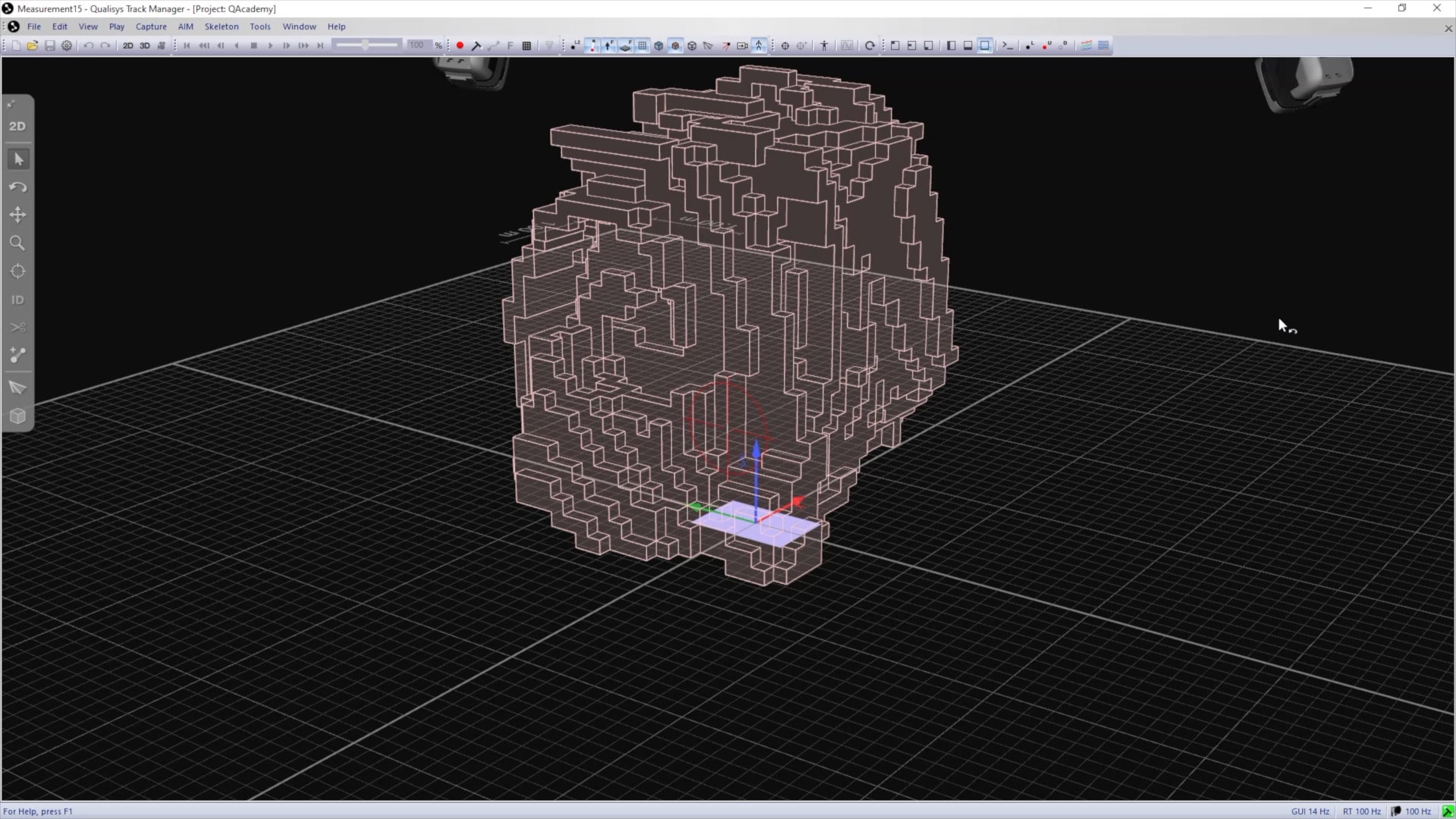
Note that markers can still be tracked outside this space, but it is best that your data capture be done primarily within the calibrated volume.
If you need further help understanding your calibration results, please contact Qualisys Support.