QTM Scripting Interface
The QTM Scripting Interface provides scripting support for QTM. Scripting is supported for both Python and Lua, which interpreters are embedded in QTM. Additionally, the QTM Scripting Interface is also exposed through a REST API.
Scripting allows the user to extend the functionality of QTM, for example:
-
Automation of regularly performed complex tasks
-
Extraction and display of information from recorded data
The QTM Scripting Interface provides, amongst others, the following functionality:
-
Access and modification of recorded data (captures)
-
Access and modification of settings (at project and measurement level)
-
Opening and saving recorded files
-
Running file processing
-
Trajectory, rigid body and skeleton editing
-
Extending the main menu, adding new QTM commands and keyboard shortcuts
-
Rendering of text and graphical elements in the 3D View window
For a comprehensive overview of the modules and functions, please refer to the QTM Scripting Interface documentation on GitHub at https://qualisys.github.io/qtm-scripting.
Scripting components in QTM
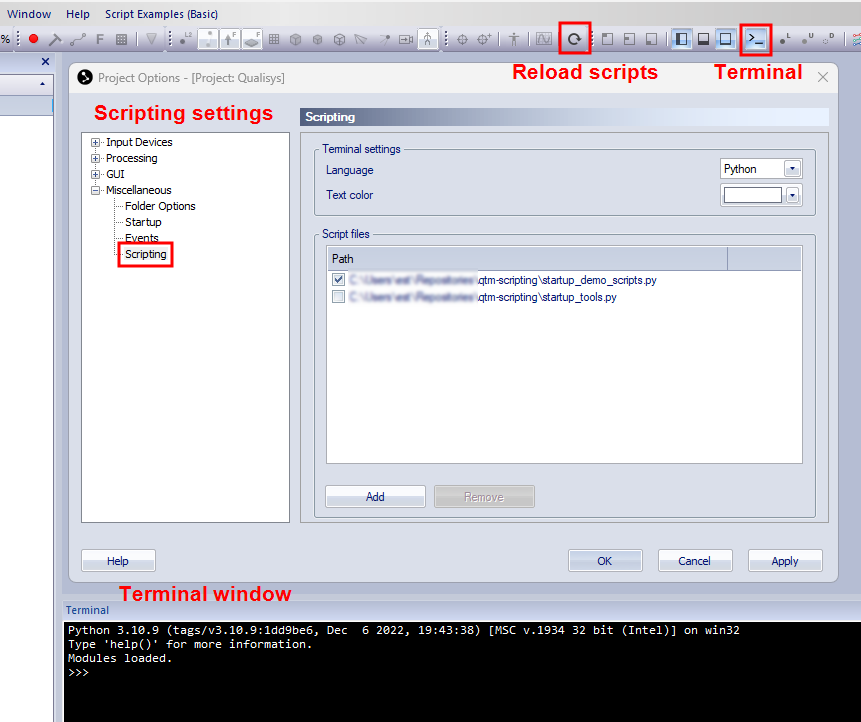
The components in QTM related to scripting are shown in the above figure:
-
Terminal button: Show/hide the Terminal window.
-
Reload scripts button: Reload script files that are used in the project (keyboard shortcut F5).
-
Scripting settings: Terminal settings and script files used in the project.
-
Terminal window: Terminal for access to the selected interpreter (Python or Lua).
The settings for scripting can be accessed via Project Options > Miscellaneous > Scripting. In the settings, you can select the interpreter language that is used for the terminal and add scripts that are loaded into the project, see chapter Scripting for more information.
The terminal window can be used to write commands in the selected interpreter language and to display text output. The terminal window can be opened via the View menu, or by pressing the Terminal button in the toolbar. At startup, the terminal displays information about the used interpreter. The help() command can be used to get basic help information about the QTM Scripting Interface functions.
When using the Python interpreter, you will first need to import the qtm module to get access to the qtm commands:
-
>>> import qtm
The import step can be automated in a startup script that can be added to the Script files in the QTM project.
Scripting resources
For complete documentation and advanced examples, it is recommended to refer to the resources that are available on GitHub at https://github.com/qualisys/qtm-scripting. The qtm-scripting repository includes:
-
QTM Scripting Interface documentation
Comprehensive documentation of the QTM Scripting Interface, including code examples for Python, Lua and REST.
-
Demo scripts
Collection of scripts that demonstrate various capabilities of the scripting engine.
-
Tools
Collection of tools that can be helpful add-ons to QTM, or can serve as examples for developing your own tools.
Using scripts
Scripts can be used in QTM by simply adding them to the Script files list in the QTM project. To load scripts files:
-
Open the Scripting page under Project Options > Miscellaneous.
-
Press the Add button and locate the script file to be added in the file dialog.
-
Make sure that the check box next to the script file is enabled.
-
Press Apply or OK to load the enabled scripts.
The qtm-scripting resources on Github include a collection of ready-to-use tools for trajectory editing, marker set and rigid body operations that can be added to QTM. For instructions on how to add these tools to QTM, refer to the README file of the qtm-scripting repository. Once loaded, each set of operations is represented by a menu in QTM. For a detailed description of the functionality of the tools, see the script documentation, which is displayed in the terminal when pressing the Help button in the respective tools’ menus.
Creating your own scripts
You can also add your own scripts to QTM. You can write Python or Lua scripts in any text editor, for example Visual Studio Code.
Here is a simple example of a Hello World! script, showing how you can add a menu to QTM with a button that displays “Hello world!” in the terminal and the 3D View window.
'''Example of a simple Python script using the QTM Scripting Interface.

Content of the script:
* Add a custom QTM command that outputs "Hello World!"
  to the terminal and the 3D View window
* Add a menu to QTM with a button that executes it
'''

# Import modules
import qtm

# Definition of execute function for custom QTM command
def _echo_hello():
    # Use QTM Scripting Interface method for writing to terminal
    qtm.gui.terminal.write("Hello world!")

    # Draw callback function for the _display_hello function.
    qtm.gui._3d.set_draw_function(_display_hello)

# Function defining the rendering in the 3D View window
def _display_hello(measurement_time):
    qtm.gui._3d.draw_text_2d([60, 30], 12, "Hello world!", \
        {"horizontal": "left", "vertical": "top"}, \
        {"horizontal": "left", "vertical": "top"}, \
        qtm.utilities.color.rgb(0,1,0))

# Function for adding custom commands and setting up the menu in QTM
def add_menu():
    # Add QTM command, associate it with the _echo_hello() function
    qtm.gui.add_command("echo_hello")
    qtm.gui.set_command_execute_function("echo_hello", _echo_hello)

    # Add menu and button
    menu_id = qtm.gui.insert_menu_submenu(None, "My menu")
    qtm.gui.insert_menu_button(menu_id, "Hello world", "echo_hello")

# Call add_menu() function when running the script
if __name__ == "__main__":
    add_menu()
When your script is ready, you can add it to the script files list under Project Options > Miscellaneous > Scripting. The script will be loaded when pressing Apply or OK, and when starting the project.
When you make modifications to your script, you can reload it in QTM using the Reload button.
Use of external packages
Installing external packages for Python
The search path for Python embedded in QTM includes the following locations:
-
The subfolder \Lib\site-packages, in the folder where QTM is installed, typically C:\Program Files\Qualisys\Qualisys Track Manager. This is the default target for package installation, requiring administrator privileges.
-
The folder C:\ProgramData\Qualisys\Python310\site-packages. This is a global target, which allows for package installations without administrator privileges. Packages installed in this location are prioritized.
You can add external packages using pip install. For the default target (.\Lib\site-packages), follow these steps:
-
Open cmd.exe as administrator.
-
Change the current path to the folder in which QTM is installed (usually C:\Program Files\Qualisys\Qualisys Track Manager).
-
Type the command:
-
.\python.exe -m pip install <…>
(replace
<…>with the name of the package you want to install).For example for installing numpy:
-
.\python.exe -m pip install numpy
-
For the global target (C:\ProgramData\Qualisys\Python310\site-packages), follow these steps:
-
Open cmd.exe.
-
Change the current path to the folder in which QTM is installed (usually C:\Program Files\Qualisys\Qualisys Track Manager).
-
Type the command:
-
.\python.exe -m pip install --target="C:\ProgramData\Qualisys\Python310\site-packages" <…>
(replace
<…>with the name of the package you want to install).For example for installing numpy:
-
.\python.exe -m pip install --target="C:\ProgramData\Qualisys\Python310\site-packages" numpy
-
Some external packages may not work properly in QTM, for example packages with GUI functionality.
External packages for Lua
The use of external packages for Lua is currently not supported.