Window layouts
You can use window layouts to store and apply customized window layouts in QTM. The window layouts apply to all QTM window types, no matter if they are docked, tabbed or floating, or if they extend across multiple screens. Window layouts are stored in the project, which means that you can adapt the window layouts to the specific needs for your projects.
Window layouts can be applied and stored via Window layouts under the Window menu, or using keyboard shorts.
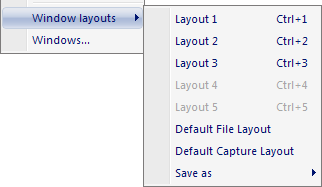
You can store up to five custom Window layouts and two default layouts:
-
Layout 1-5
Custom window layouts that can be applied via the Window layout menu, or using the keyboard shortcuts Ctrl + 1-5.
-
Default File Layout
Window layout that is used when opening a file.
-
Default Capture Layout
Window layout that is used when starting a preview or a capture.
The window layout is not reset when starting a capture after having manually changed the window layout during preview.
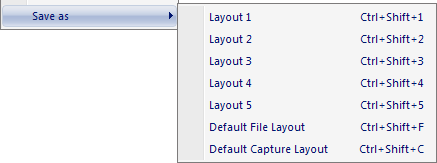
To save the current layout click Save as in the Window layout sub-menu, and select the desired layout. The Window layouts can also be saved with the keyboard shortcuts Ctrl + Shift + 1-5 for the five custom window layouts, Ctrl + Shift + C for the Default Capture Layout, and Ctrl + Shift + F for the Default File layout.
The list below shows which objects that are saved in a window layout. For all of the objects the placement and size is saved. For some of the windows, other properties are also saved in a layout as specified below.
-
2D view windows
-
The displayed cameras and their zoom.
-
-
3D view windows
-
Zoom and orientation of the coordinate system and the trace range.
-
-
Data info windows
-
The data type
If the selected data type is not available in the file the 2D data is shown instead.
-
-
Plot windows
-
The analysis or data plot which was used when saving the layout. The measurement must have labeled trajectories with the same name as in the saved layout or the same data in the Data info window.
If all labeled trajectories were selected for the plot, the labels of the trajectories are insignificant. And therefore the layout will work for any file with labeled trajectories.
-
Modified settings in the Plot menu.
-
Plot style (dark or light mode).
-
-
Trajectory info windows
-
Trajectory Editor window
-
Trajectory Overview window
-
Timeline
-
The display settings for the Timeline, not for example the measurement range.
-
-
Toolbars