Quick Capture View window (Beta)
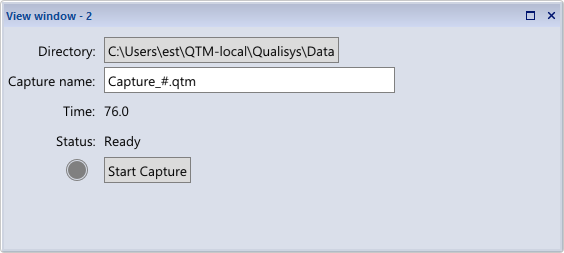
The Quick Capture View window can be used to control captures when QTM is in Quick Capture mode (currently a Beta feature). It appears automatically when starting QTM in Quick Capture mode, or can be opened from the View menu. For more information about Quick Capture, see chapter Quick Capture (Beta).
By default, the Quick Capture View window is docked below the primary view window, but it can be docked into other positions or used as a floating window, and the Window arrangements can be saved as Window layouts. For detailed information, see chapter Window handling.
The Quick Capture View window contains the following elements:
-
Directory
Displays the directory in which the captures are saved. Clicking on the field opens a file dialog to select a directory.
-
Capture name
Specify the file name of the capture(s).
-
You can use a
#character in the file name to indicate the position of the incrementing index for subsequent captures. -
If the capture name does not include a
#character, an incrementing index is automatically appended to the capture name when the file already exists.
-
-
Time
Indicates the time passed in seconds:
-
Time passed since starting Quick Capture mode when the Status is Ready.
-
Time passed since the start of the ongoing capture when the Status is Recording.
-
-
Status
Displays the current capture status. The status is also reflected by the recording symbol.
-
Ready: Ready for starting a capture (recording symbol is gray).
-
Recording: Storing data to a capture file (recording symbol is red).
-
-
Start/Stop Capture
Button to start or stop a capture. The button text depends on the status.
-
Start Capture when the Status is Ready.
-
Stop Capture when the Status is Recording.
-