Manage projects
Use Manage projects on the File menu to manage the projects, for example to switch to a recently used project or open another project. When switching projects all of the currently open files will be closed and you are prompted save any unsaved files. Then the settings in Project options and other settings such as those in the Start capture dialog are loaded into QTM from the new project.
QTM files outside the project can still be opened and processed if you like. QTM will then note that the file is not in the current project in the title bar.
QTM automatically uses the latest calibration performed on the computer with the same camera system, no matter the order of the cameras in the project. This means that the calibration may be loaded from another project when switching projects. For more information, see chapter Transfer of calibrations between projects.
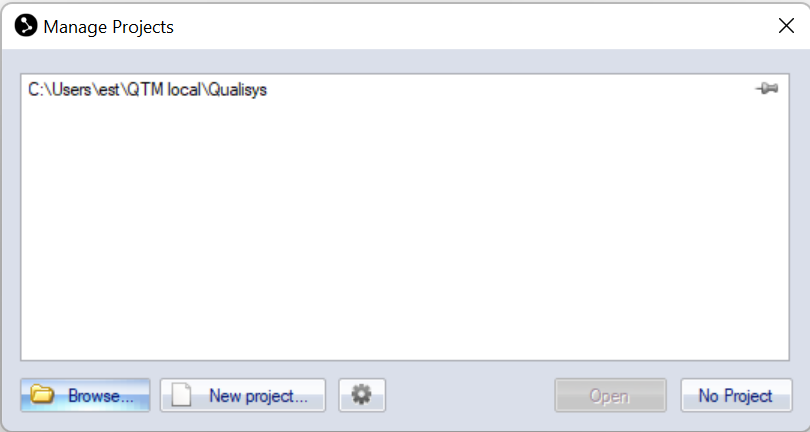
The list in the Manage projects dialog displays the 100 most recently used projects. Double-click on a project to open it. You can pin  projects so that they are always on the top of the list, you have to click Open for the pinning to change. The current project is shown at the top of the list, indicated with [Current project]. The current project is also displayed in the title bar of QTM and the Project options dialog.
The following options are available in the dialog:
-
Browse
Use this option to open a project that is not in the list above, e.g. one copied from another computer.
-
New project
Create a new project, see chapter Creating a new project.
-

Open settings for the startup of QTM, see chapter Startup.
-
Open
Open the project selected in the list above.