Qualisys Lab Designer
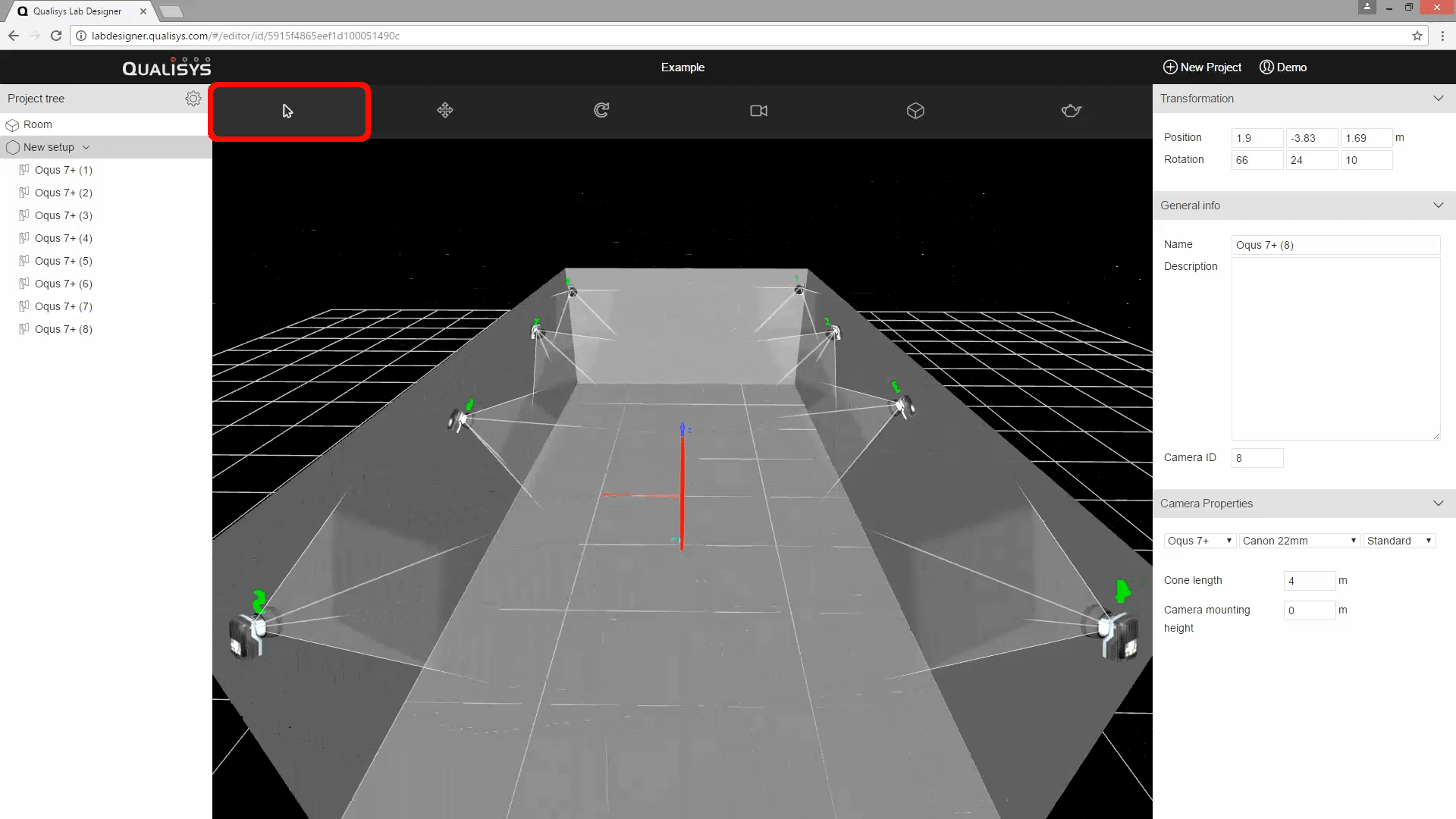
Whether or not your lab fits into one of the categories described in the last section, you may find it useful to visualize your volume and plan out your camera positions online using the Qualisys Lab Designer.
-
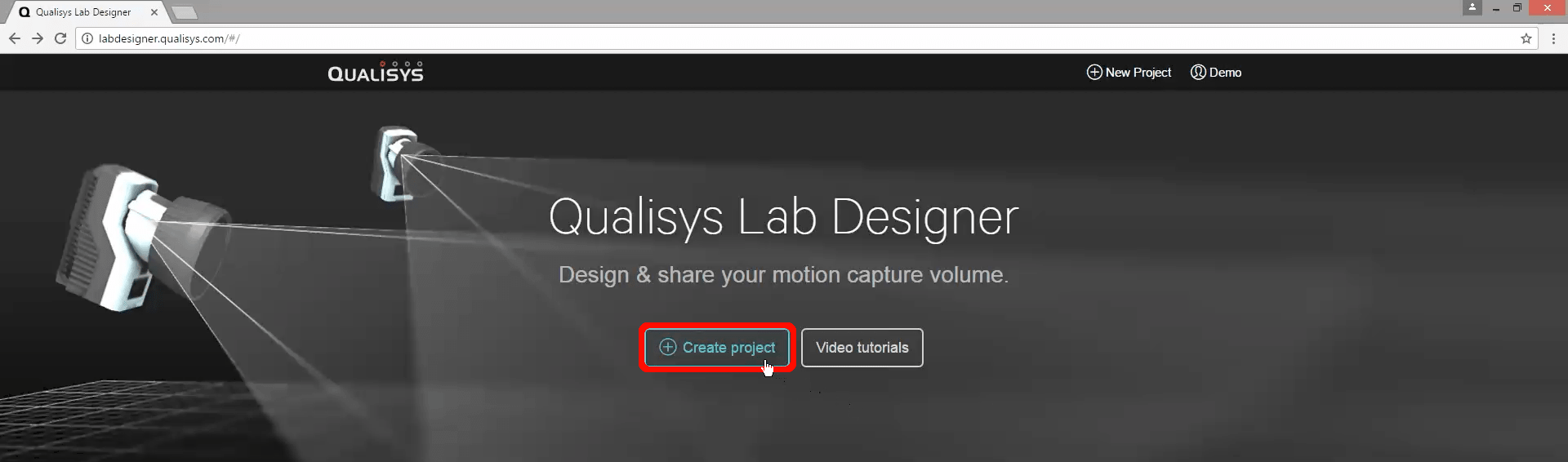
After logging in with your Qualisys account, click on “Create project.”
-
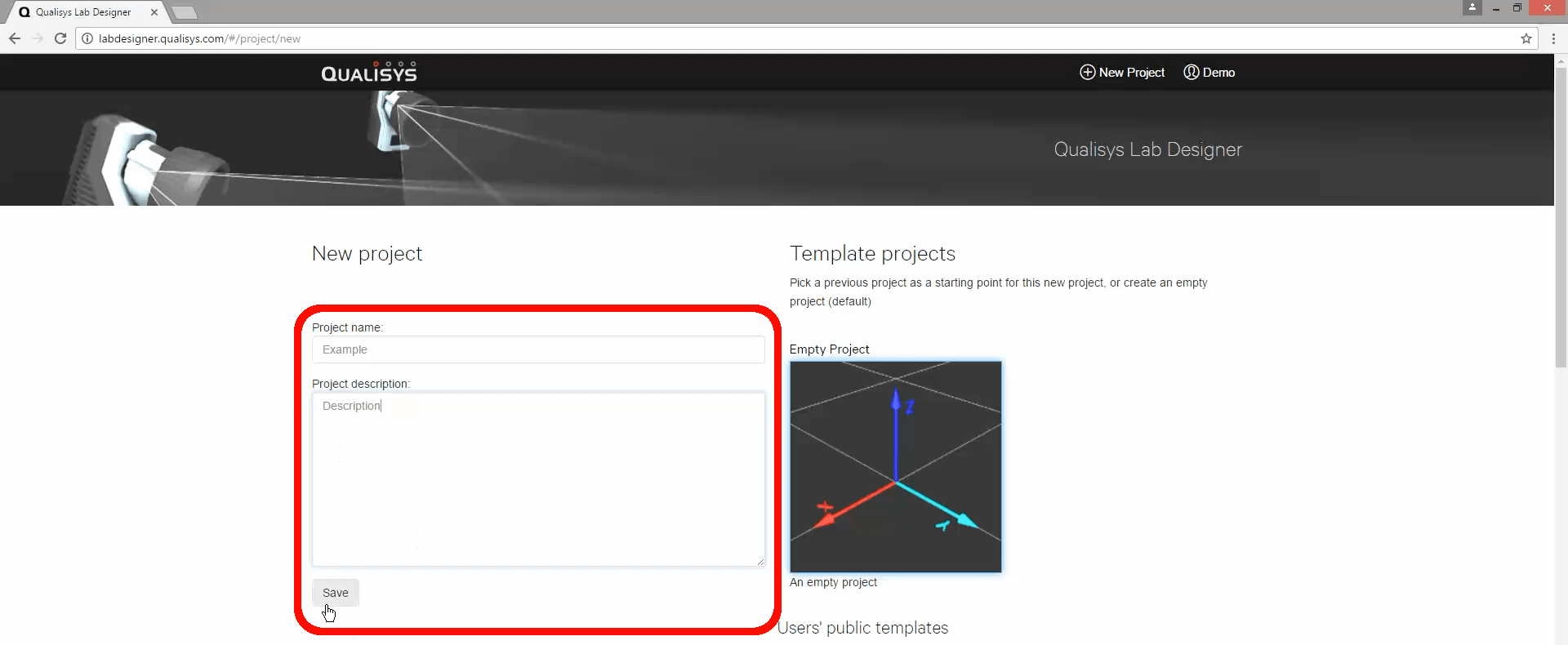
Give your project a name and description and click "Save."
-
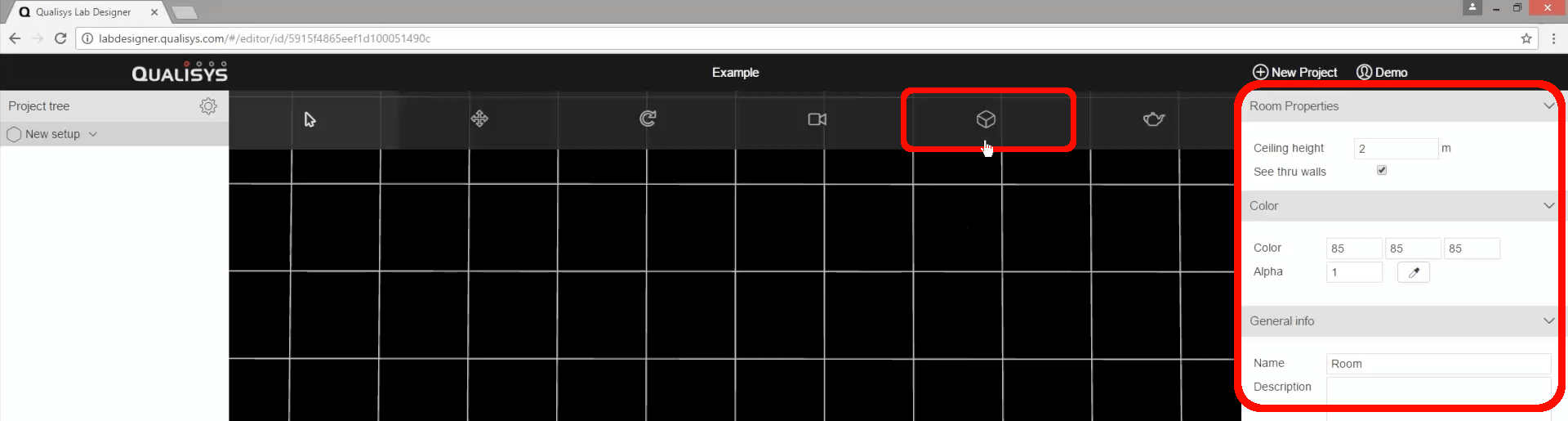
Click on the icon of a box (keyboard shortcut R) to use the Room Tool to set the corner points and input your lab’s dimensions.
-
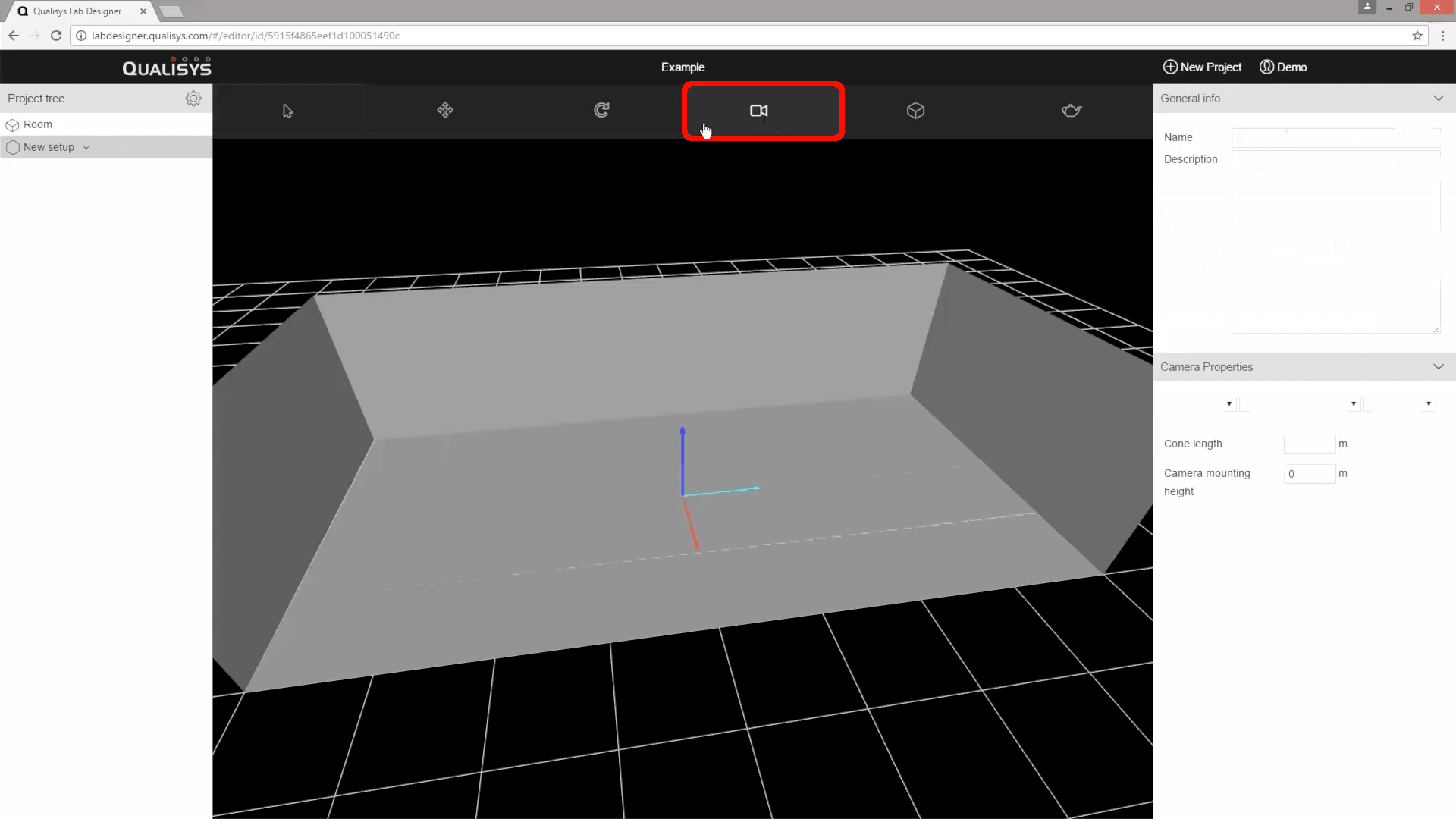
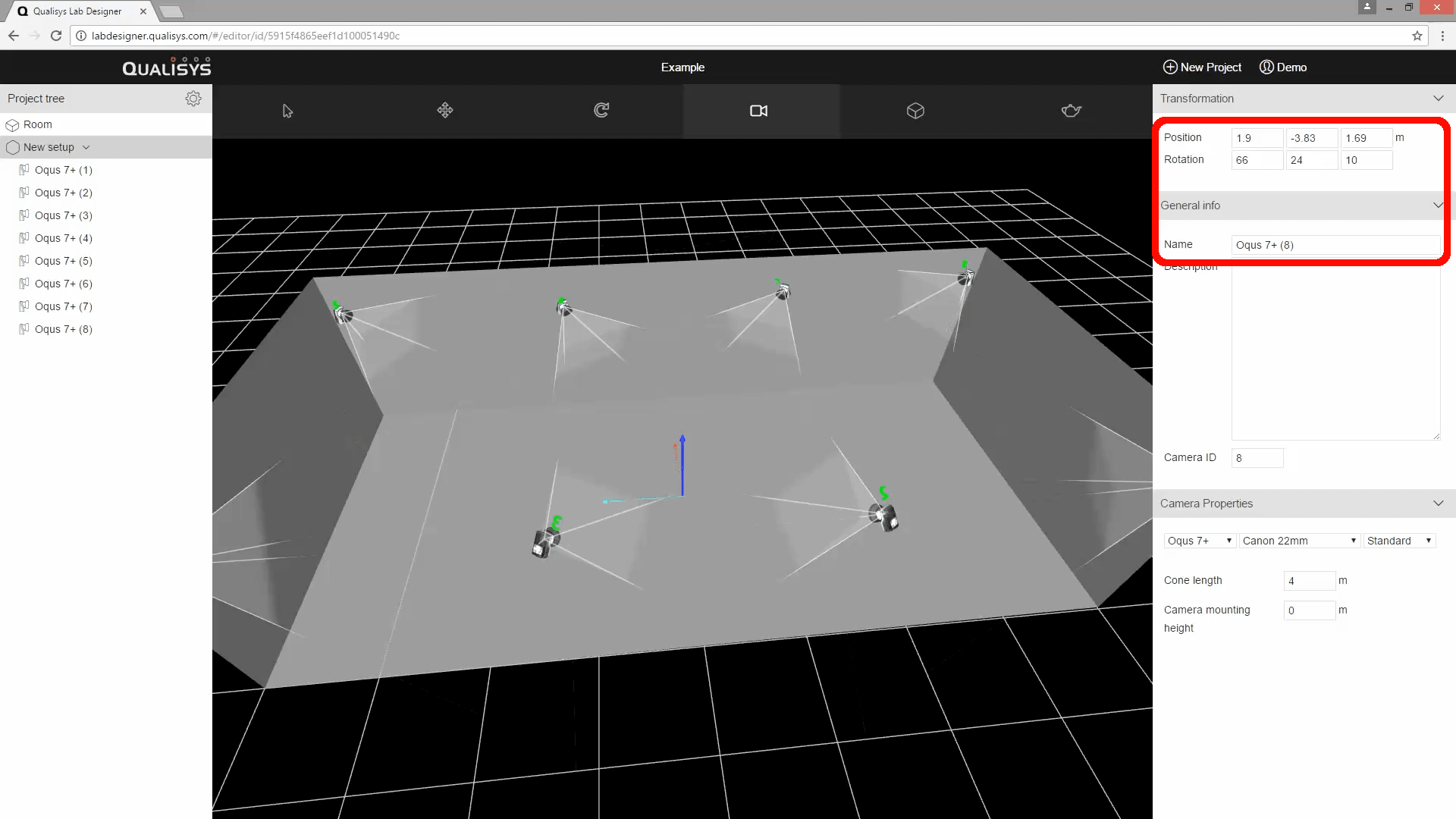
Click on the camera icon to place motion capture cameras on the walls around the room.
-
You can change the type of cameras and mounting heights in the Camera Properties section on the right.
-
Click on the mouse icon to be able to change the view as you check how much coverage your lab will have with your chosen camera setup.