SAL settings
In QTM, you can adjust the distances between a trajectory and a skeleton marker for them to be correlated.
-
Open Project Options by clicking the gear icon in the top toolbar or by typing the keyboard shortcut Ctrl+W.

-
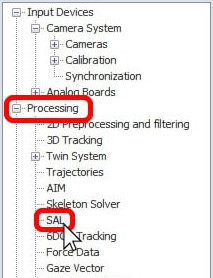
Navigate to “Processing” à “SAL.”
-
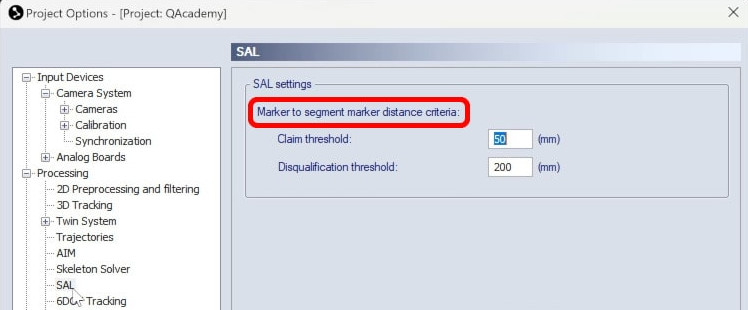
Below “Marker to segment marker distance criteria,” two parameters can be customized.
-
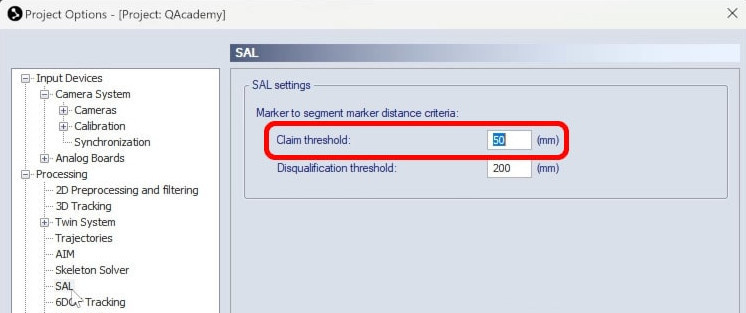
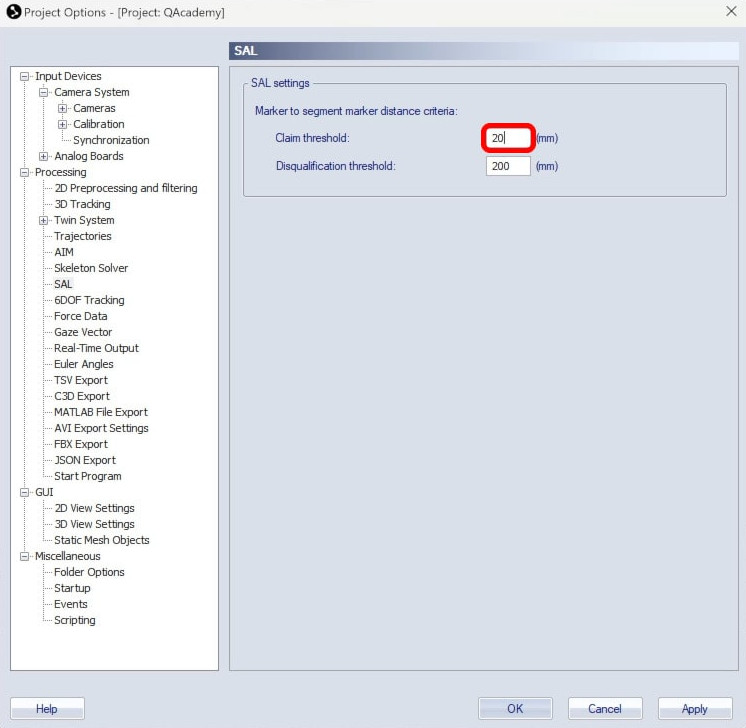
“Claim threshold” specifies how close a trajectory or trajectory part must get to a segment marker in order for them to be linked. If any frame of a trajectory gets within this range of a segment marker, it will be identified as that marker, unless disqualified.
-
“Disqualification threshold” is the maximum distance that any point of a trajectory can get from a segment marker before that trajectory is ruled out as a solution. If any frame of a trajectory is farther from a marker than this value, the trajectory will not be identified with that marker, even if other frames are within the claim threshold. This helps avoid trajectories being mistakenly identified with a segment marker if they get close to one another.
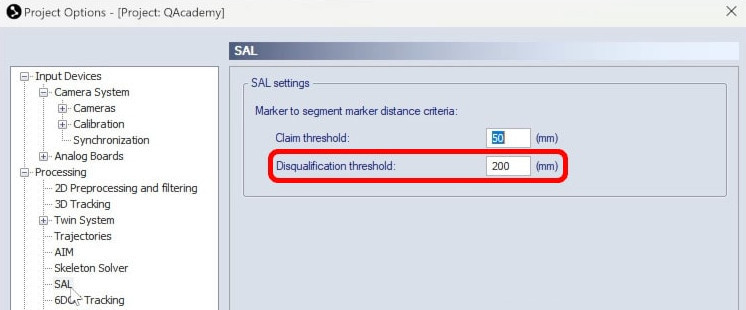
For instance, if an actor puts their hands on their head, the hand trajectories might be within the claim threshold for a head marker, but because the hands also end up farther from the head than the disqualification threshold, they will not be linked.
-
You can change the thresholds depending on your application. For example, shorter distances would be better when tracking fingers.
-
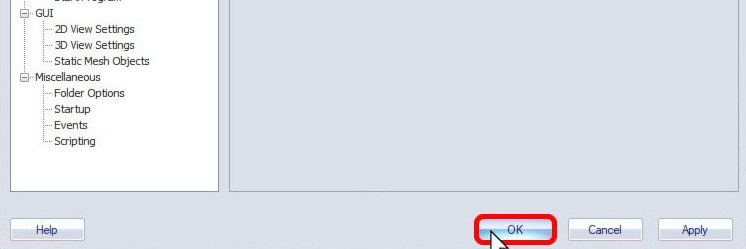
Click “OK” to save your settings.
Note that to use updated thresholds in a previously recorded file, you will need to reprocess the file, applying the new SAL settings:
-
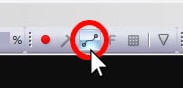
Click the Reprocessing icon in the top toolbar or type keyboard shortcut Ctrl+Shift+R.
-
Make sure that only “Apply SAL” is enabled and that it is using the SAL settings from your project.
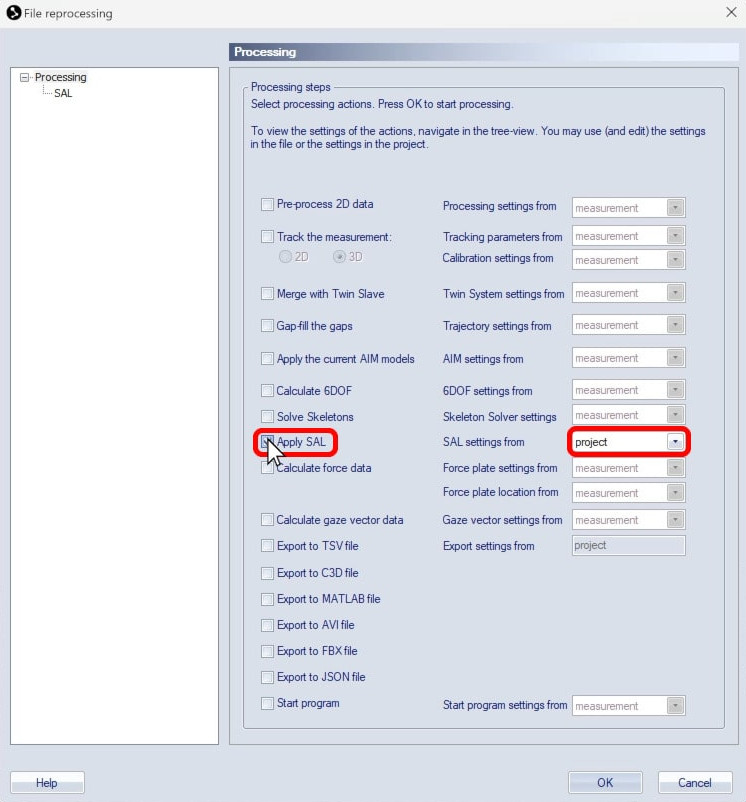
-
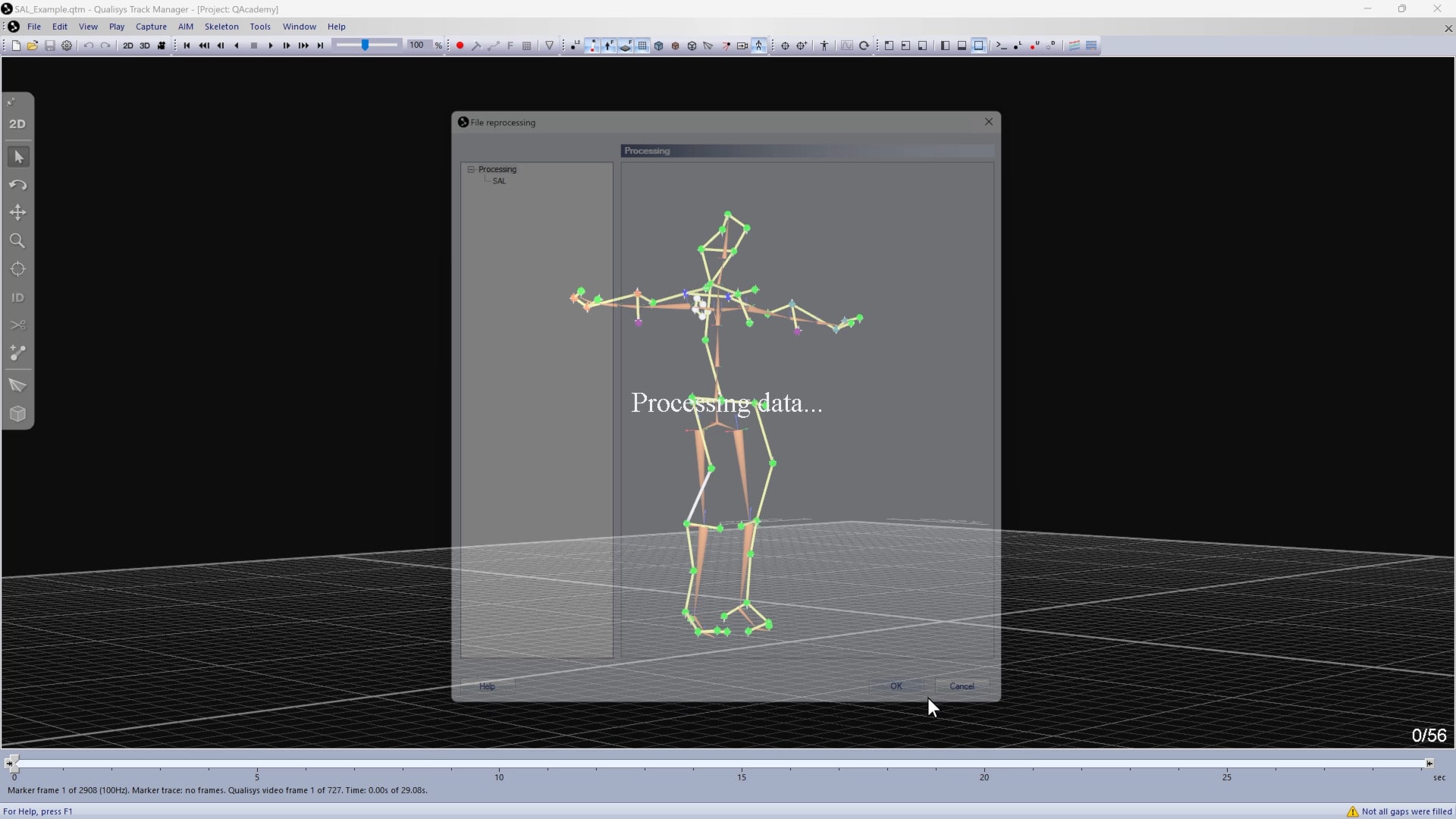
Click “OK” to reprocess the file with the new settings.