How to automate SAL
SAL can be set up as an automatic processing step for both real-time and captured data. Keep in mind that in order to use skeleton-assisted labeling, you must already have a solved skeleton.
To automatically apply SAL as a processing action:
-
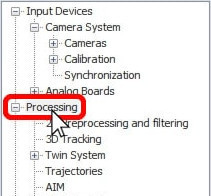
Open Project Options (Ctrl+W), and navigate to “Processing.”
-
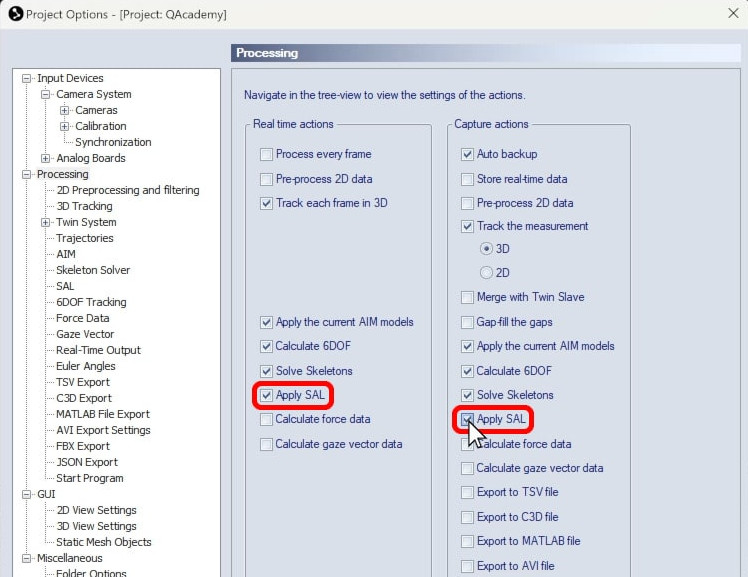
Select the checkbox for “Apply SAL” under “Real time actions,” “Capture actions,” or both.
-
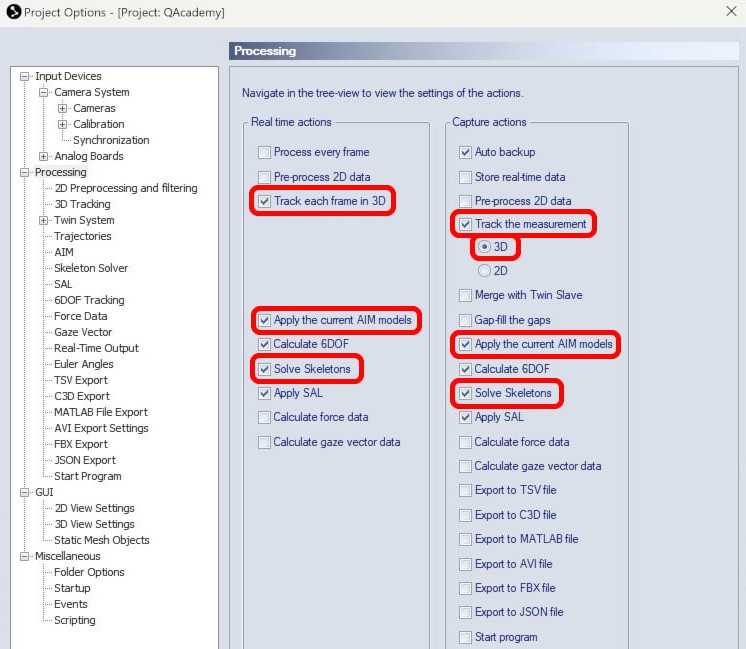
Note that 3D tracking, “Apply the current AIM models,” and “Solve Skeletons” must also be enabled.
-
Click “OK” to save your settings.
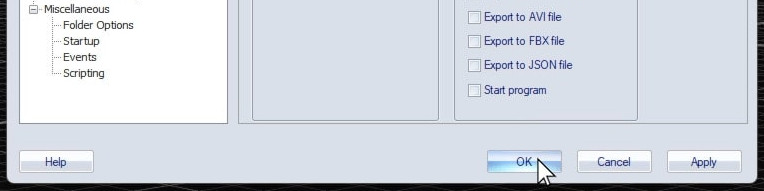
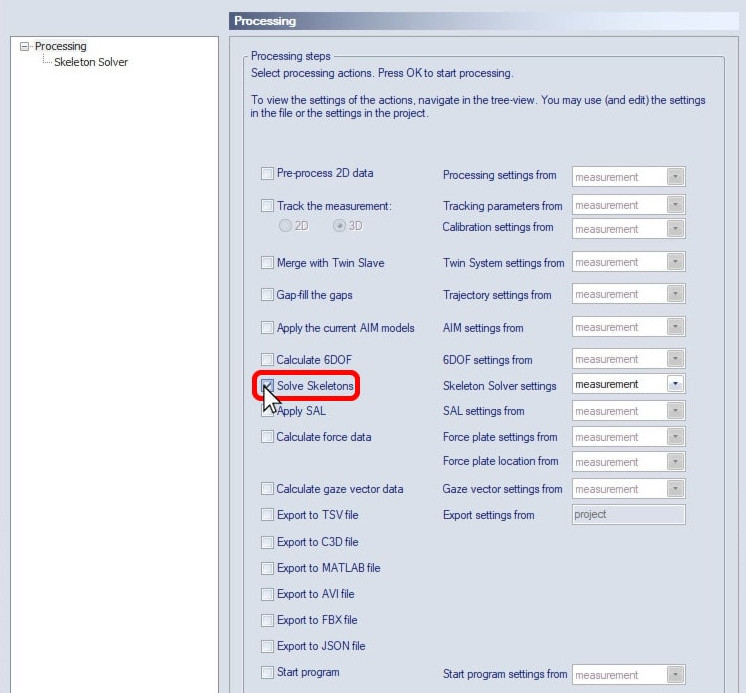
If you enabled skeleton-assisted labeling as a real-time action, it will apply when the cameras are in live preview mode and during capture. If it was enabled as a capture action, it will be applied to newly recorded data. The AIM (Automatic Identification of Markers) algorithm has priority over the SAL algorithm, so skeleton-assisted labeling will only be used to label trajectories that AIM could not identify.
Because SAL identifies missing segment markers, skeletons should be re-solved after the data is processed with SAL. To recalculate the skeleton data, confirm that all of the trajectories have been labeled correctly, then click on “Skeleton” in the top menu bar and select “Solve Skeletons.”
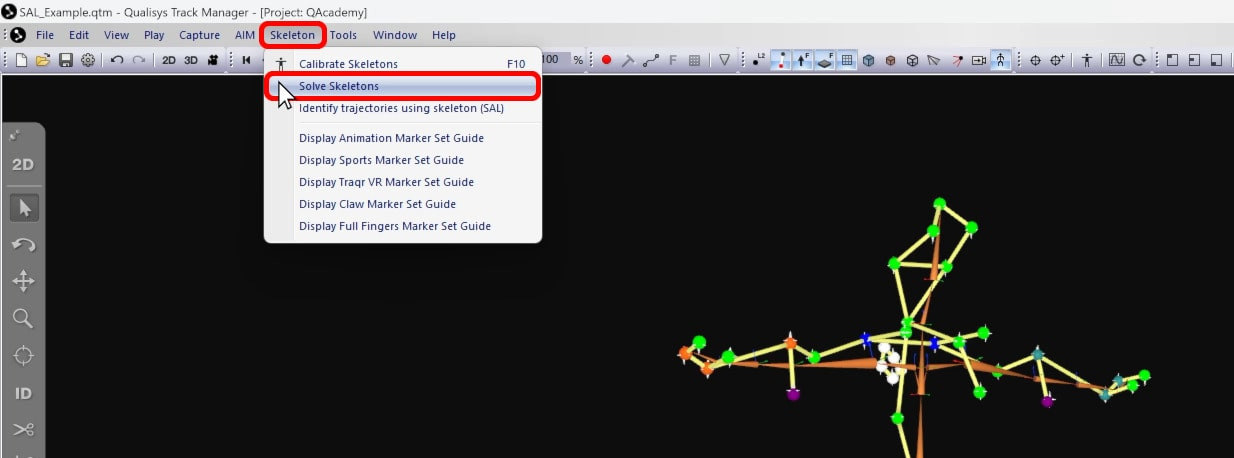
You can also re-solve skeletons by reprocessing the file (Ctrl+Shift+R) or batch processing a selection of files with only “Solve Skeletons” enabled.