Skeleton data in QTM
Once an actor’s skeleton and AIM model have been defined, QTM is ready to capture, stream, and export their skeleton data.
When capturing a measurement, it’s a good practice to begin and end the recording with the actor in the T-pose so that you can recalibrate the skeleton if needed.
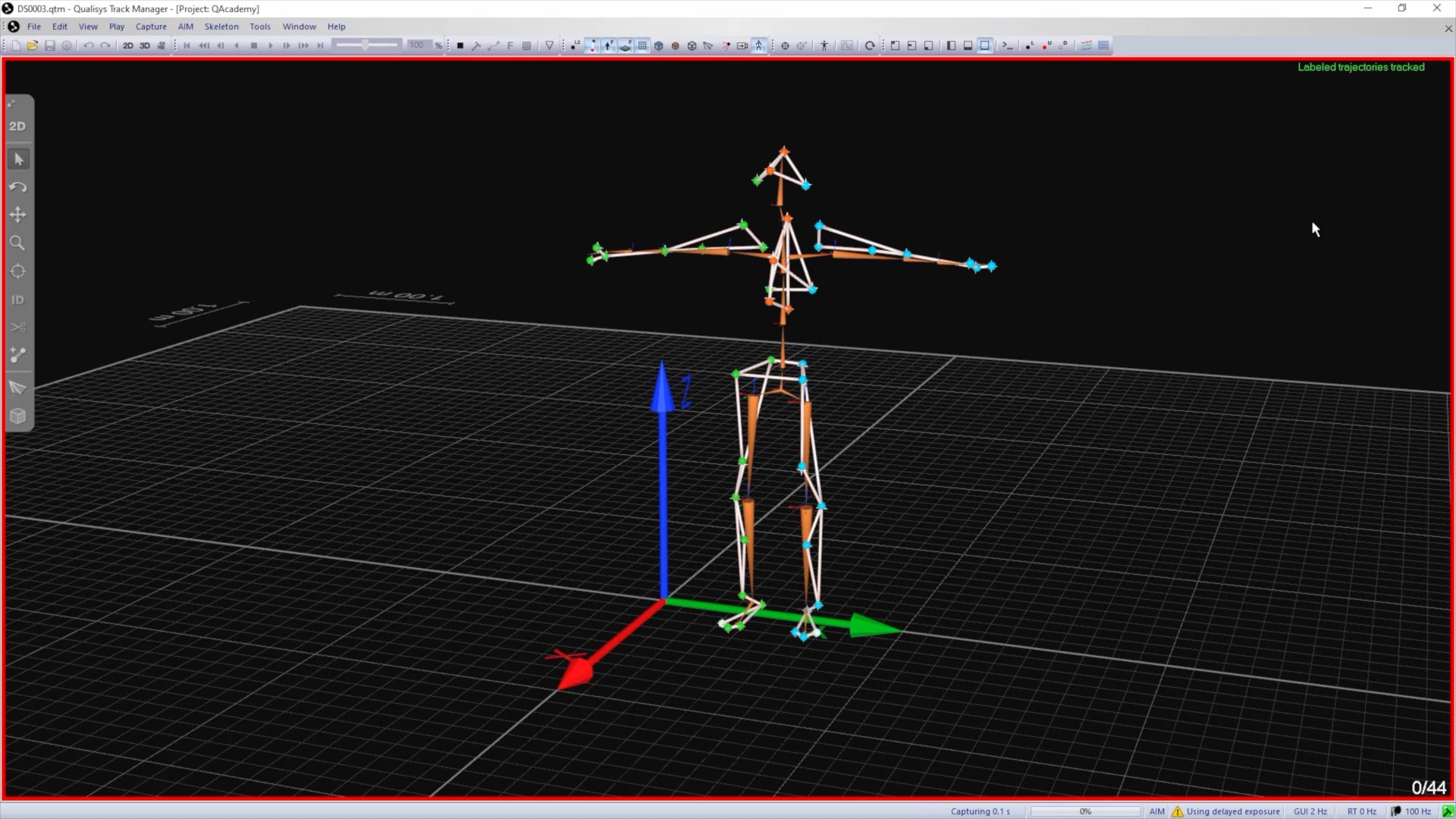
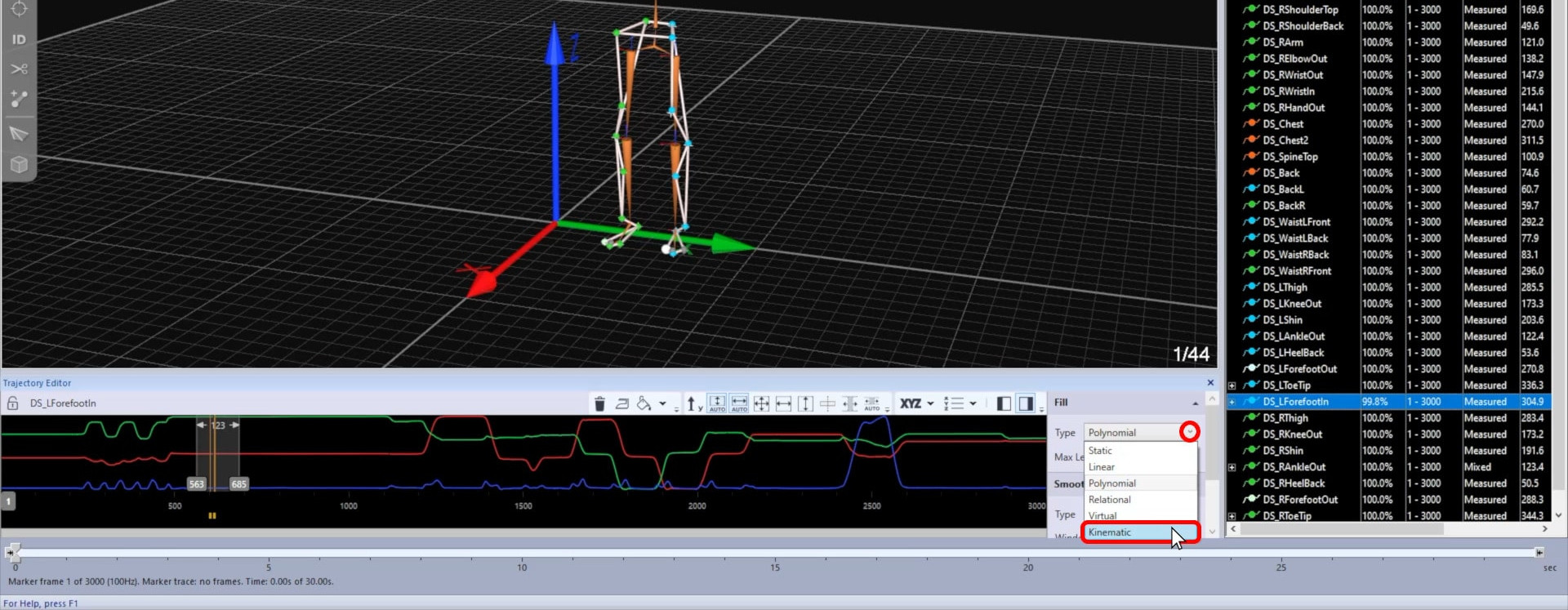
When processing a skeleton file, you can edit the trajectories as with any other marker data. Note that in addition to the standard gap-filling methods, kinematic gap-filling is available for the markers included in the skeleton definition. More information on kinematic gap-filling can be found in the trajectory editor series on QAcademy.
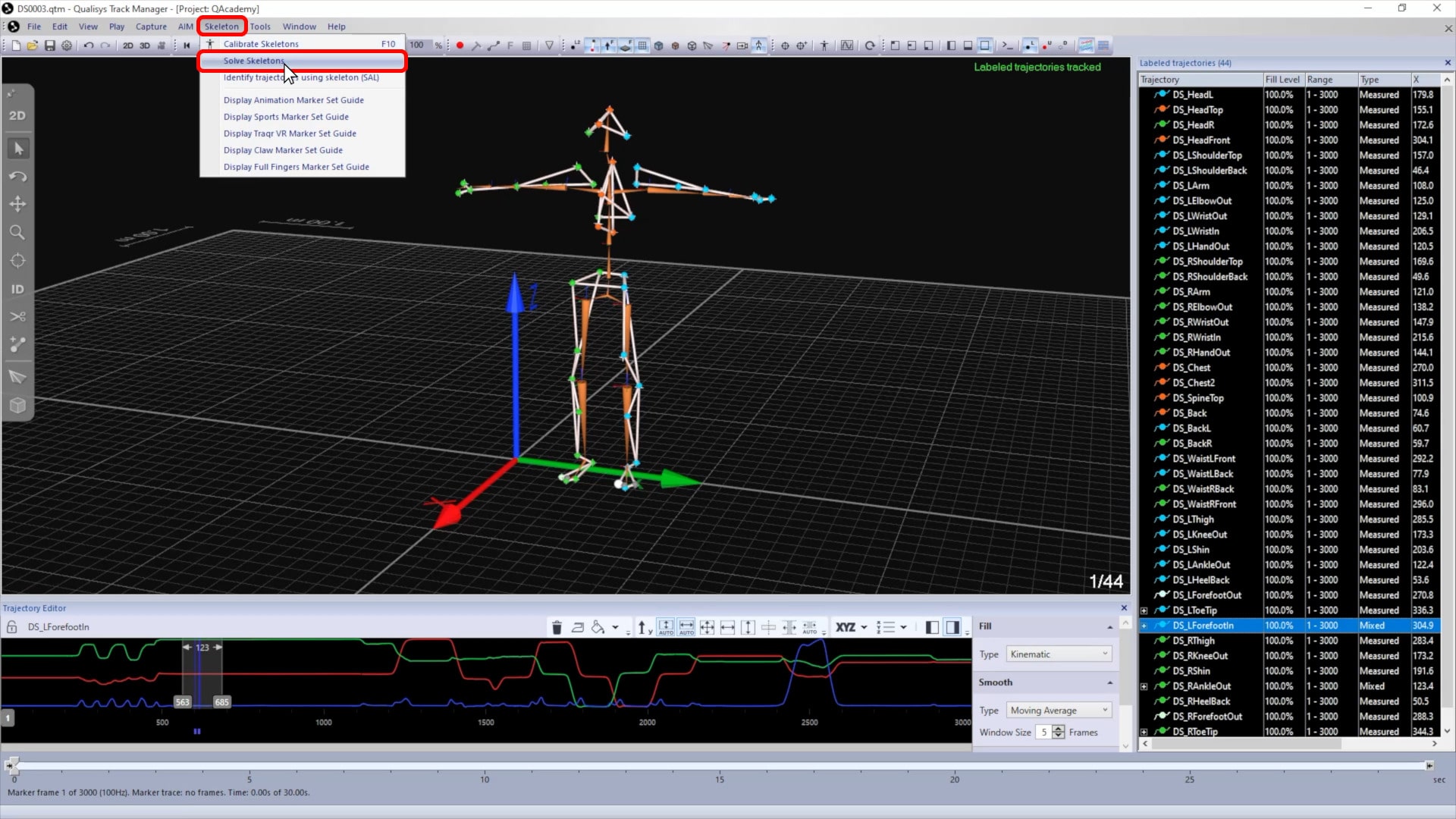
After any changes have been made to the trajectories, click on “Skeleton” in the top menu bar and select “Solve Skeletons” to recalculate the skeleton data.
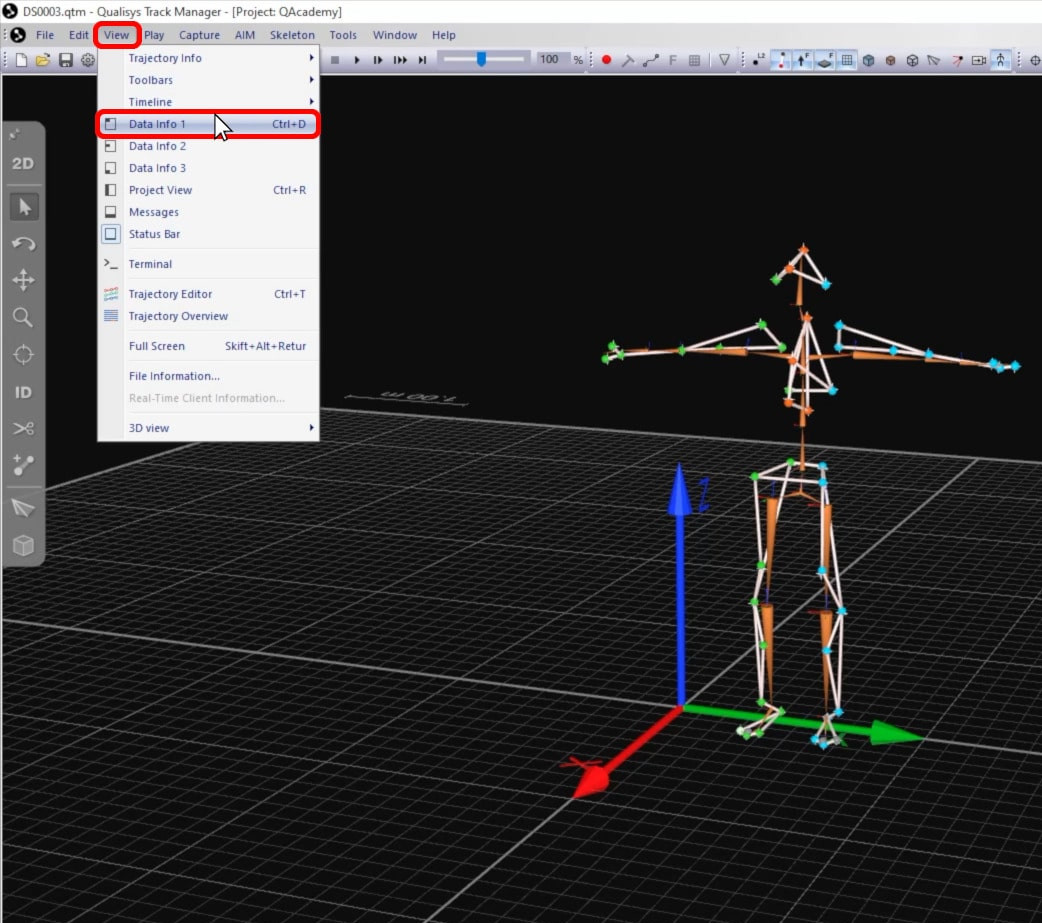
The data info pane allows you to view information on the skeleton segments:
-
Click “View” in the top menu bar, and select a data info pane, or type keyboard shortcut Ctrl+D.
-
Right-click on a blank area of the info pane, and select “Display Skeleton data.”
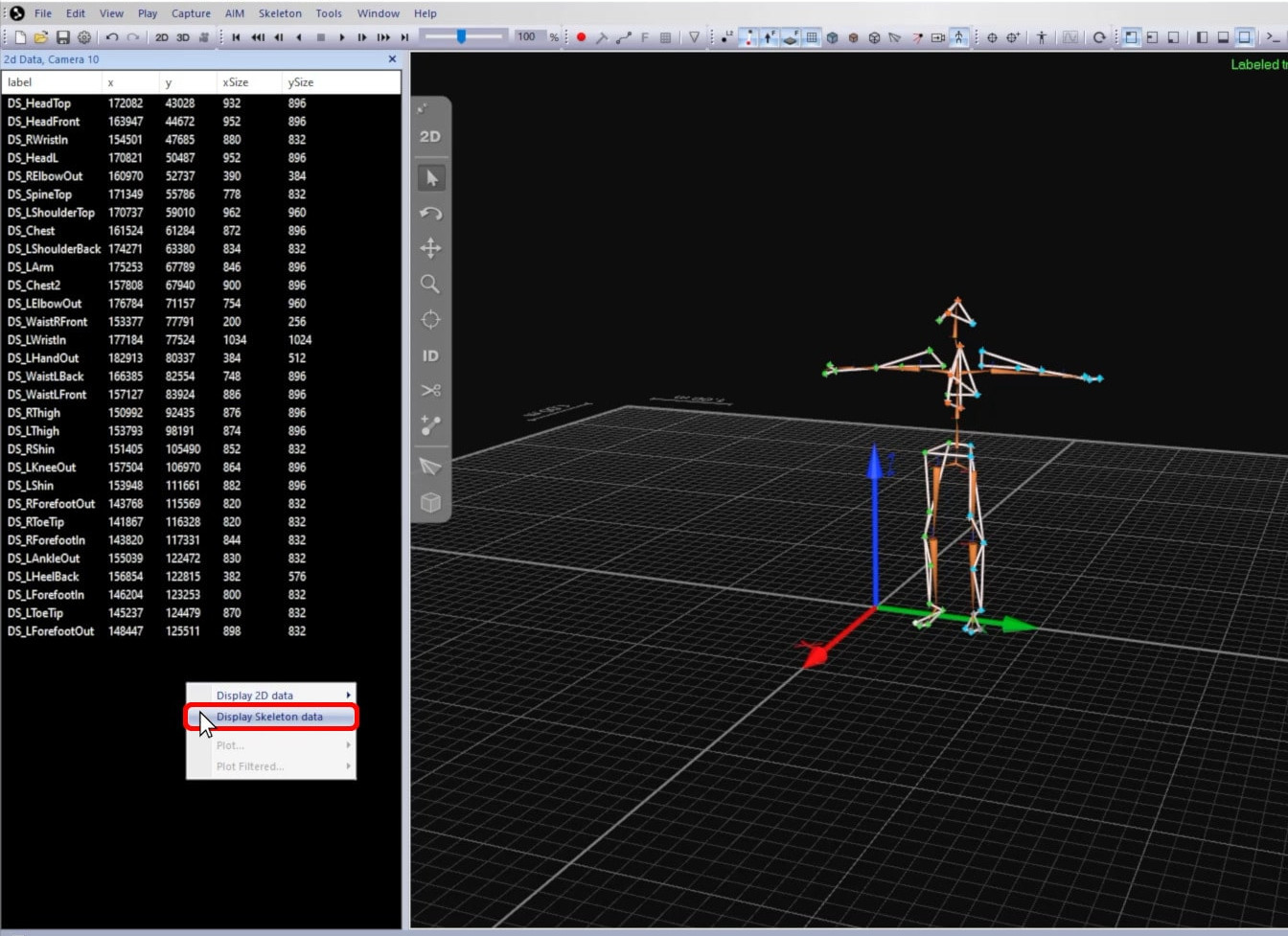
-
The names, positions, and rotations of the skeleton segments will be shown.
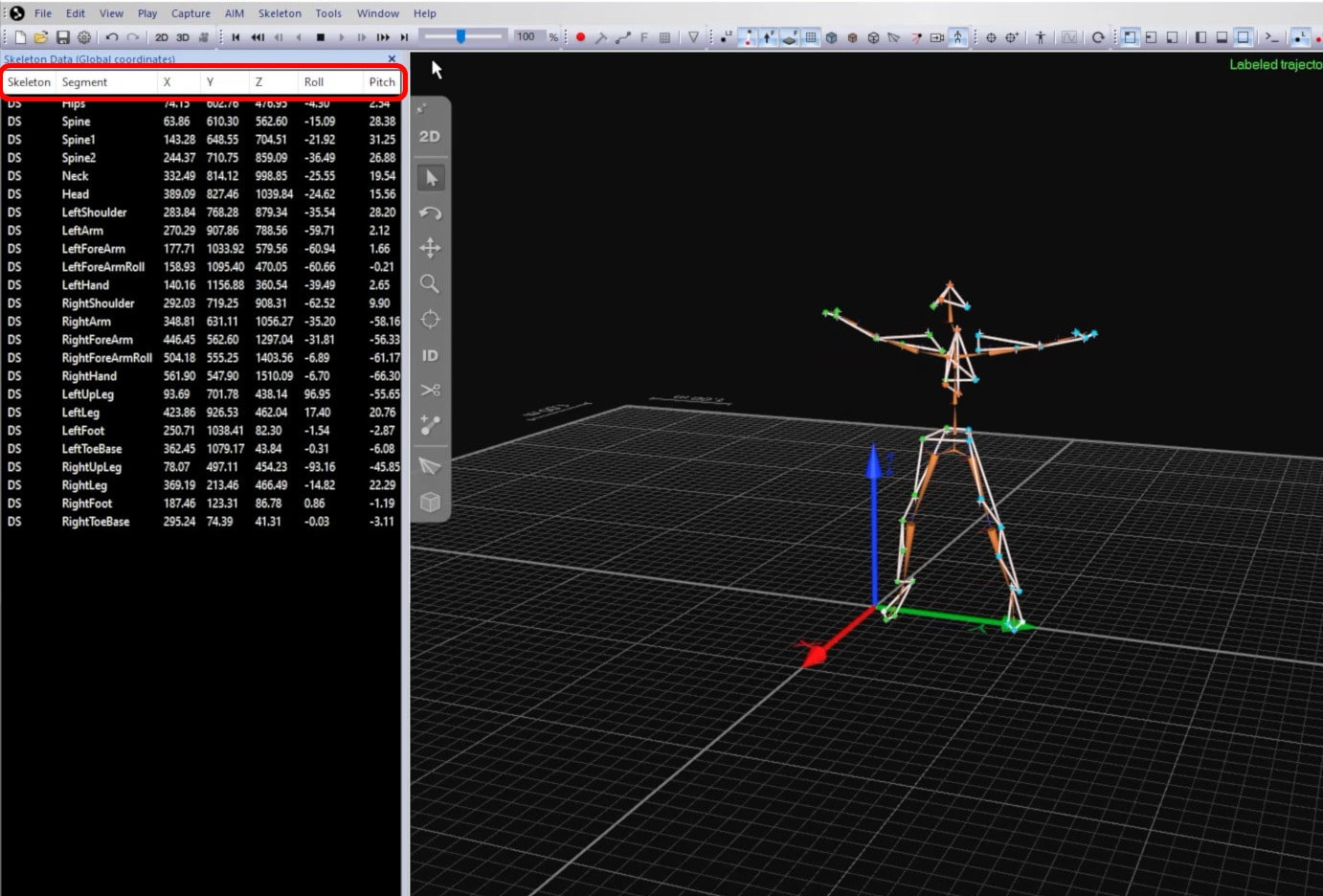
Real-time streaming of skeleton data is supported by the QTM real-time protocol, with full-featured plugins available for a range of animation software. You can refer to our tutorial library on QAcademy and to the Qualisys Github page for more information.
Skeleton data can also be exported to TSV, FBX, MAT, and JSON formats:
-
Click “File” in the top menu bar, select “Export,” and choose a format.
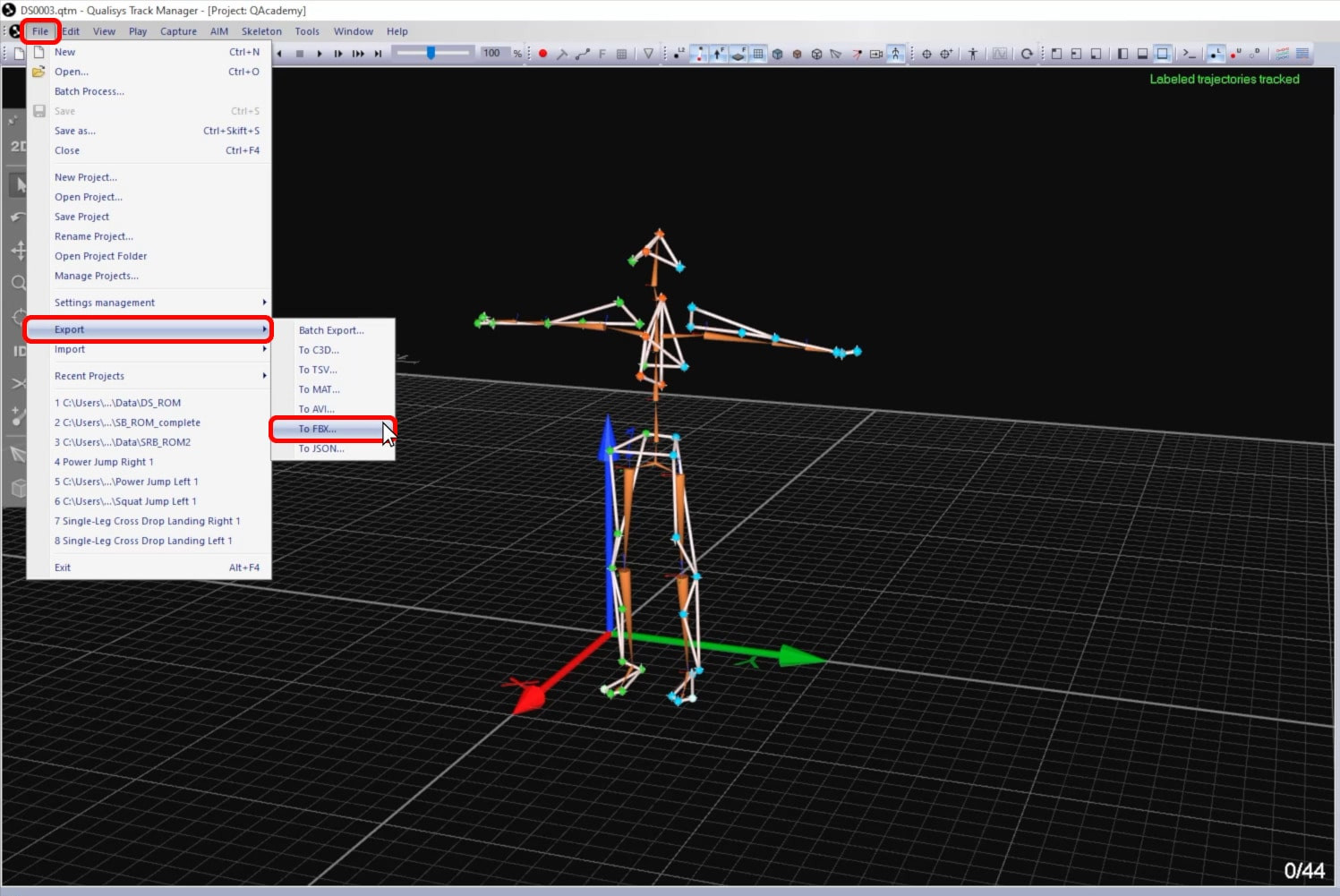
-
Make sure that skeletons are selected among the exported data types, and click “OK.”
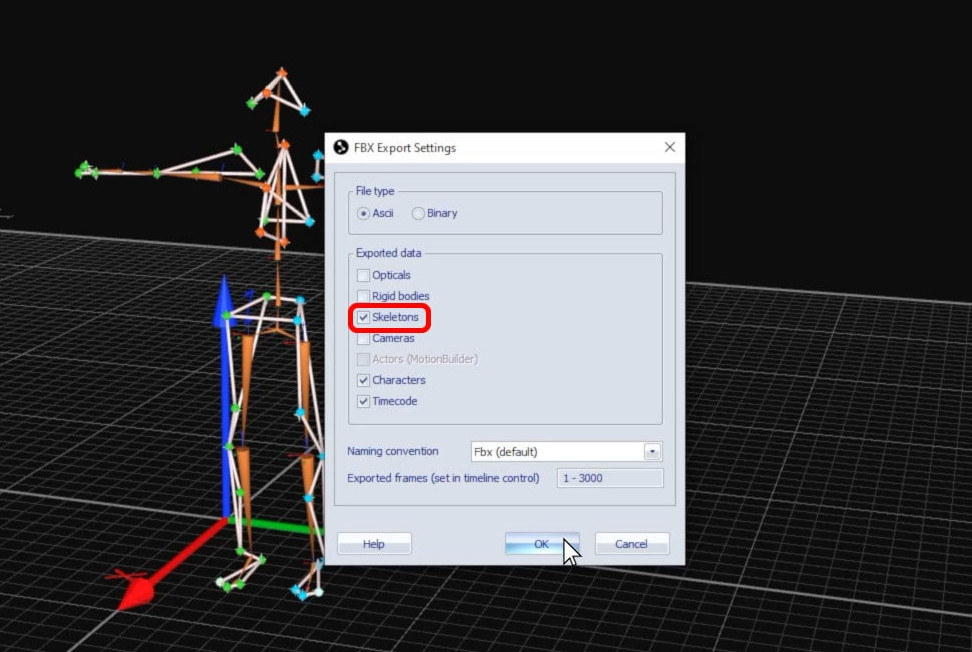
-
The exported file will include the skeleton data, which can be imported and used in external programs.