Settings in QTM
A few settings in QTM should be checked before using the skeleton solver.
-
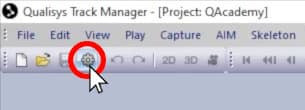
With your animation project open, click on the gear icon or type keyboard shortcut Ctrl+W to access Project Options.
-
Navigate to “Processing.”

-
Make sure that “Apply the current AIM models,” “Solve Skeletons,” and “Apply SAL” are enabled under both columns.

-
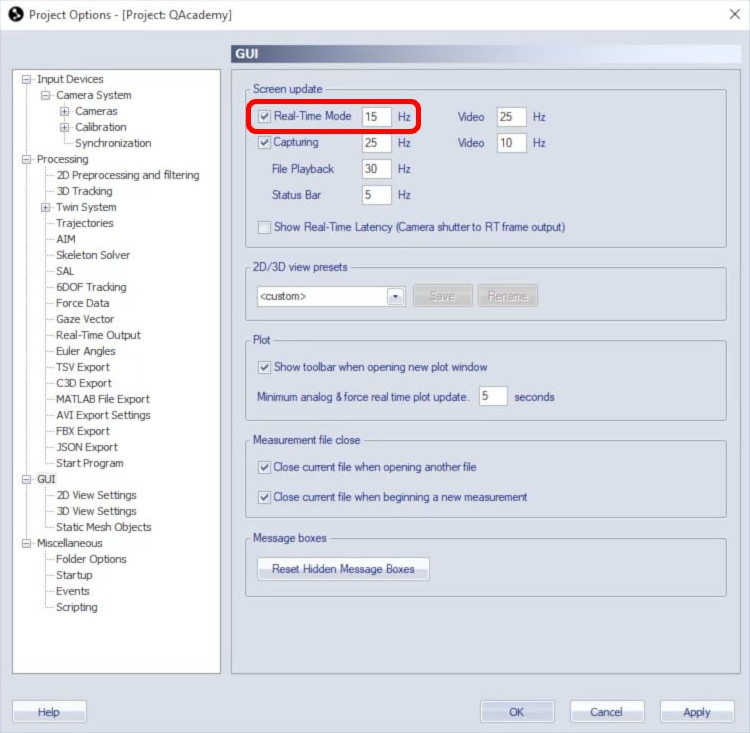
Next, navigate to “GUI.”

-
Under “Screen update,” it is recommended to set the real-time mode to 15 Hz so that the display in QTM will not take too much of its processing power.
-
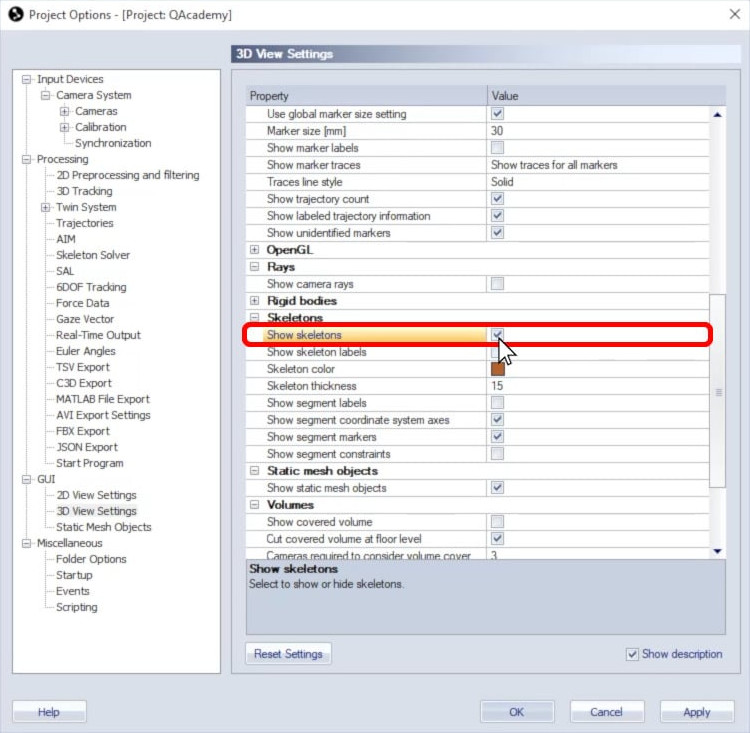
Finally, navigate to “GUI” à “3D View Settings.”

-
Confirm that “Show skeletons” is enabled. You can also adjust your skeleton display settings if desired.
-
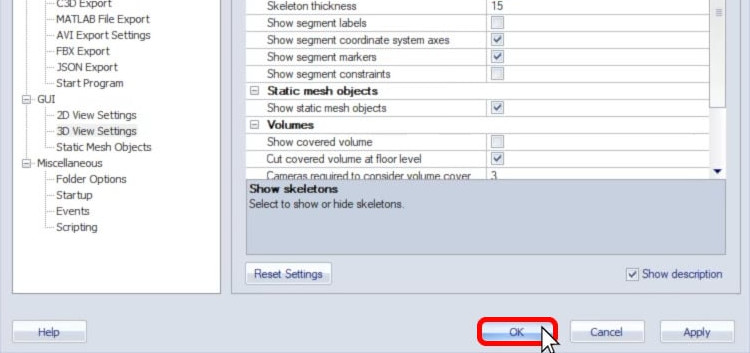
Click “OK” to save your settings.
If you need to set up client control or change other settings relevant to real-time streaming, please refer to other tutorials on QAcademy or to the QTM user manual.