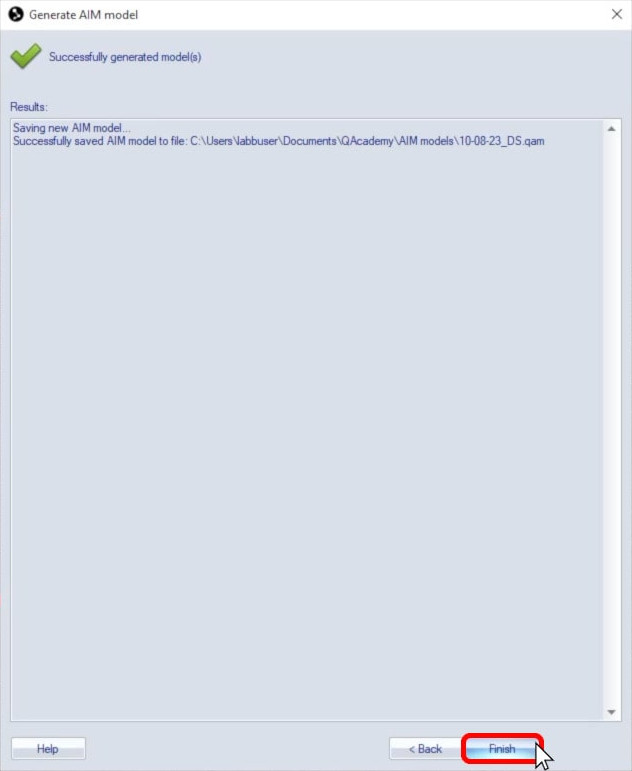
Creating the actor’s AIM model
Creating a unique AIM model for each actor before each recording session is recommended for animation, even if AIM models already exist for this marker set or actor.
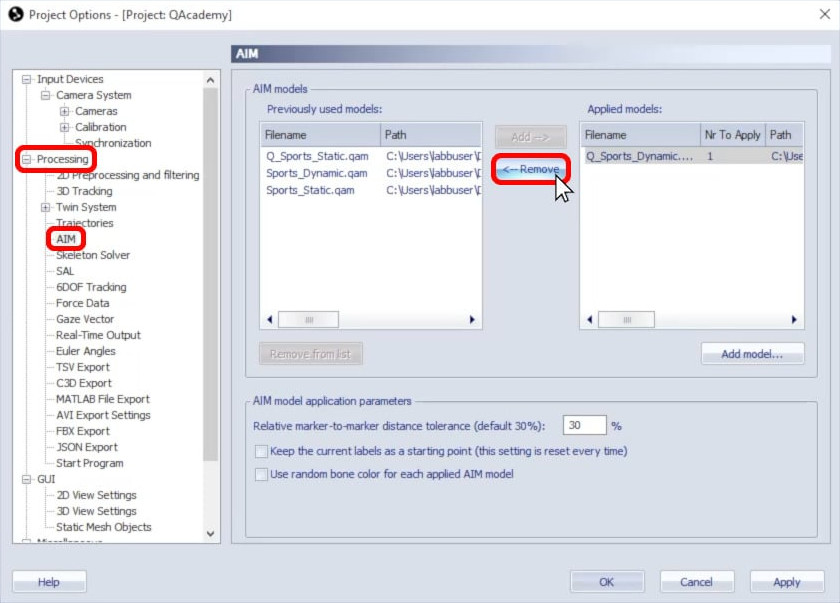
If any previous AIM models are applied to your project, open Project Options, and navigate to “Processing” à “AIM” to remove them from the list.
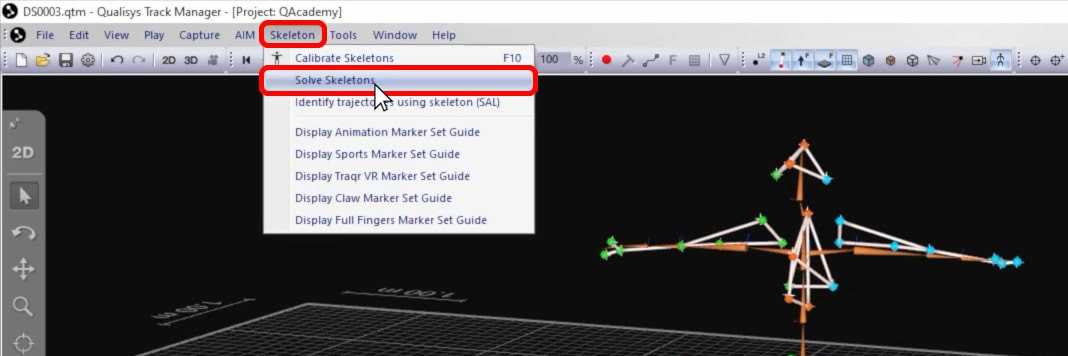
Before creating the new AIM model, check through the range-of-motion file you just recorded to make sure that the trajectories are labeled correctly throughout it and that there are no significant gaps in the data. Edit the trajectories or trim the measurement if needed. After making any changes, save the file (Ctrl+S), and then re-solve the skeleton by clicking “Skeleton” in the top menu bar and selecting “Solve Skeletons.”
Once you’ve confirmed that the file is labeled correctly, you can create the new AIM model from it:
-
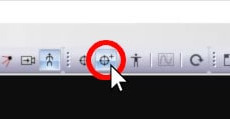
Click the Generate AIM Model icon.
-
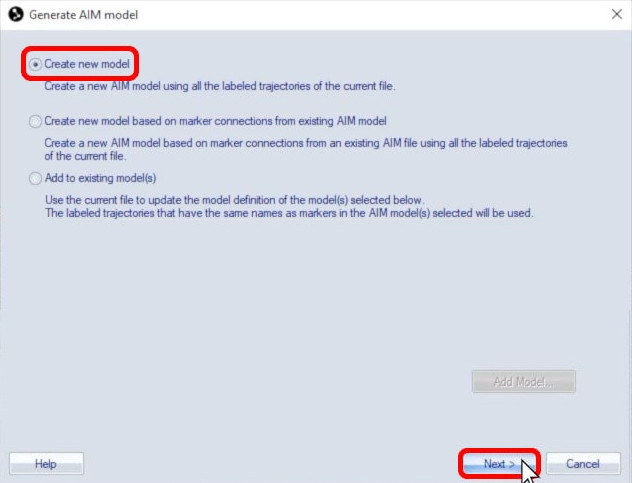
Select “Create new model,” and click “Next.”
-
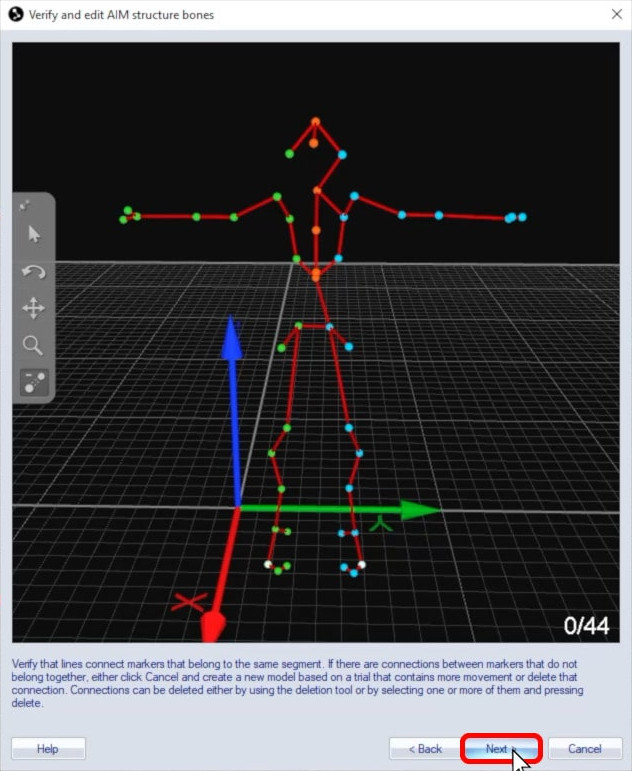
Confirm that the preview looks correct, and click “Next.”
-
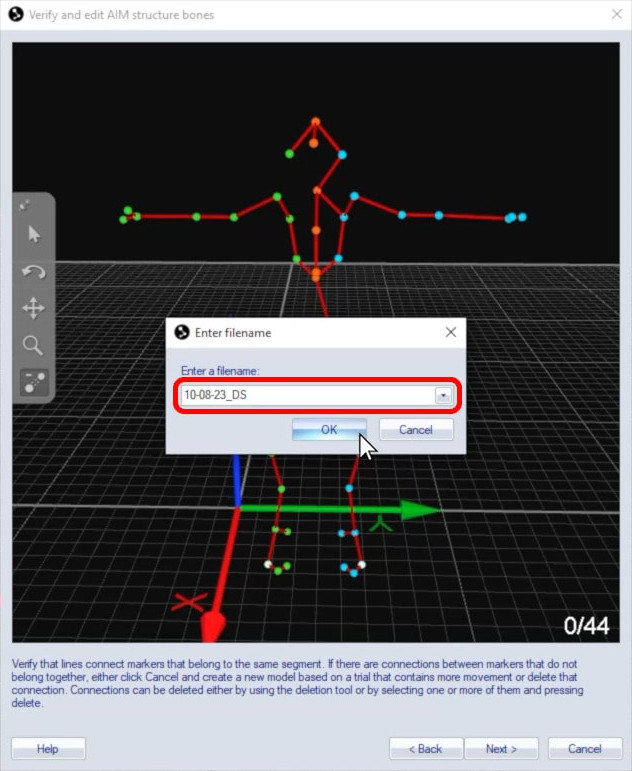
Give the AIM file a name specific to the date and actor.
-
Once you click “Finish,” the new AIM model will automatically apply to your project and identify the markers on the actor.