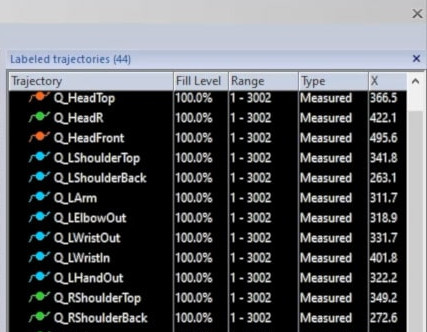
Creating a label list
The process of labeling markers in QTM is streamlined by loading a list that contains all of the labels from the marker set in use. Your QTM folder already includes label lists ready to use with the Qualisys marker sets, but you can create your own label list—for example, if you have added extra markers to your setup.
The first step is to record a measurement of an actor set up with your custom marker configuration.
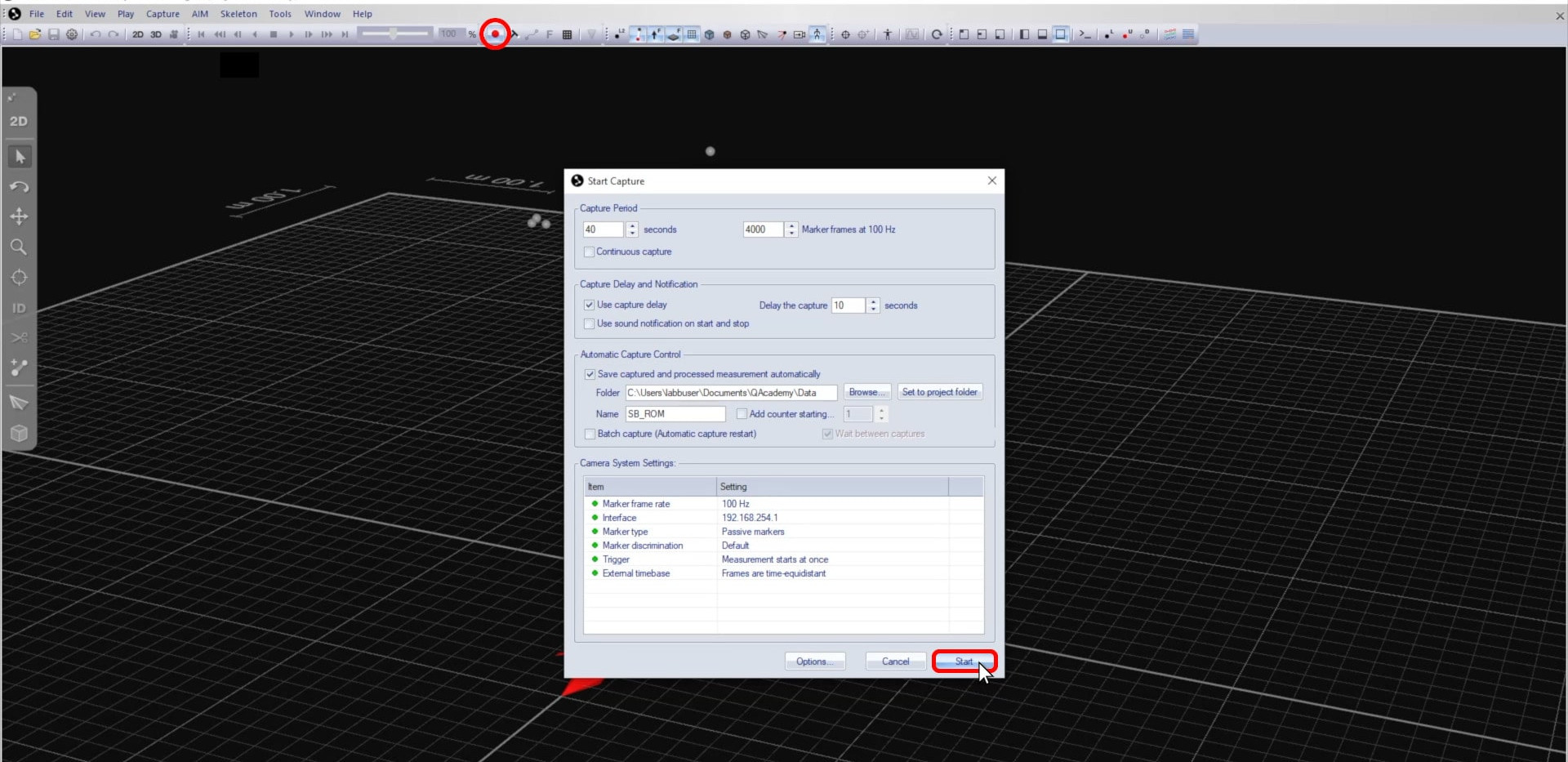
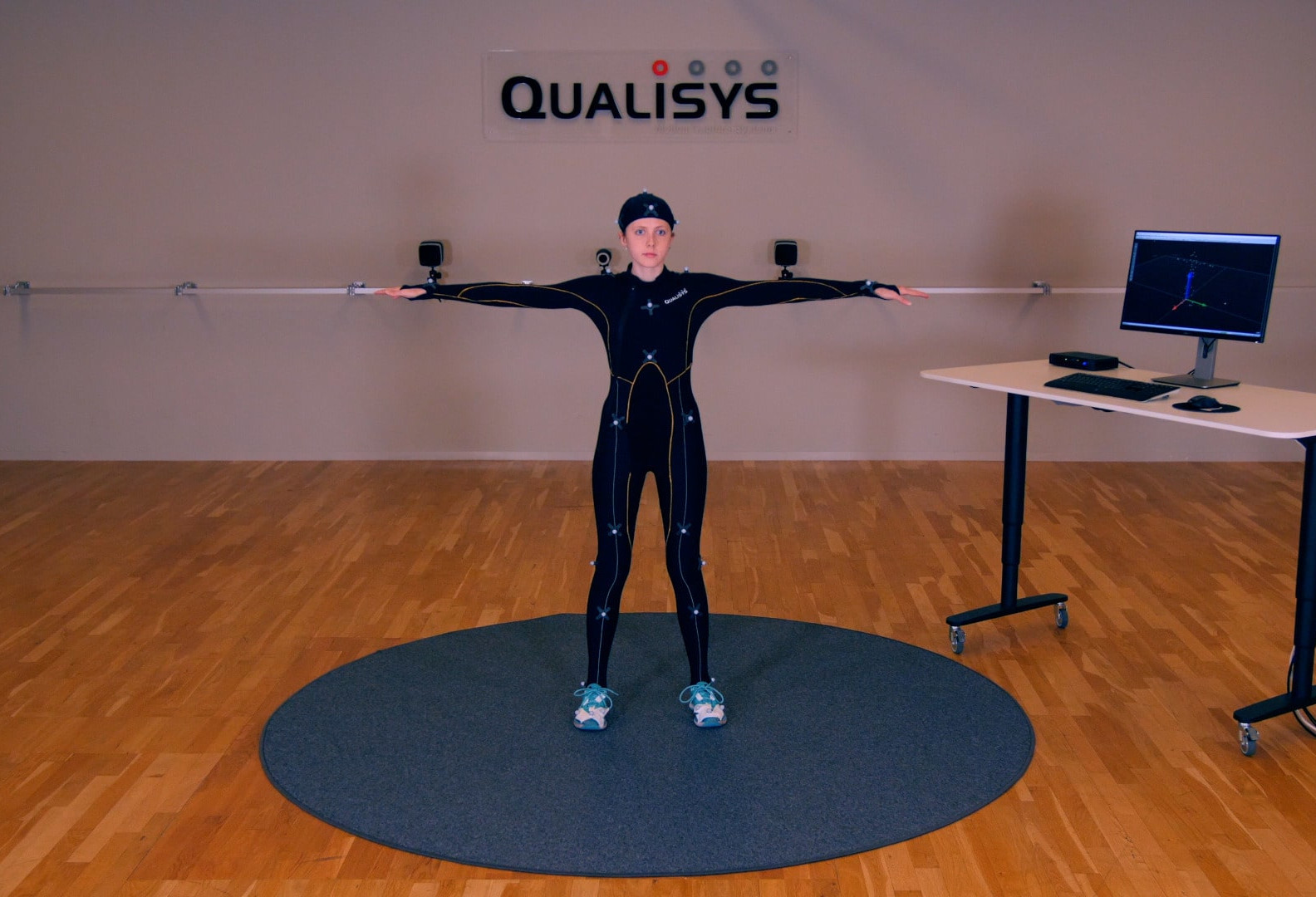
The actor should begin the capture by standing in the T-pose, which will make it easy to identify the markers in QTM.
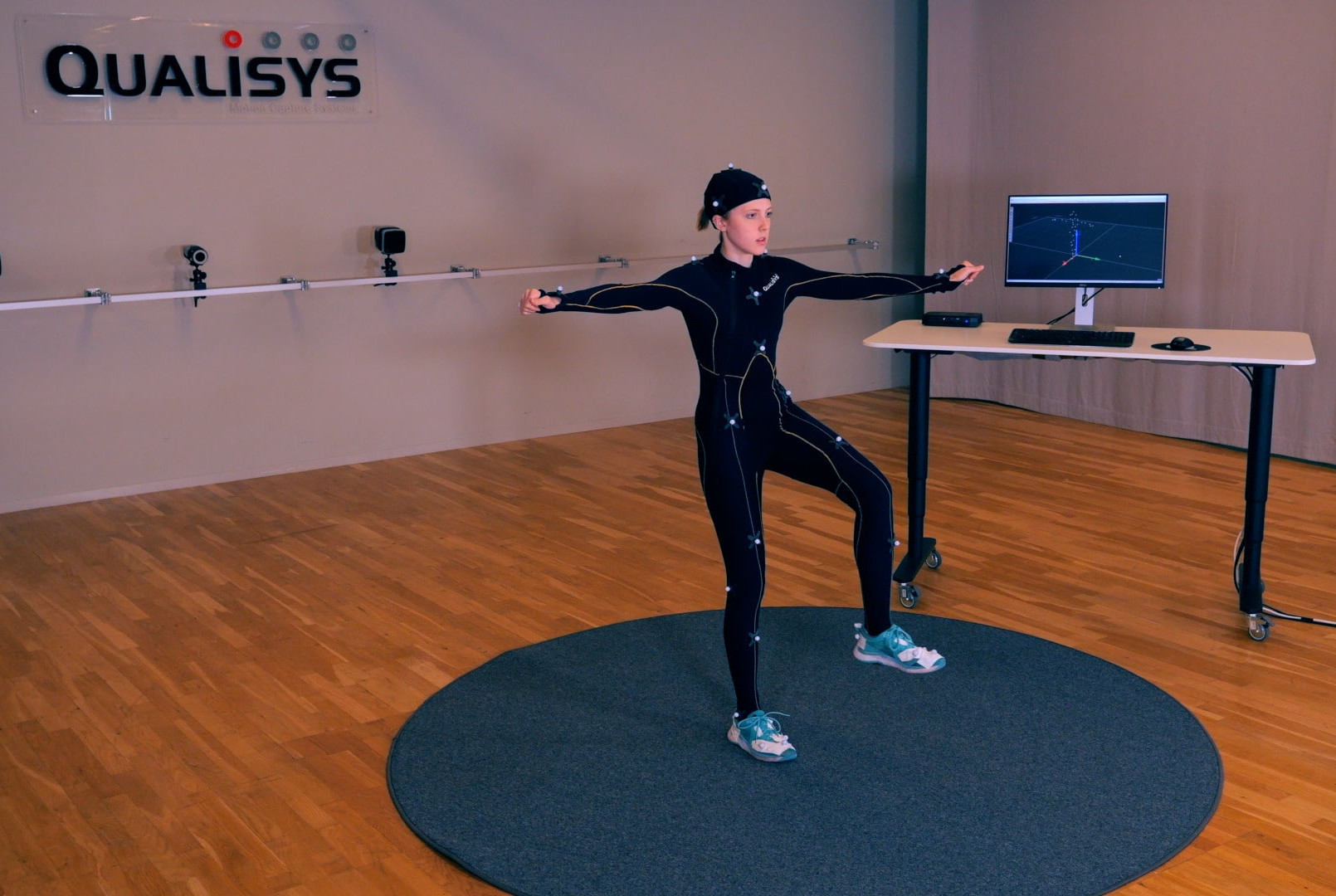
As the recording continues, they should move all of their body segments, performing a full range of motions.
Once the recording ends, load the label list you are using as a base:
-
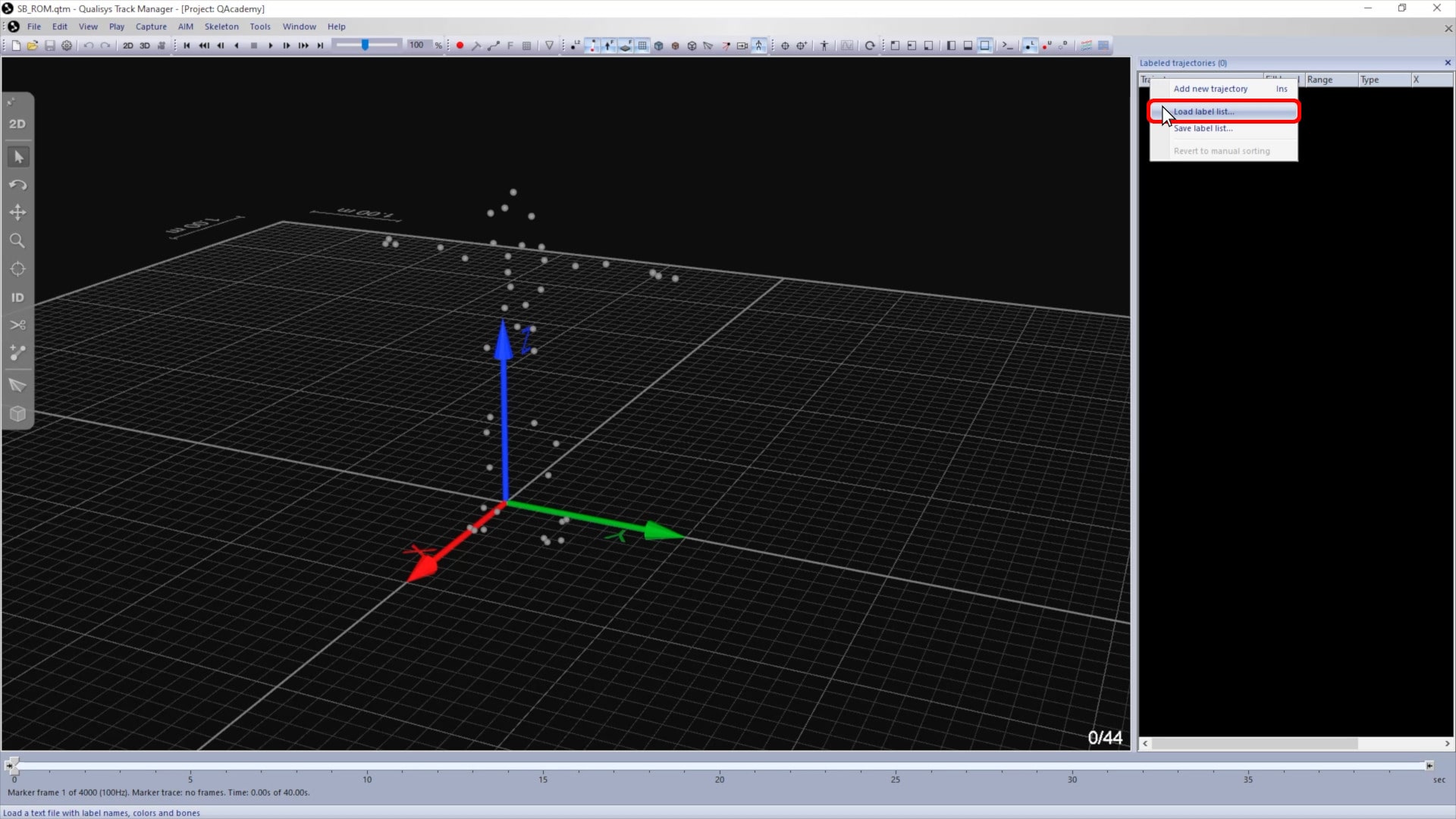
Right-click on “Trajectory” in the “Labeled trajectories” pane, and select “Load label list.”
-
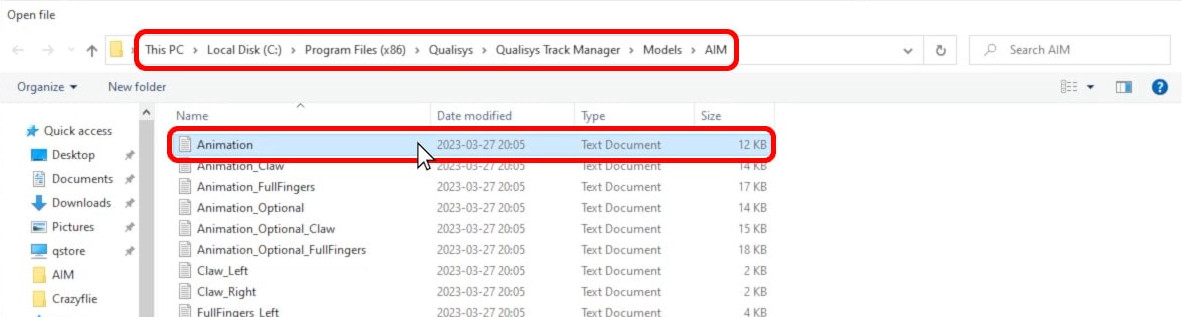
Navigate to “Qualisys Track Manager” à “Models” à “AIM,” and select the label list file for the Qualisys marker set you are using as a base.
-
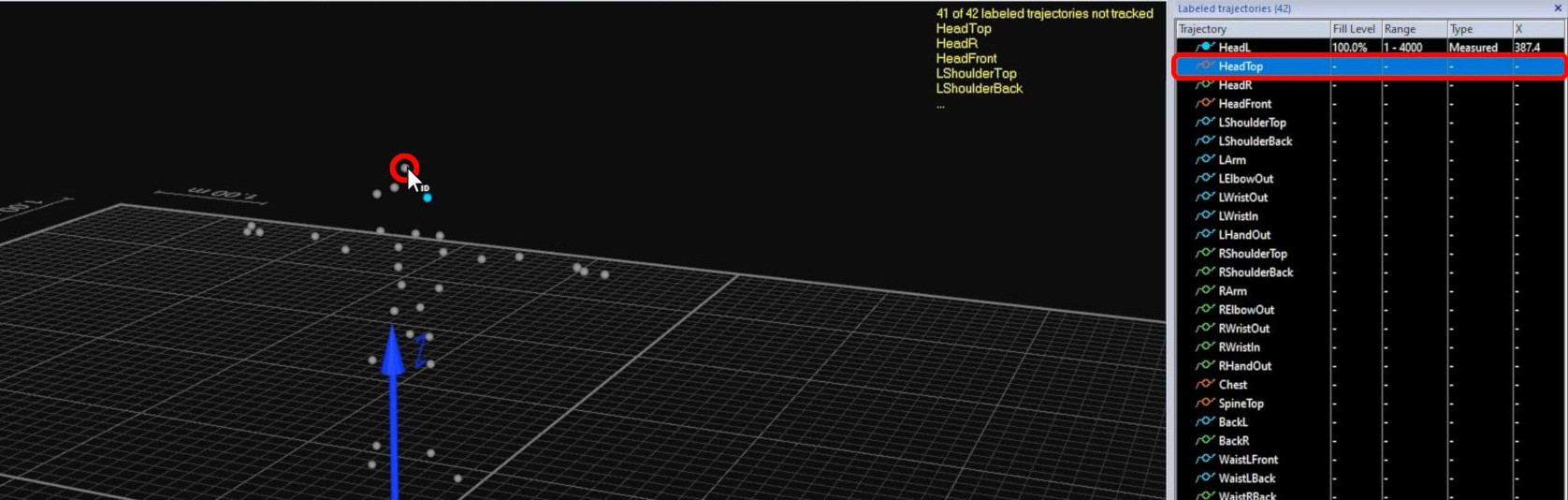
Click on the Quick ID icon, highlight the first label in the trajectory list, and select the corresponding marker in the 3D viewer to assign it to that label.

-
QTM will automatically advance to the next label for you to assign.
-
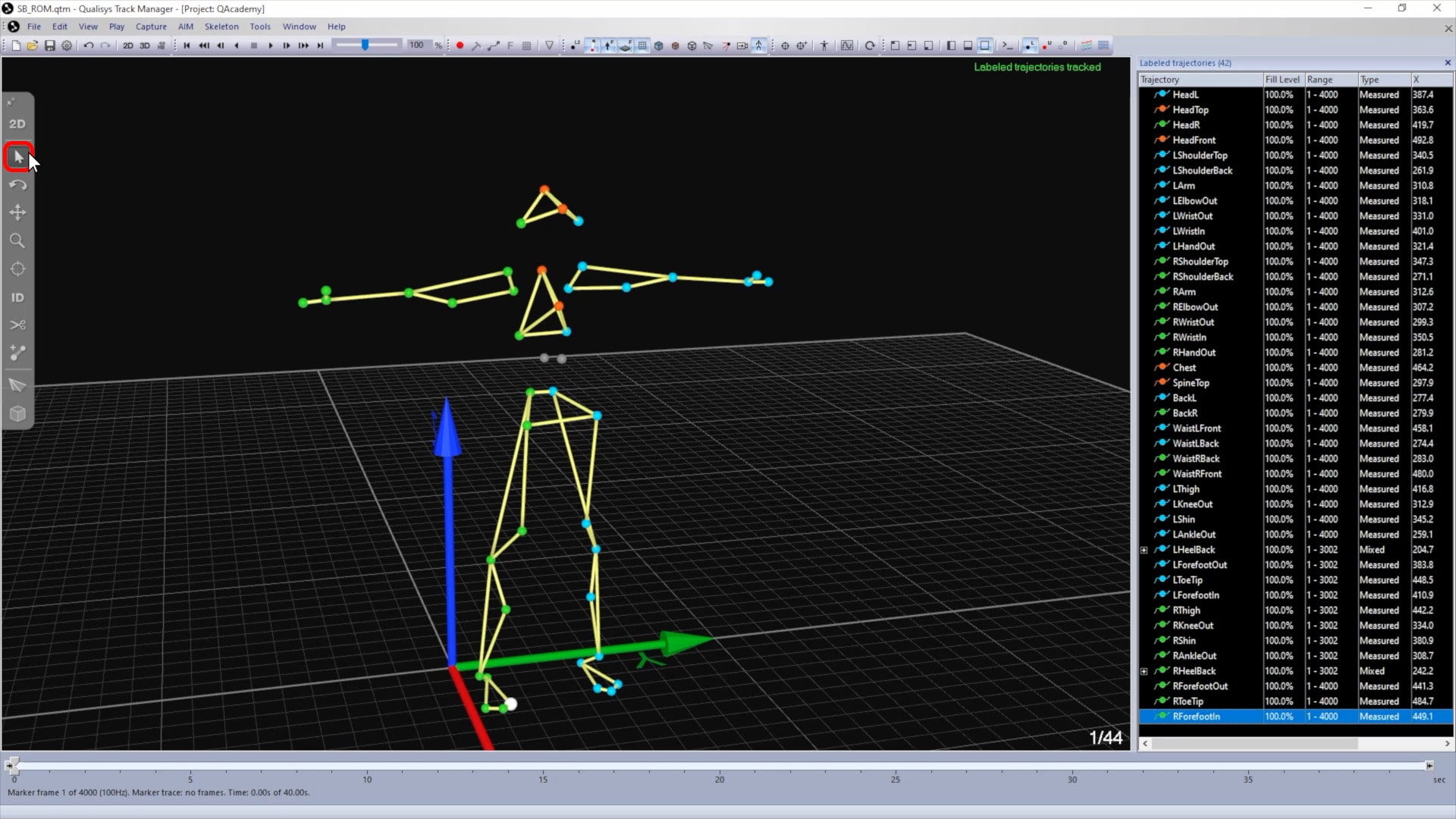
Once you’ve identified all of the markers from the label list, click on the selection icon to exit Quick ID mode.
-
Check through the file to make sure that the markers from the list are labeled throughout.
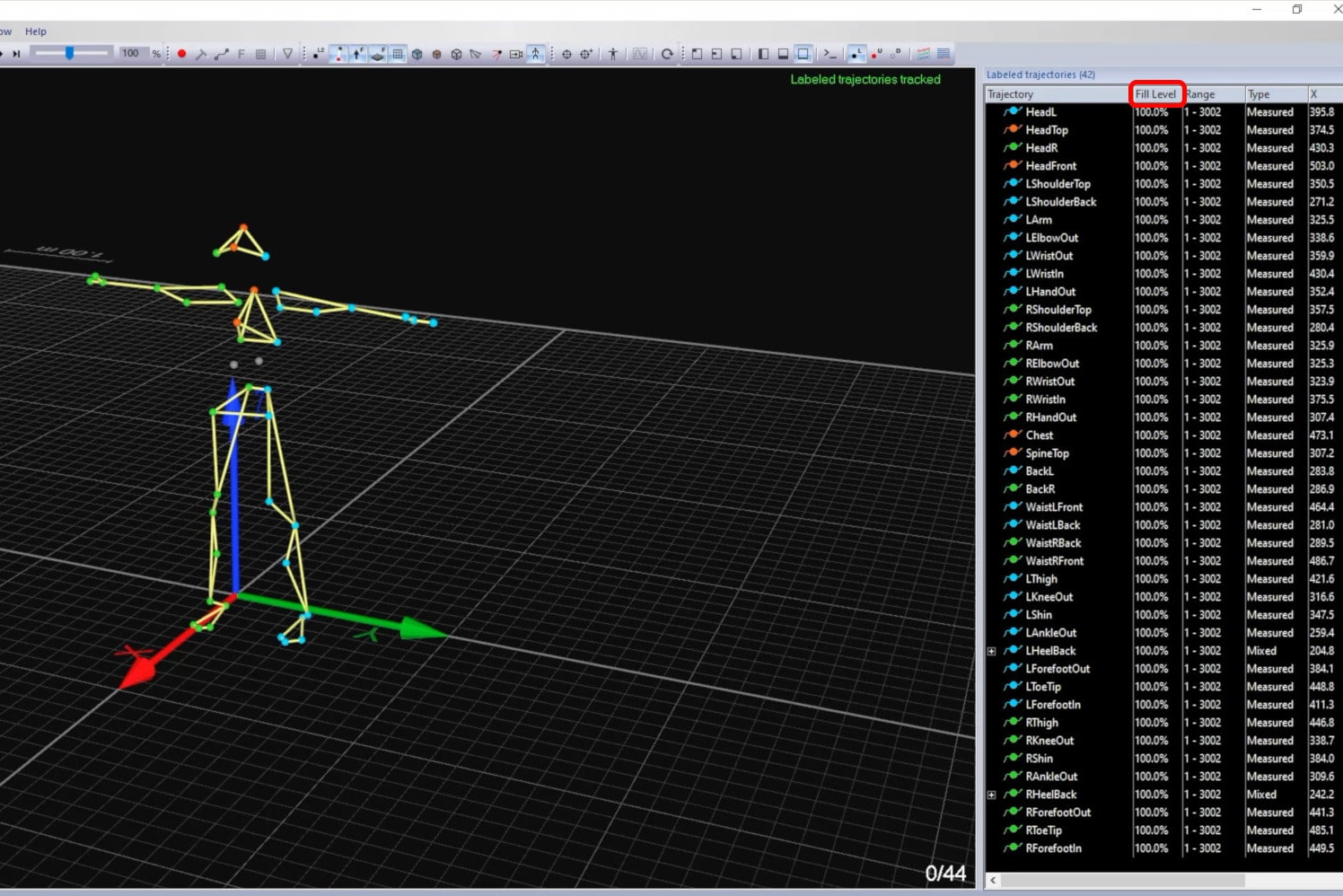
Next, you will need to label the extra markers that are not part of the original marker set:
-
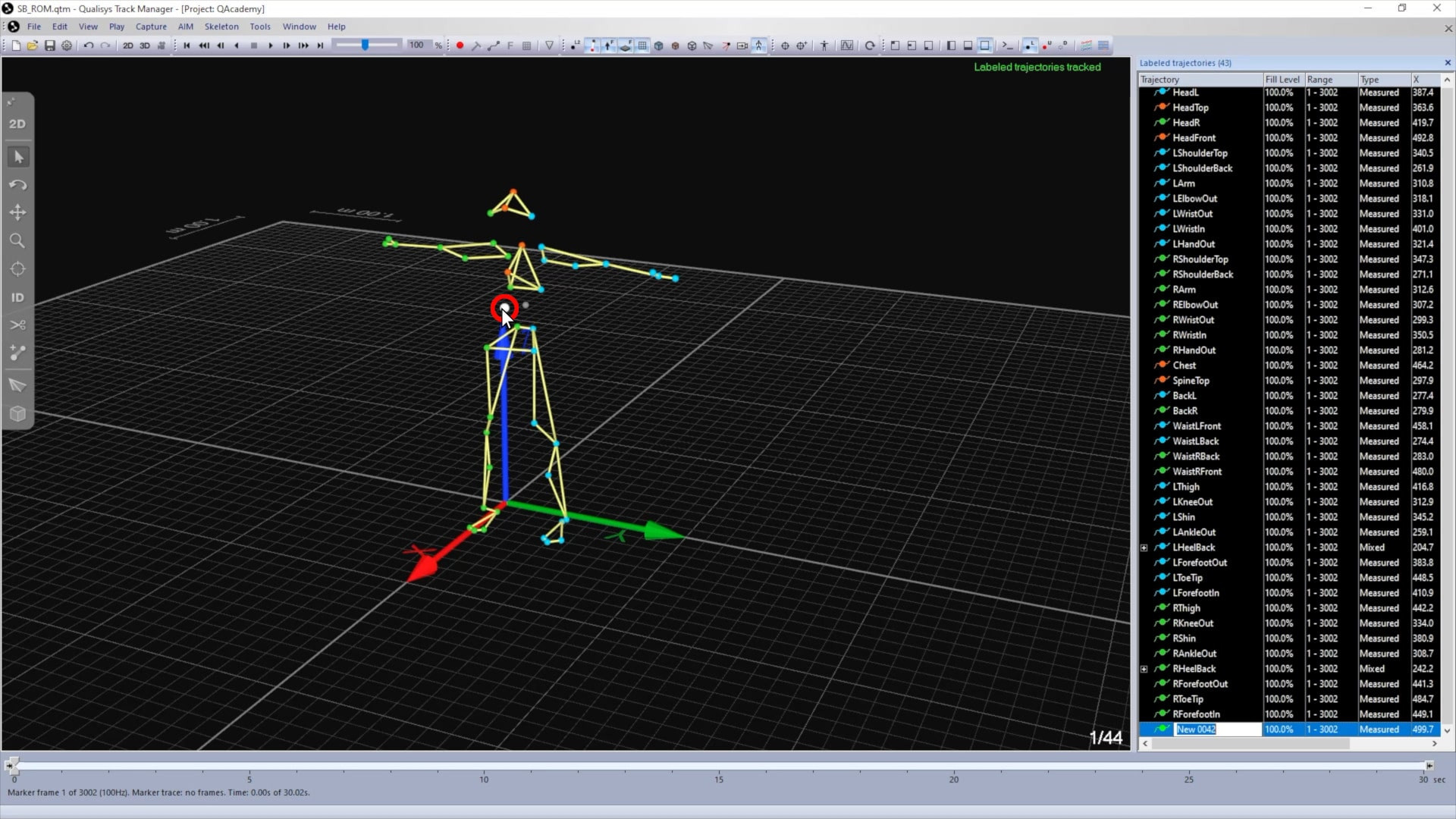
Select a marker in the viewer, and type L to edit its label.
-
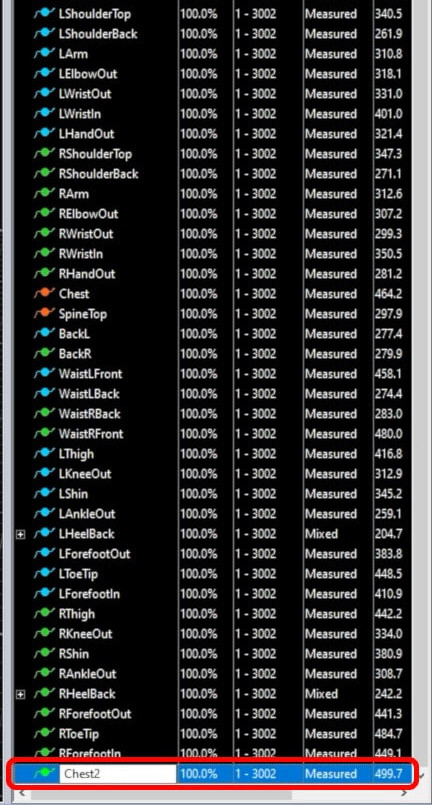
Input a name for the marker.
-
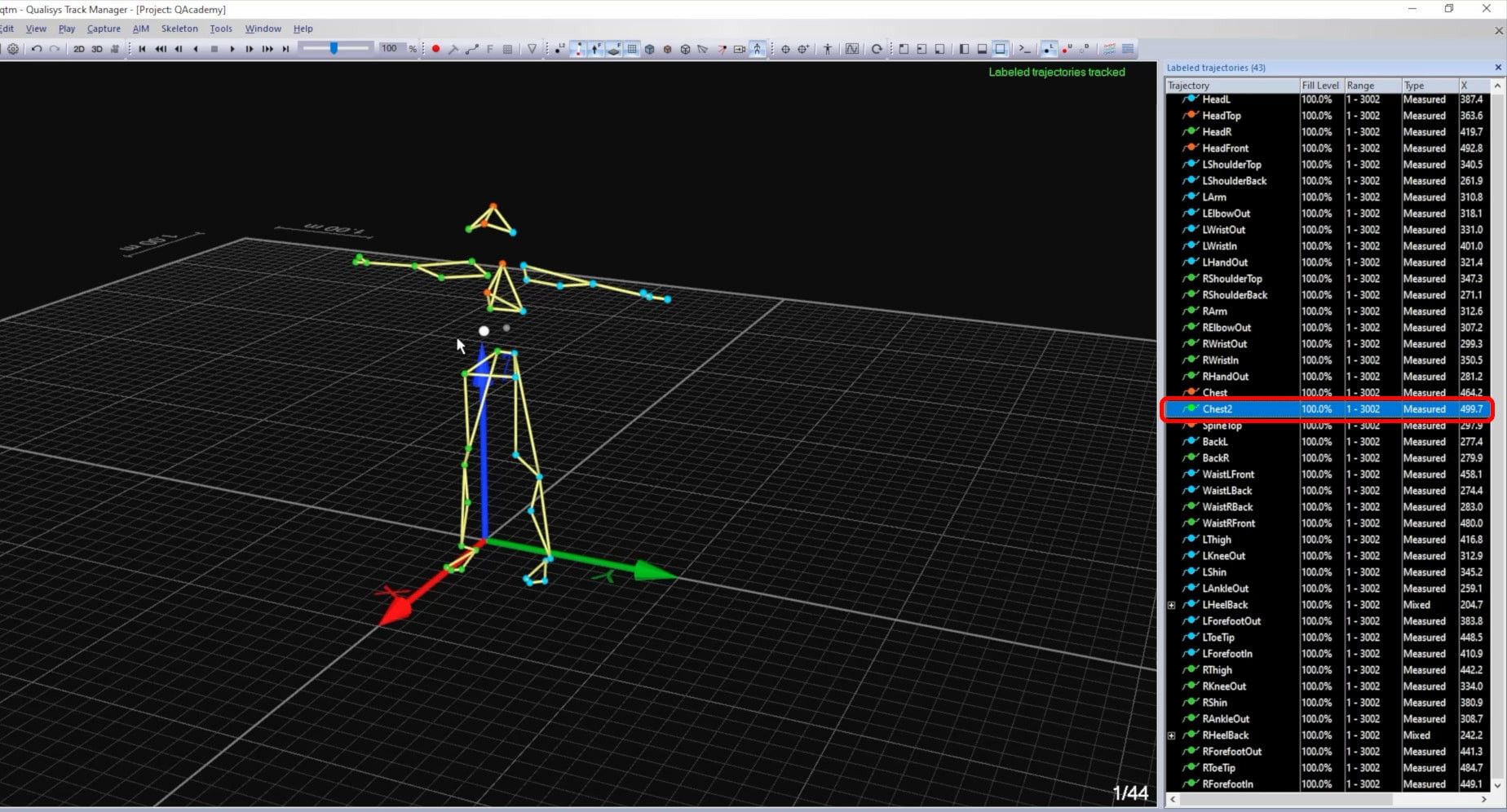
Then, hold down the Alt key while pressing the up arrow to move the trajectory in the list to be with other markers from the same segment. This will make it more intuitive to use the Quick ID tool with this label list in the future.
-
Once all of the markers are named and organized, select the whole labeled trajectory list (click on one and then type Ctrl+A), right-click on any one of them, and select “Add prefix to selection.”
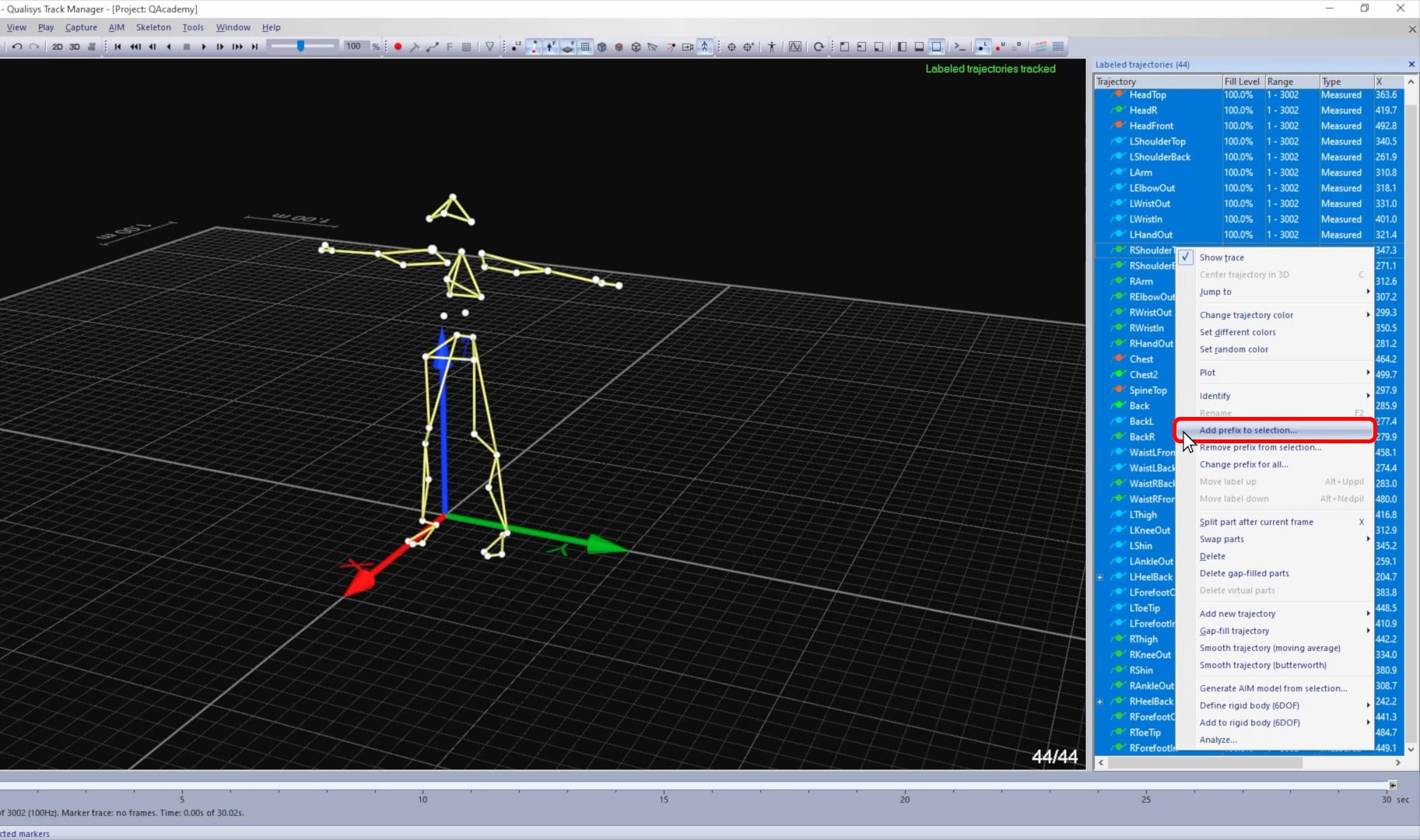
-
Input a generic prefix, followed by an underscore, and click “OK.”
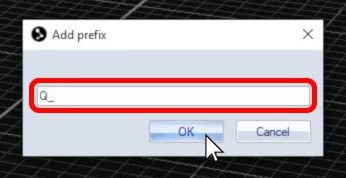
-
QTM will add the prefix to all of the labels in the labeled trajectories list.