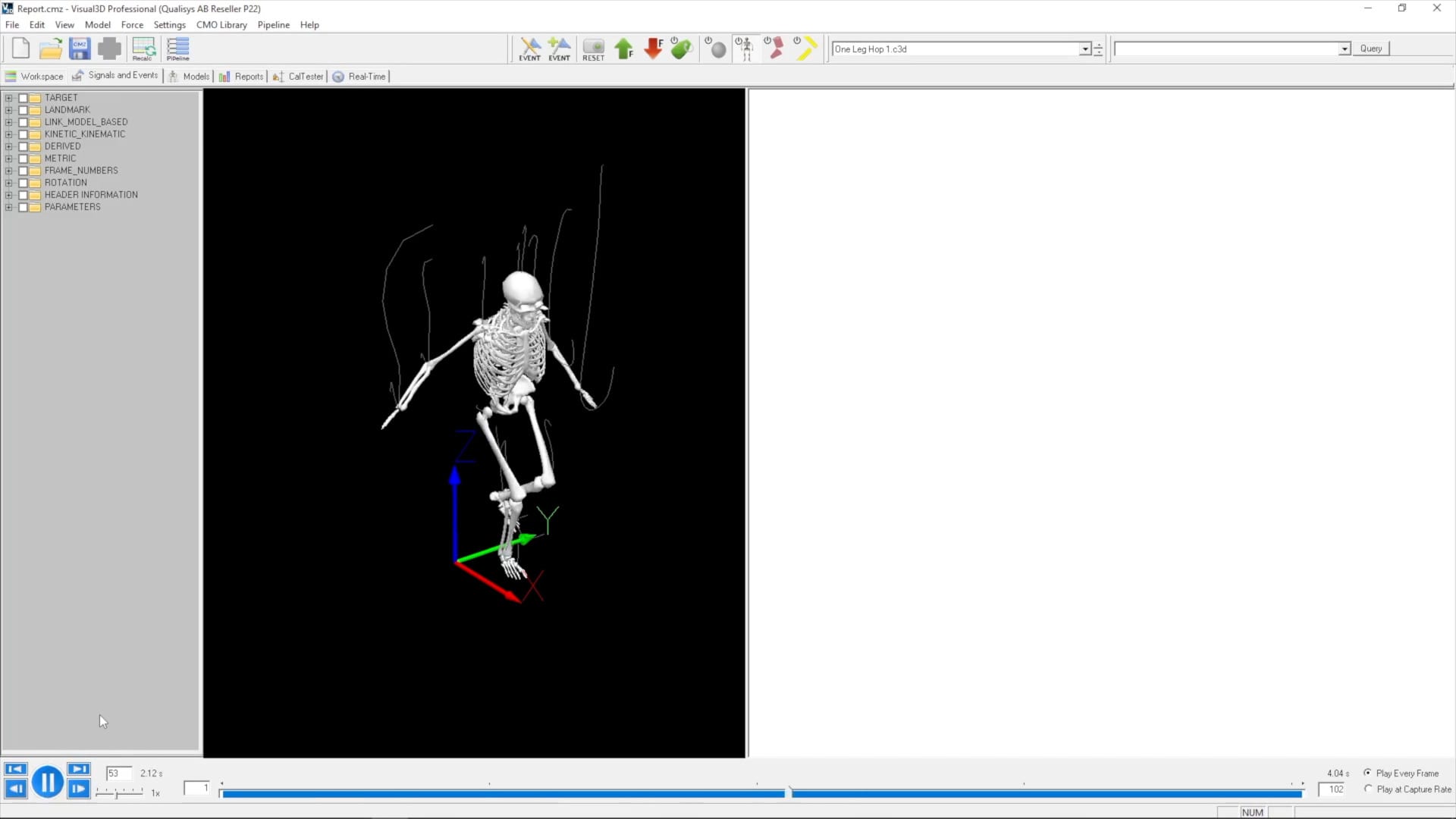
Running the markerless module in QTM
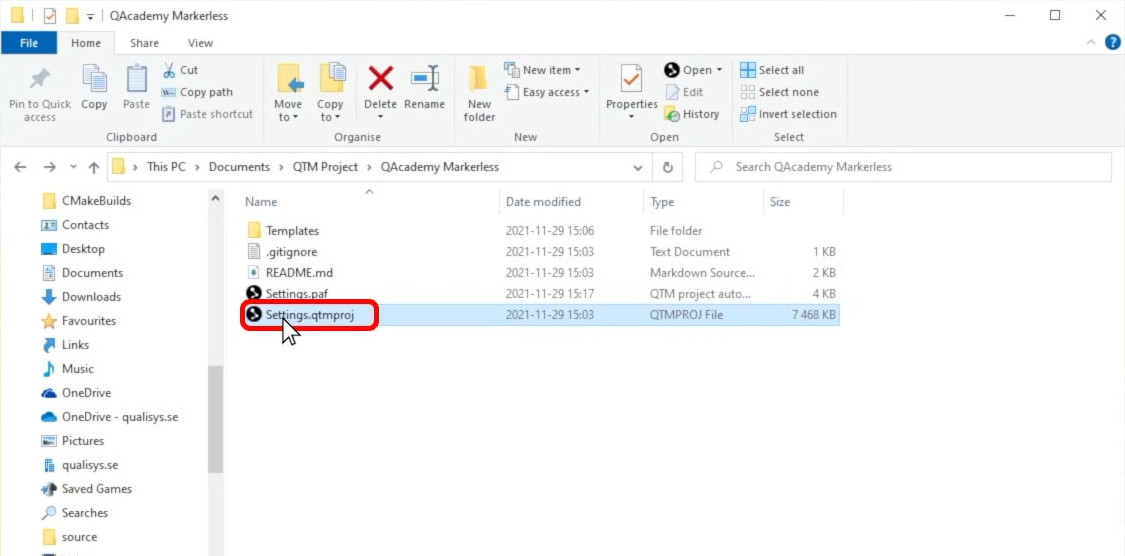
When run in QTM, the PAF module streamlines markerless motion capture recording and processing. Open the markerless project by double-clicking on the project settings file.
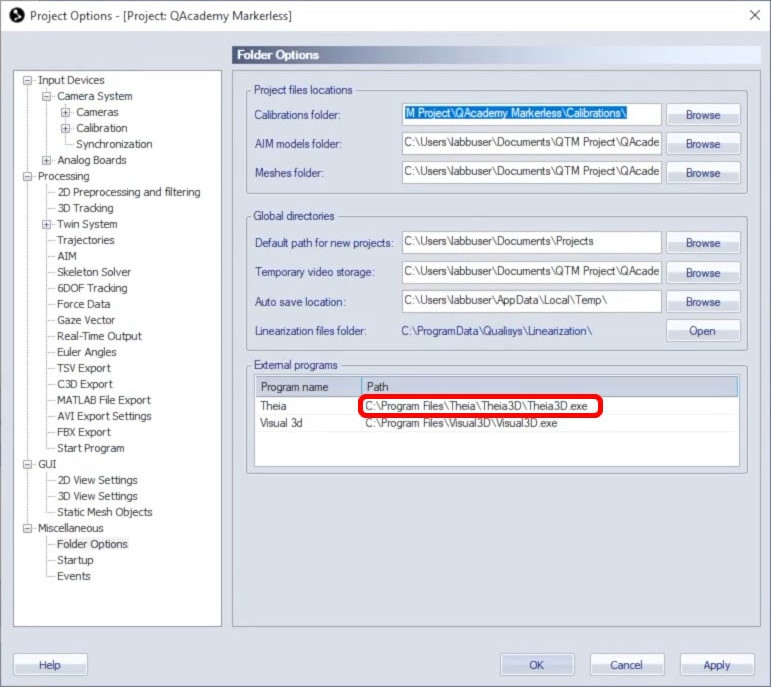
Before running the module, check that QTM knows the locations of the external programs it will be launching.
-
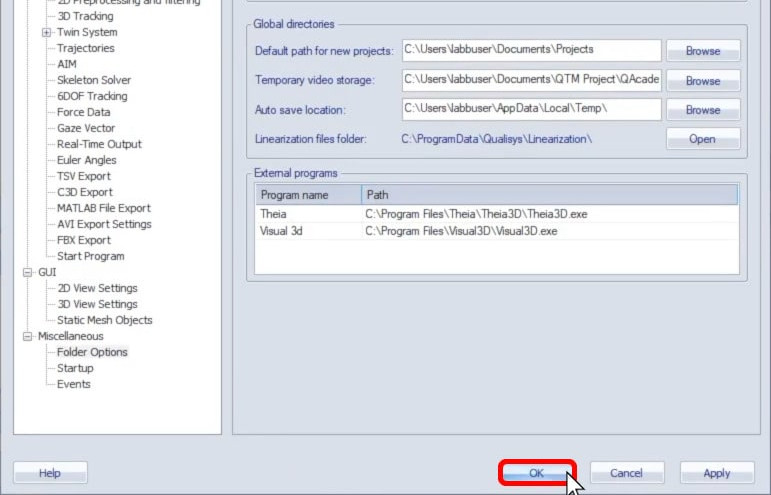
Open Project Options (keyboard shortcut Ctrl+W).

-
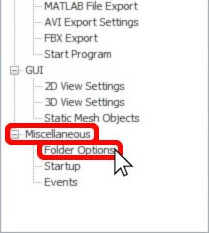
Navigate to “Miscellaneous” à “Folder Options.”
-
In the list of external programs, click on the “Path” field beside a program to browse for its location.
-
Once all of the external programs are linked correctly, click “OK.”
Now, while using QTM in project view (Ctrl+R), you will able to add new subjects and motion capture sessions from the left pane.
-
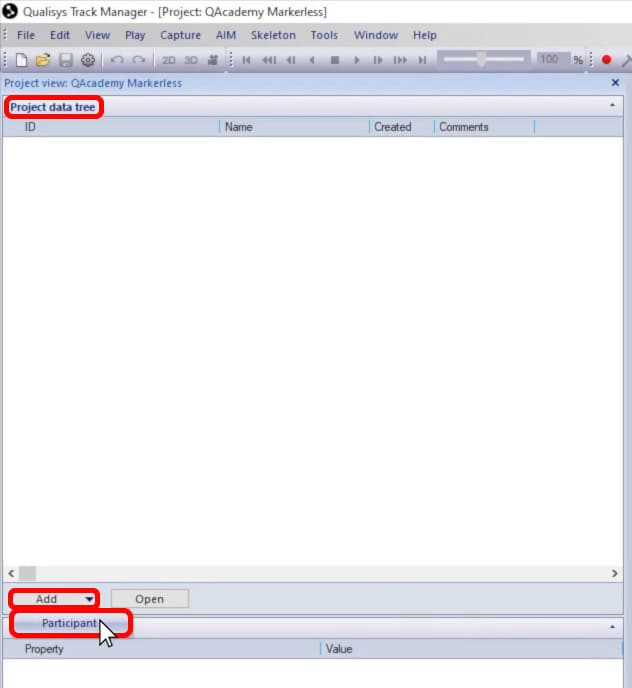
Under the project data tree, click “Add” and then “Participant” to input a subject’s data.
-
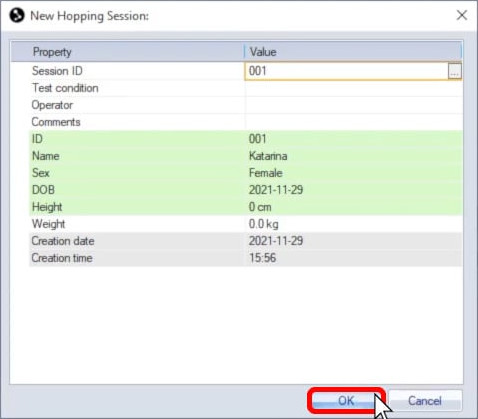
Next, with the subject selected in the project data tree, click “Add” and select a session.

-
Fill in any additional fields as needed, and click “OK.”
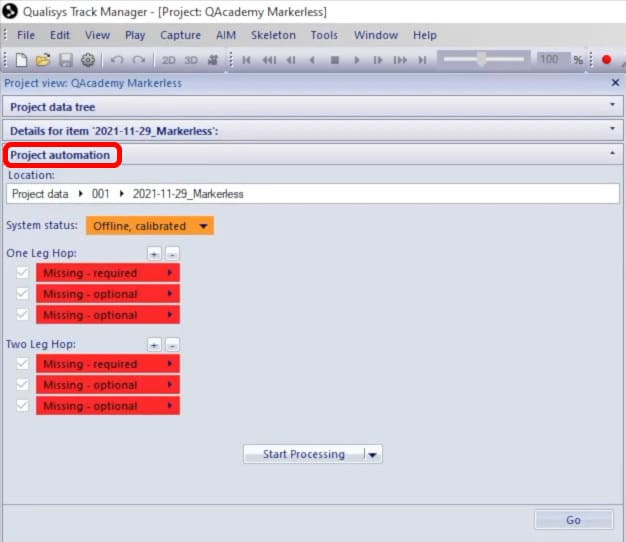
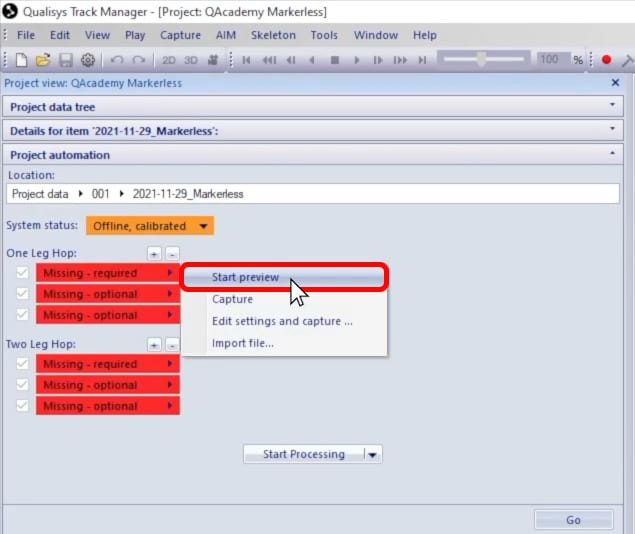
The session dialog will now be displayed under “Project automation,” with the trials to be recorded shown in red.
-
To begin a measurement, click on a missing trial and select “Start preview.”
-
Then, when ready, click again on the trial and select “Capture.”

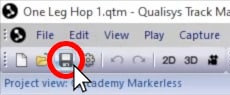
After a trial has been recorded, it is recommended to review it to confirm that the captured data is usable. If you trim the measurement or make any other changes, remember to save the file before continuing to the next capture.
When all of the measurements are ready, click the arrow beside “Start Processing” to select from the analyses that are specified in the PAF settings file.
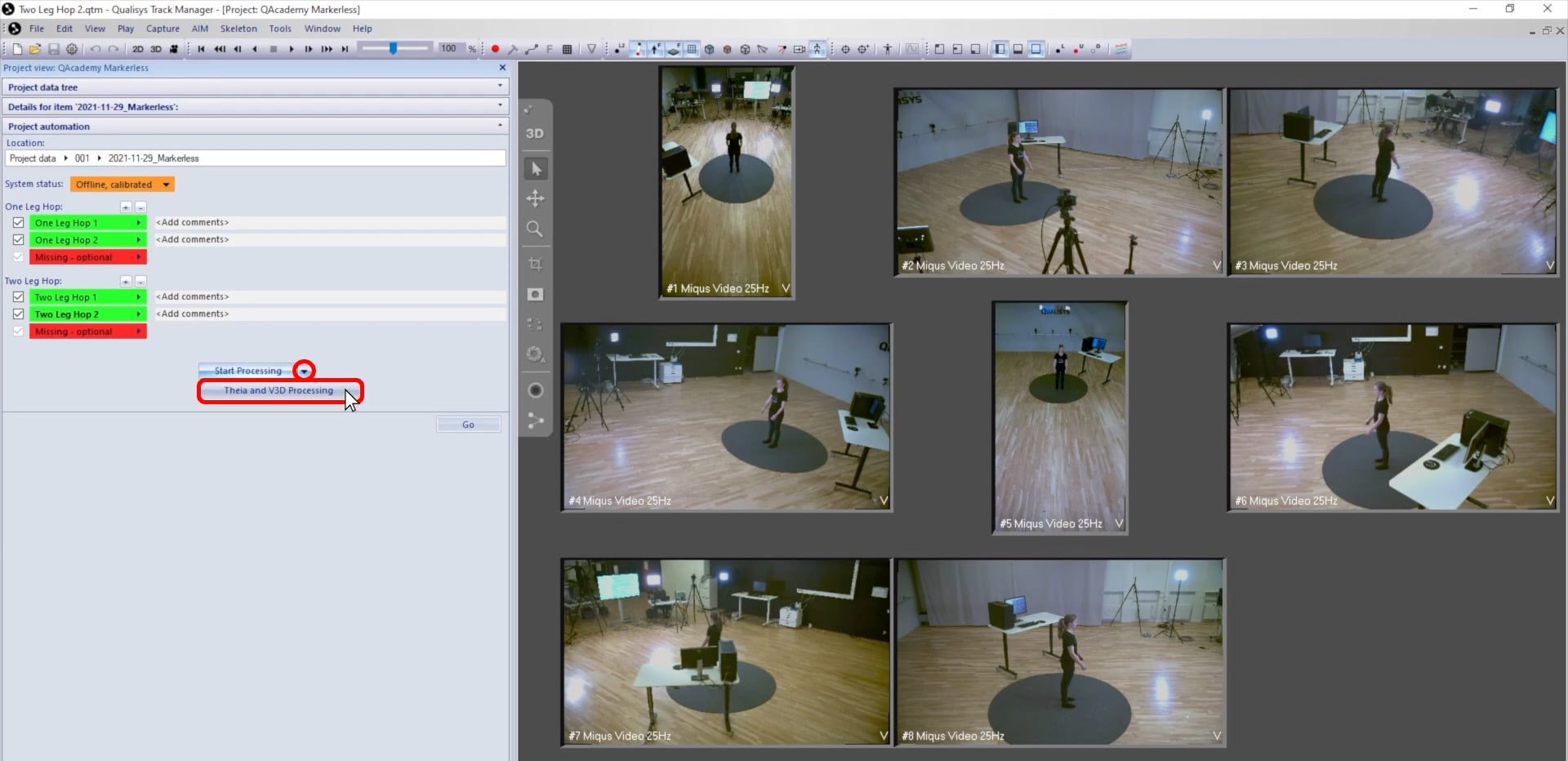
In this example, QTM exports the data and launches Theia3D to process the measurements, and then opens the files in Visual3D. When processing multiple sessions, you can save time by leaving Theia open in between them.
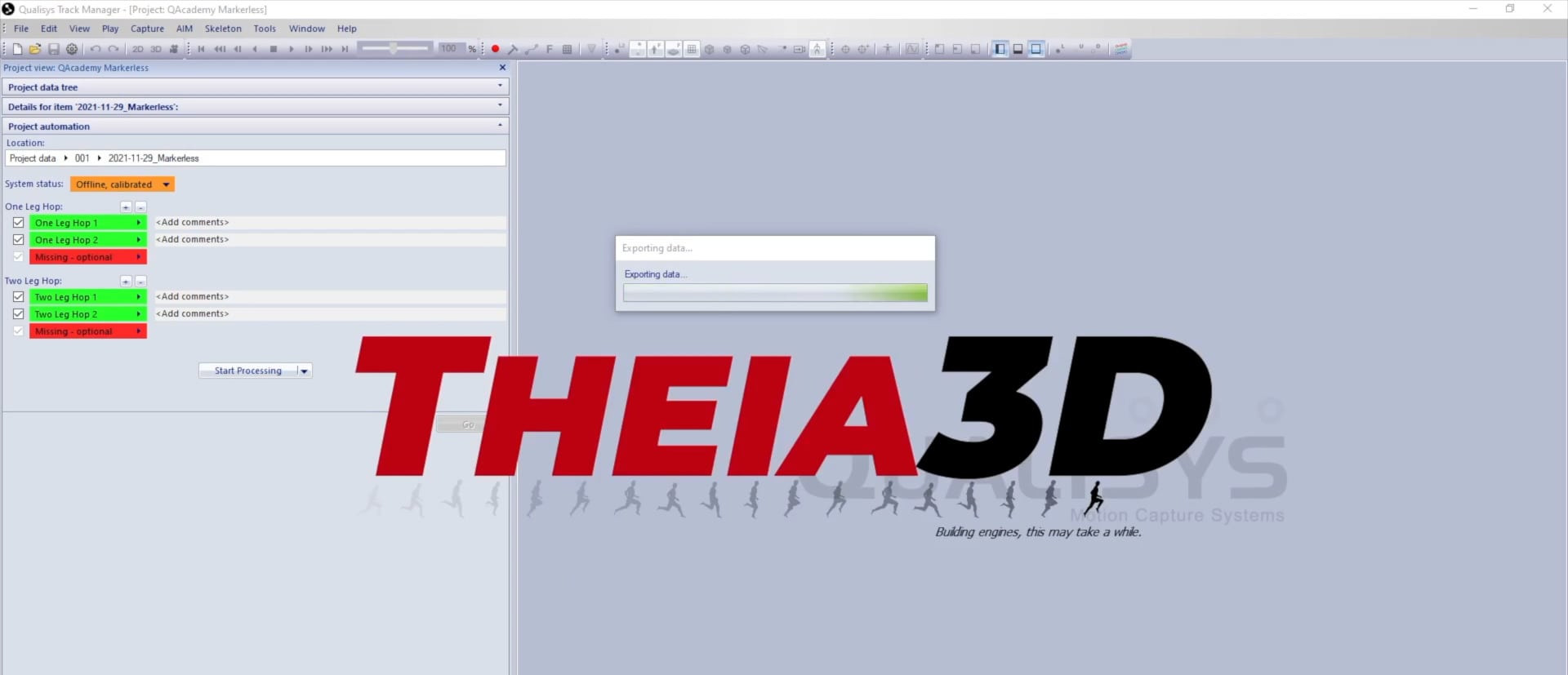
If any analog data was collected, it will automatically be merged with the kinematic data in Visual3D.