Project data tree
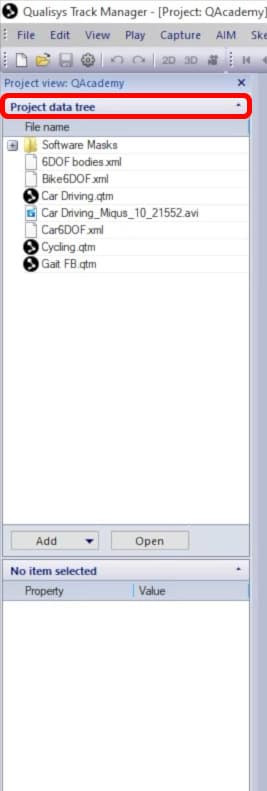
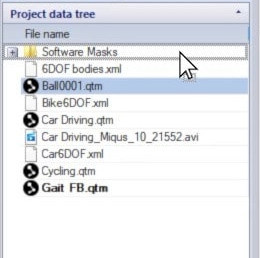
Once a project is open in QTM, the project data tree is an easy way to view and access all of its data files.
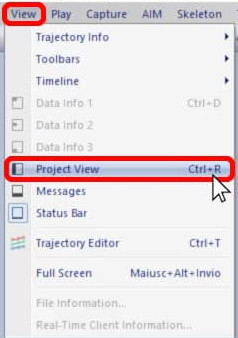
To show or hide the data tree pane, click “View” in the top menu bar, and select “Project View” or type keyboard shortcut Ctrl+R.
All of the files and sub-folders in your project’s “Data” folder will be displayed in the left pane.
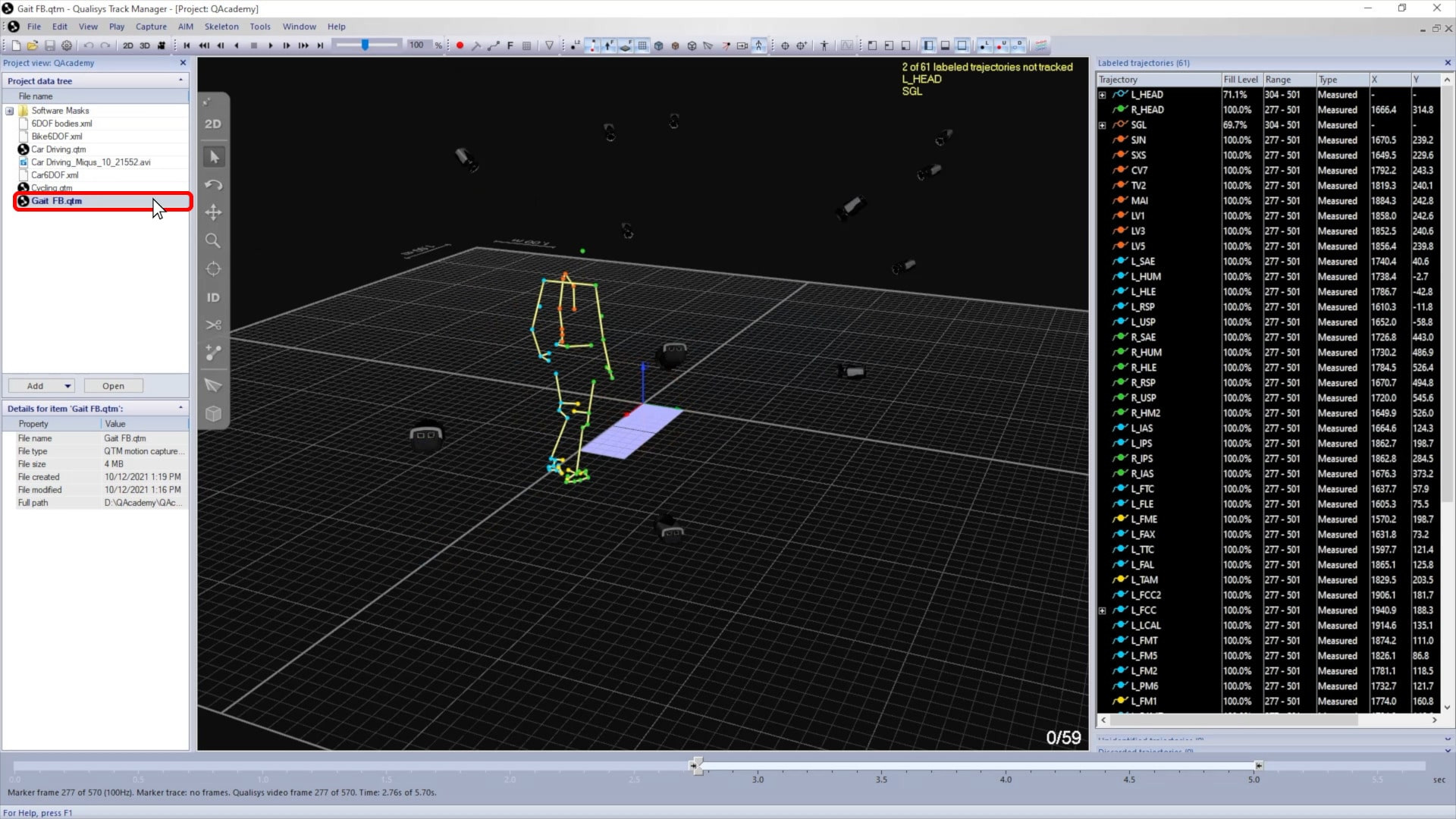
Double-clicking on a motion capture file in the data tree will open it in your QTM viewer.
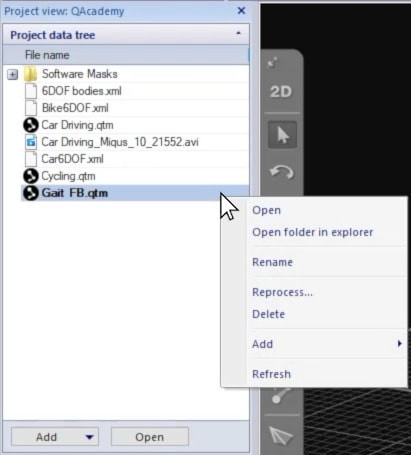
You can right-click on a file for other options such as opening it in a new window or locating it in your file explorer. From the right-click menu, you can also delete items, rename them, or batch process all of the files currently selected.
New files can be dragged into the data tree from your file explorer, and you can move files between folders directly in the data tree.
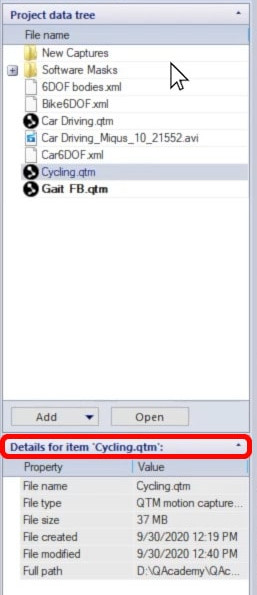
Clicking “Add” at the bottom of the pane lets you create a new folder or start a new measurement. New folders and measurements will automatically be saved to the currently selected folder.

When a file is selected, its details are displayed below the project data tree. For example, you can see the file type and size, when it was last modified, and its location on your computer.
Whether or not you have the project data tree open, QTM will automatically save calibrations and settings to your current project.