Creating and opening projects
Each time that you launch QTM, you will be prompted to open or create a project. You can select “No project” if you simply want to view QTM files, but you will not be able to change settings or capture data without a project open.
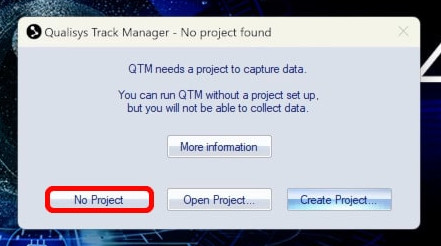
To set up a new project when launching QTM:
-
Click “Create project.”

-
Give the project folder a name.
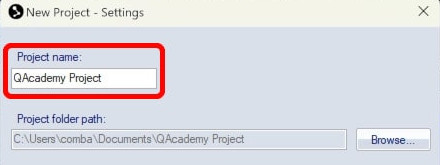
-
By default, QTM will save the new project to a Qualisys folder under “My Documents,” but you can reassign the location if desired. For example, if you want the project accessible by multiple users on your computer, you should save it to a shared folder.
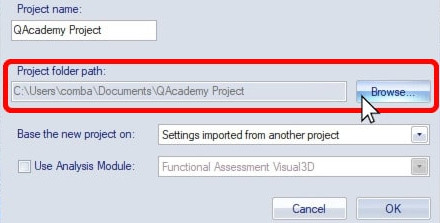
-
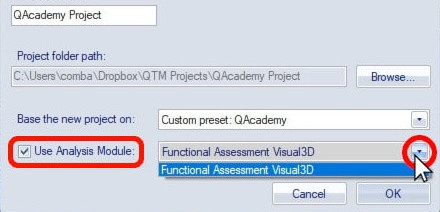
Beside “Base the new project on,” select the source for the settings to use in the new project. You can import settings from another project, use the QTM default settings, or select a preset.
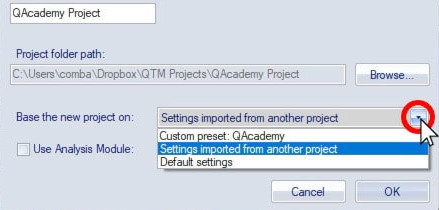
-
If you have installed a QTM analysis module, such as Baseball or Gait, enable “Use Analysis Module” and select the one you’ll be using.
-
Click “OK” to create the project and open it in QTM.
To create or open a new project from within QTM:
-
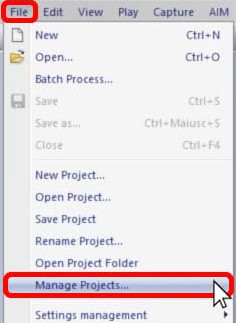
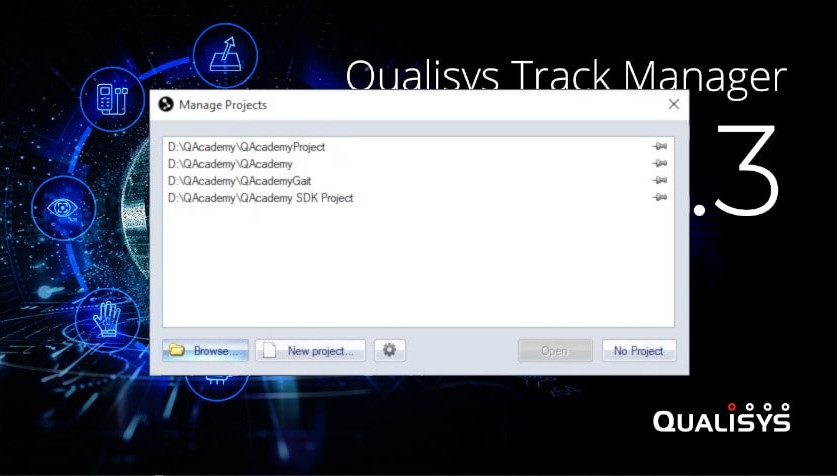
Click “File” in the top menu bar and select “Manage projects.”
-
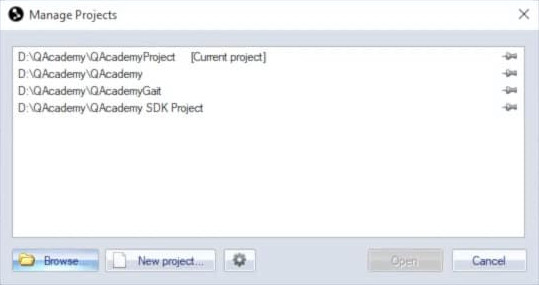
You can open a project from the list of pinned and recently used ones, browse your computer for other projects, or create a new one.
-
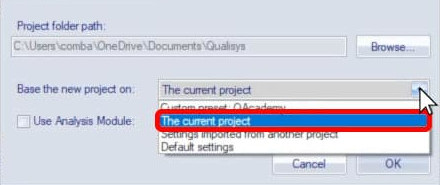
In addition to the original choices for project setting sources, you can choose to base a new project on the project you currently have open.
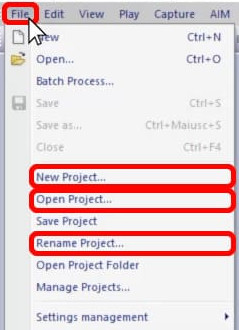
From the File menu, you can also directly create a project, open one, or rename the one that you have open.
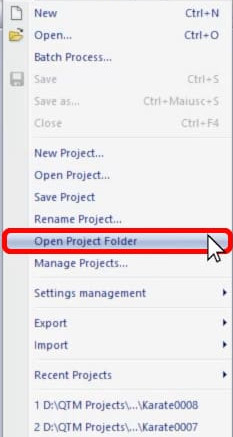
Selecting “Open Project Folder” will open the folder in your computer’s file explorer system, where you can add new folders and external files as desired.
The “Manage projects” dialog will be shown at startup each time you open QTM from now on unless you tell QTM to automatically load a project at startup.
To set up the automatic load of a project:
-
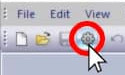
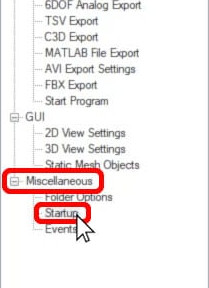
Open Project Options by clicking the gear icon in the top toolbar or by typing keyboard shortcut Ctrl+W.
-
Navigate to “Miscellaneous”à “Startup.”
-
From here, you can enable the automatic load of a project and select which project to use.
