Changing perspectives in the 3D viewer
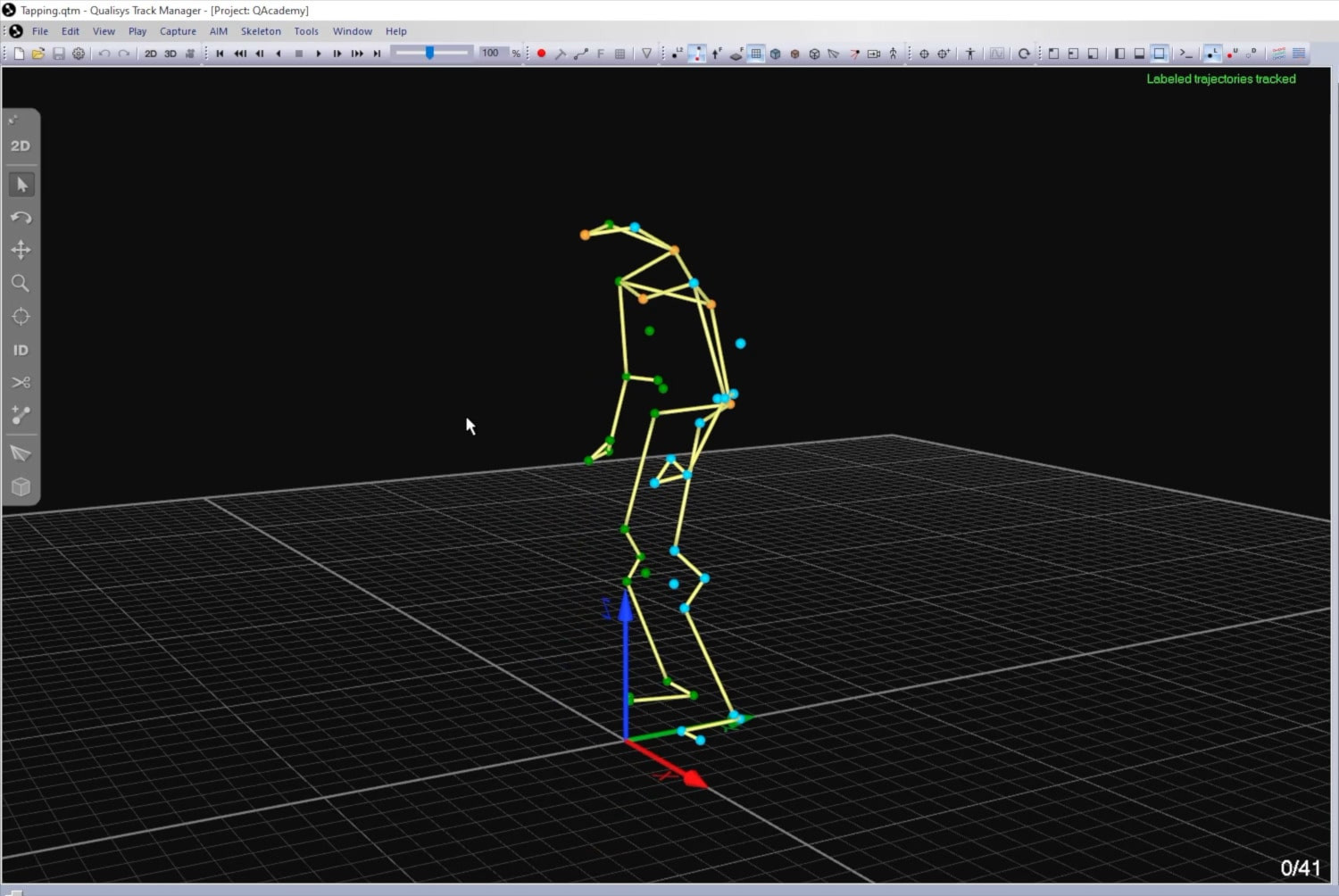
When using the 3D view window, you can change the perspective in the following ways:
-
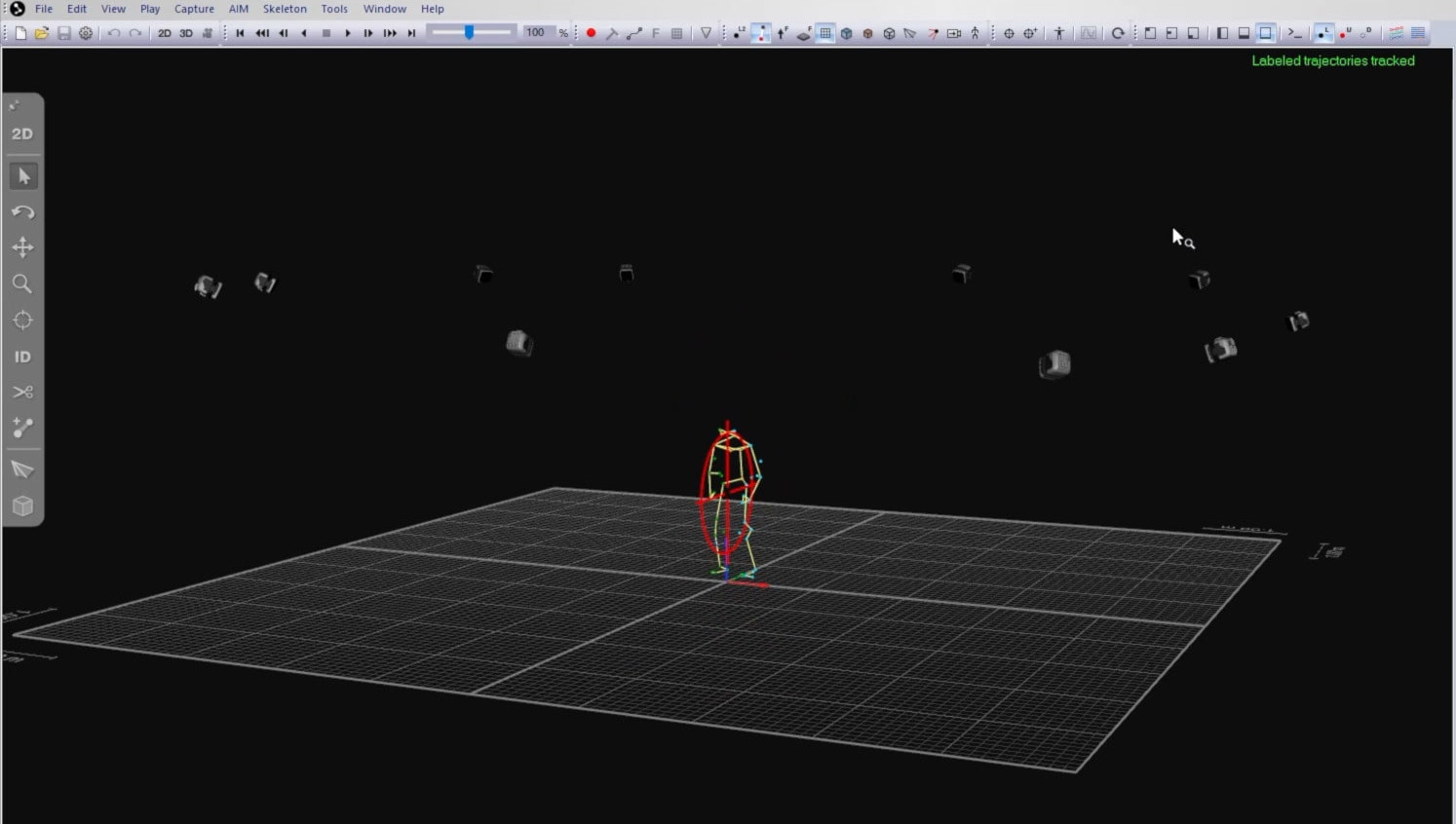
Zoom in or out by scrolling with your mouse or by holding down both mouse buttons while dragging forward and back.
-
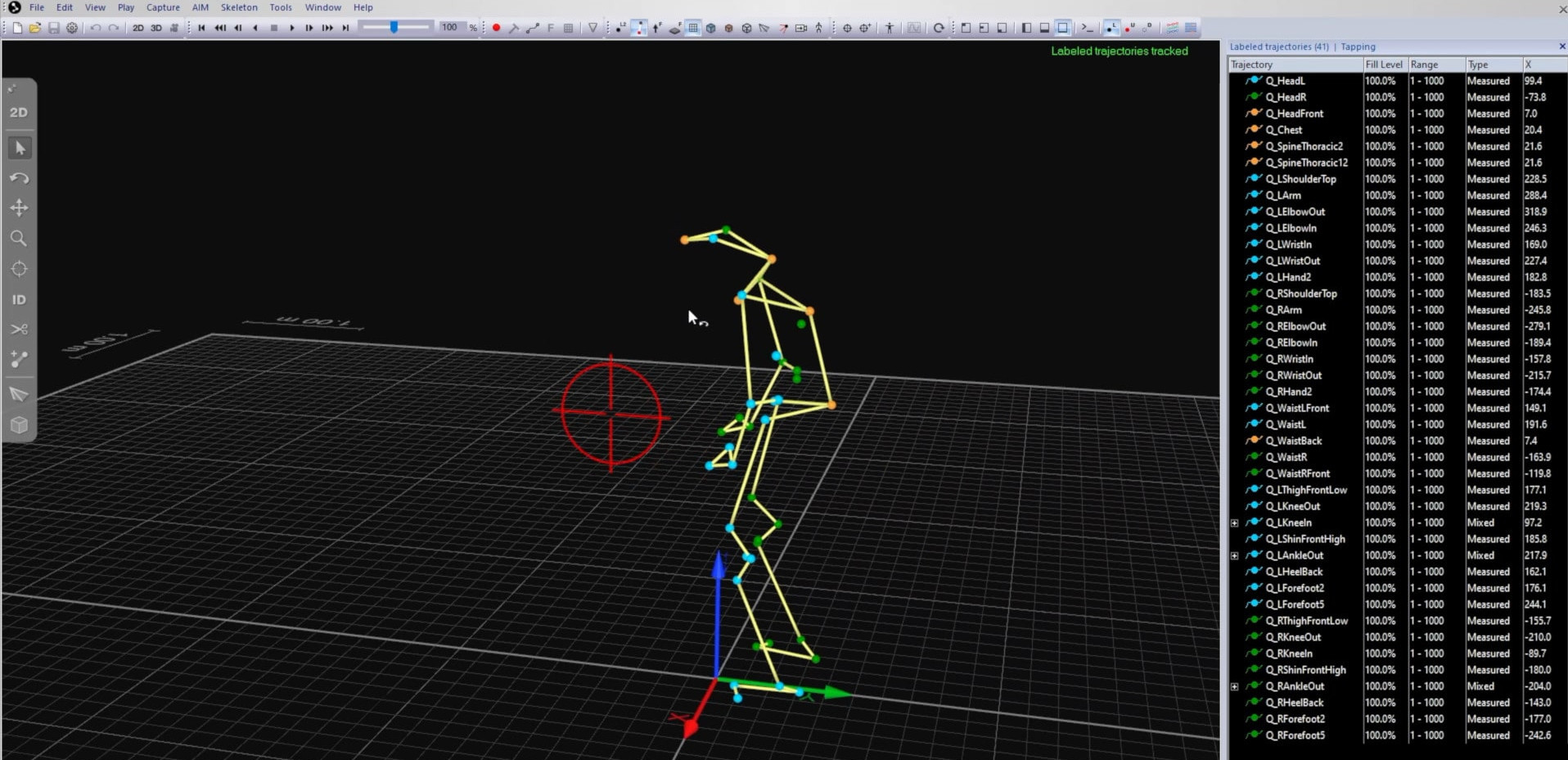
Rotate the view by left-clicking on a blank area of the pane and dragging with the mouse.
-
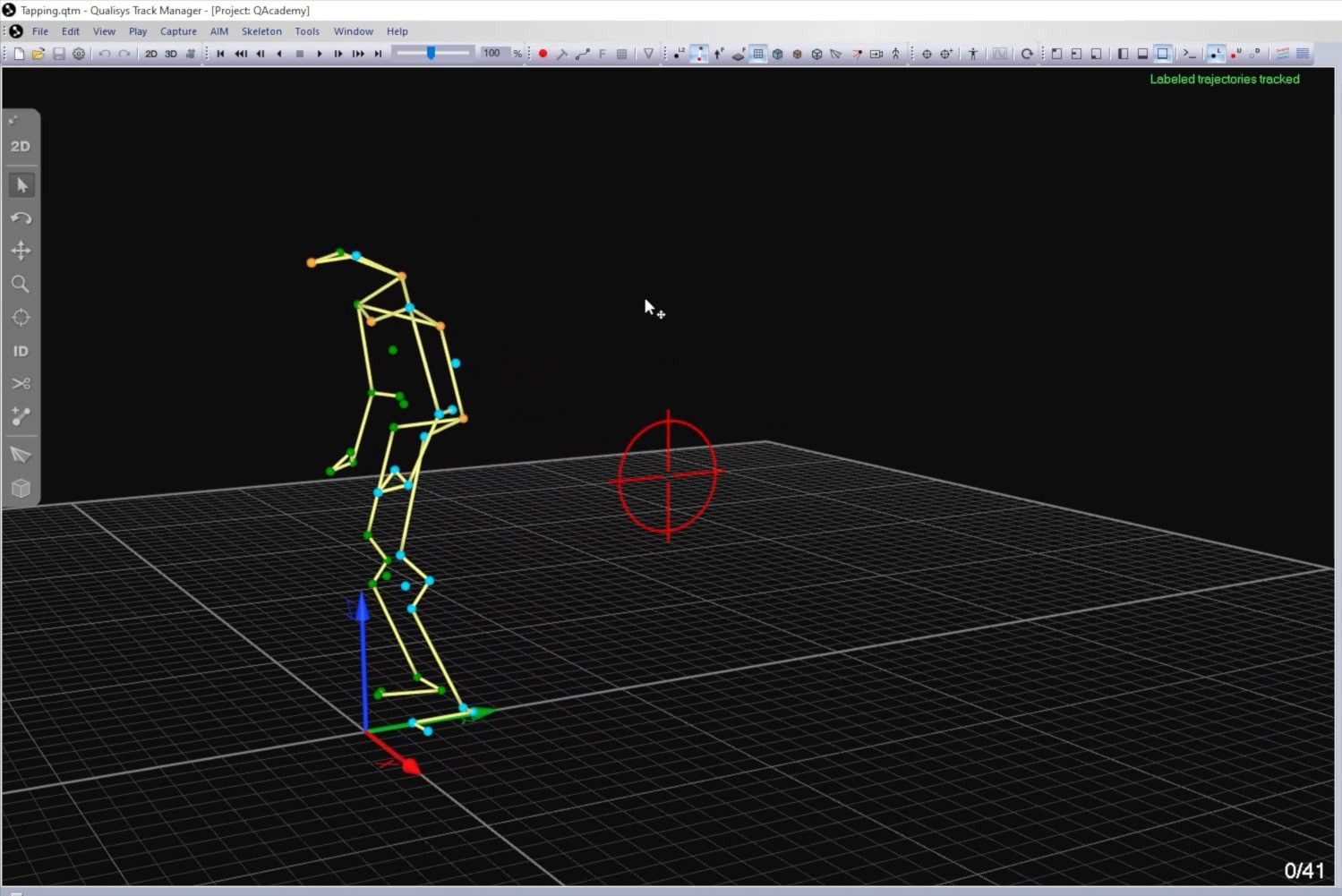
Pan the view by right-clicking on a blank area of the pane and dragging.
-
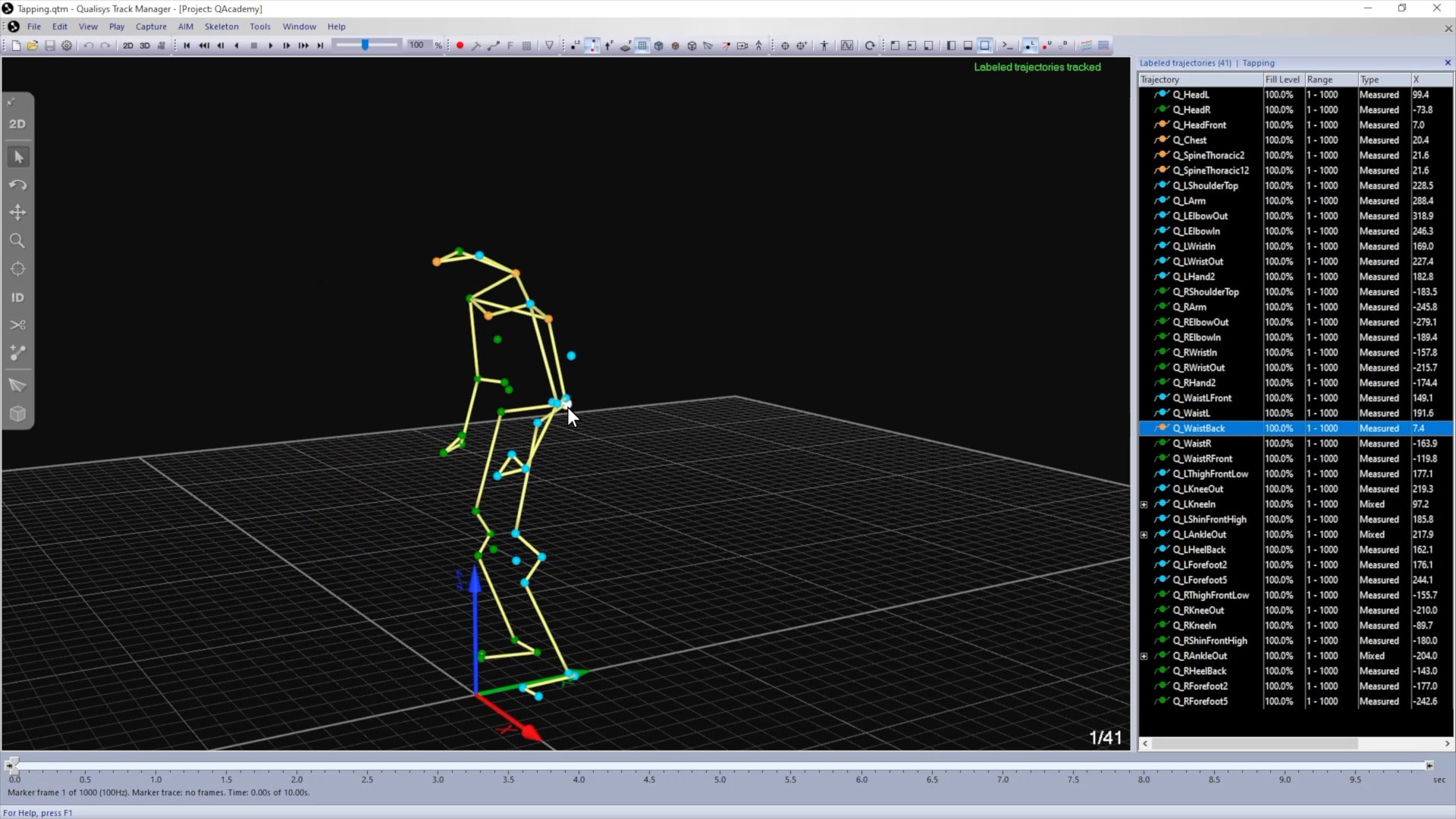
To center the view on a specific marker, click on the marker and type C.
-
Double-clicking on a blank area of the pane resets the view to the center of the tracked markers.
-
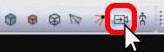 With one or more markers selected, click the “Follow Selected Markers” button to keep the viewer centered on them.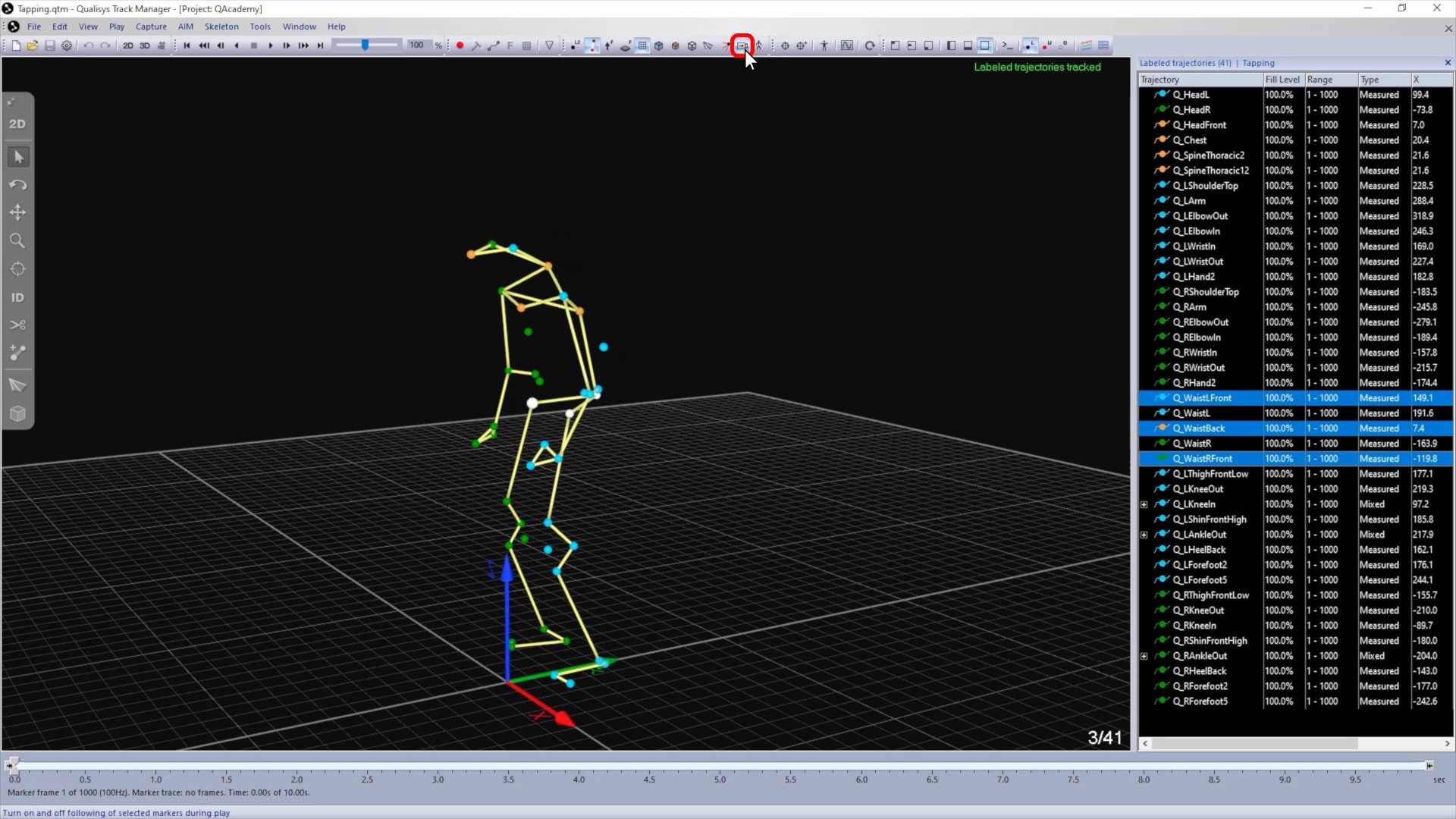
You can change the perspective to an orthogonal view by right-clicking on a blank area of the pane, clicking “View,” and selecting from the options.
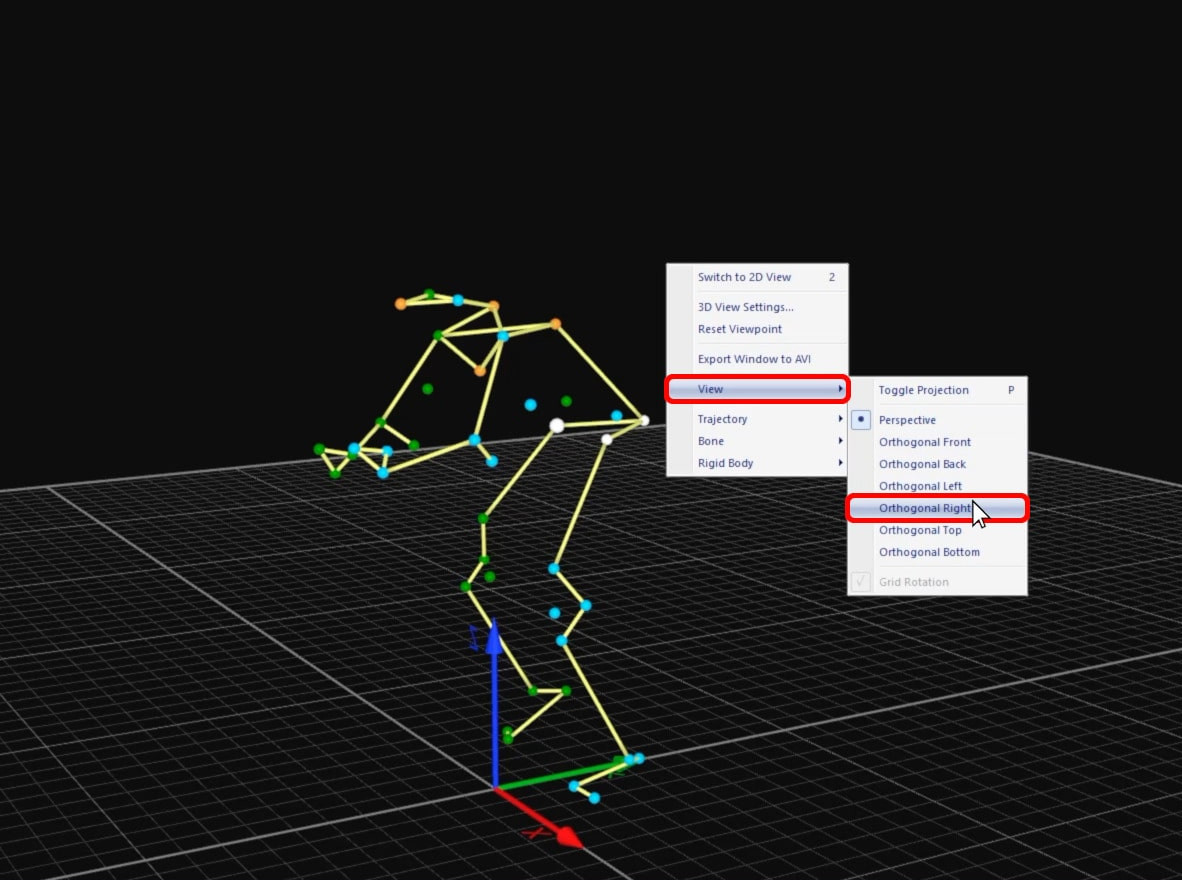
Return to the default perspective by right-clicking again and selecting “View” à “Perspective.”
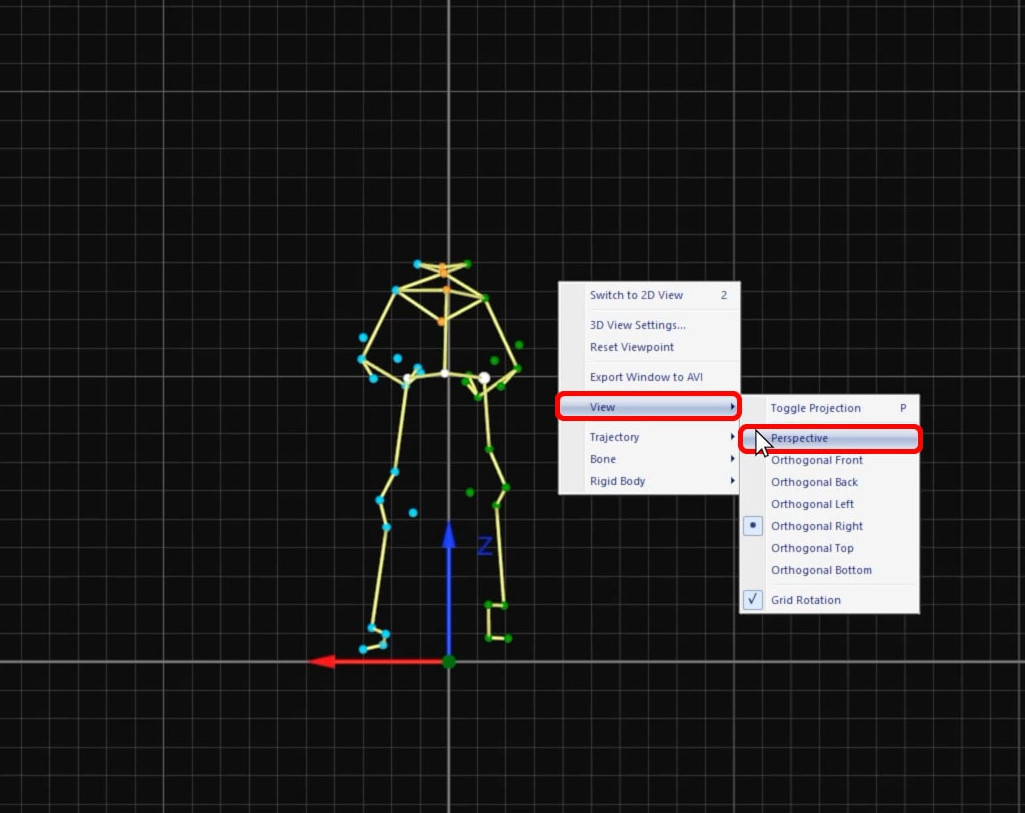
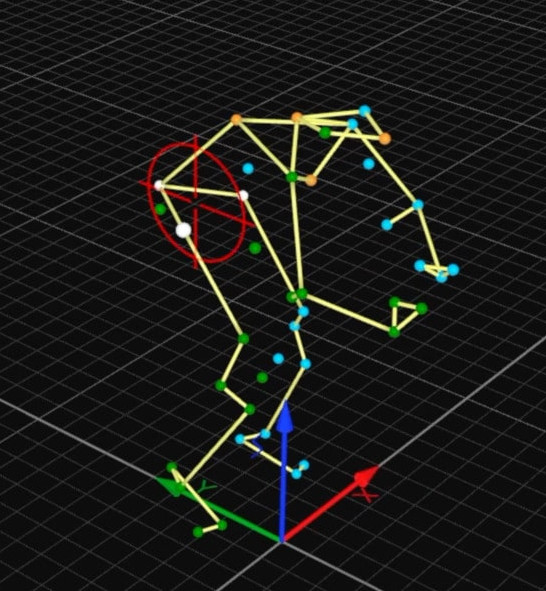
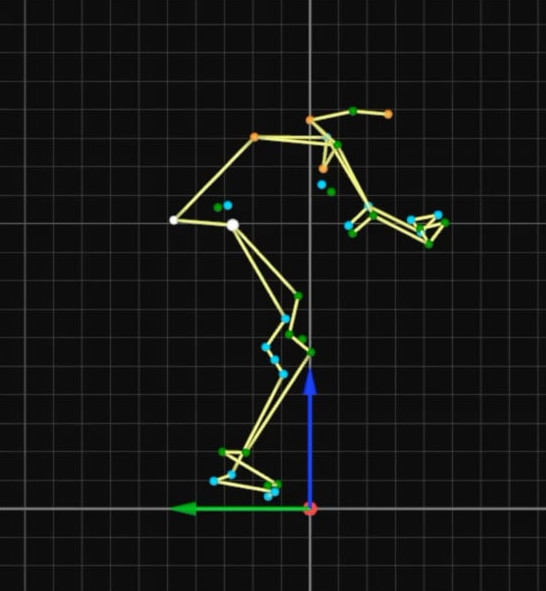
You can also use the keyboard shortcut P to toggle between the orthogonal and perspective views. The orthogonal view shown will correspond to the perspective you have on screen, so if you rotate the 3D view and type P again, the orthogonal view will change as well.
|
|