Splitting trajectories
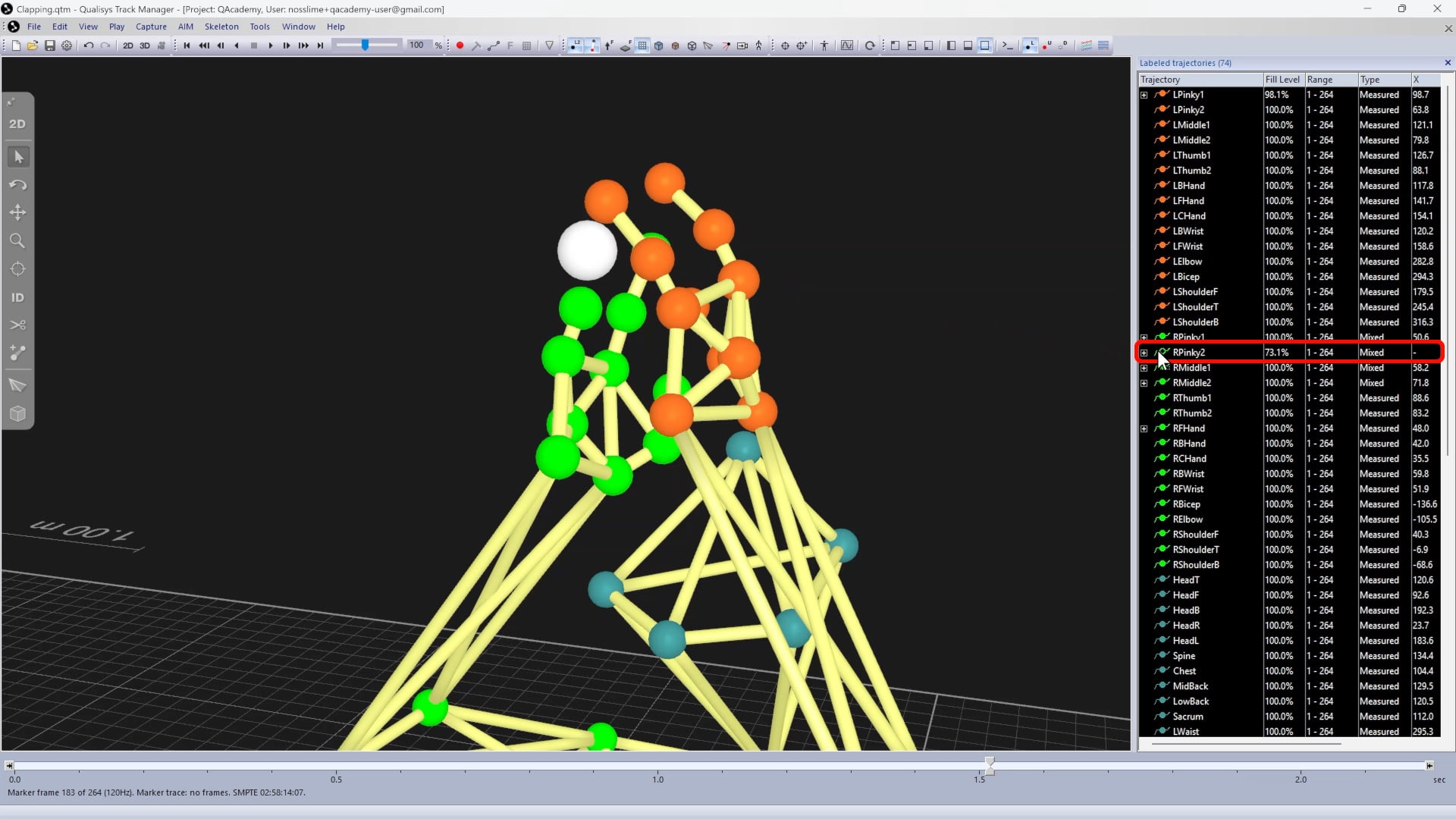
You can manually split a trajectory into parts in order to discard a section, fix a tracking error, or free up a smaller range for re-labeling.
For example, in the rare event that a single measured trajectory switches markers, you will need to split the trajectory in order to correctly reassign the parts.
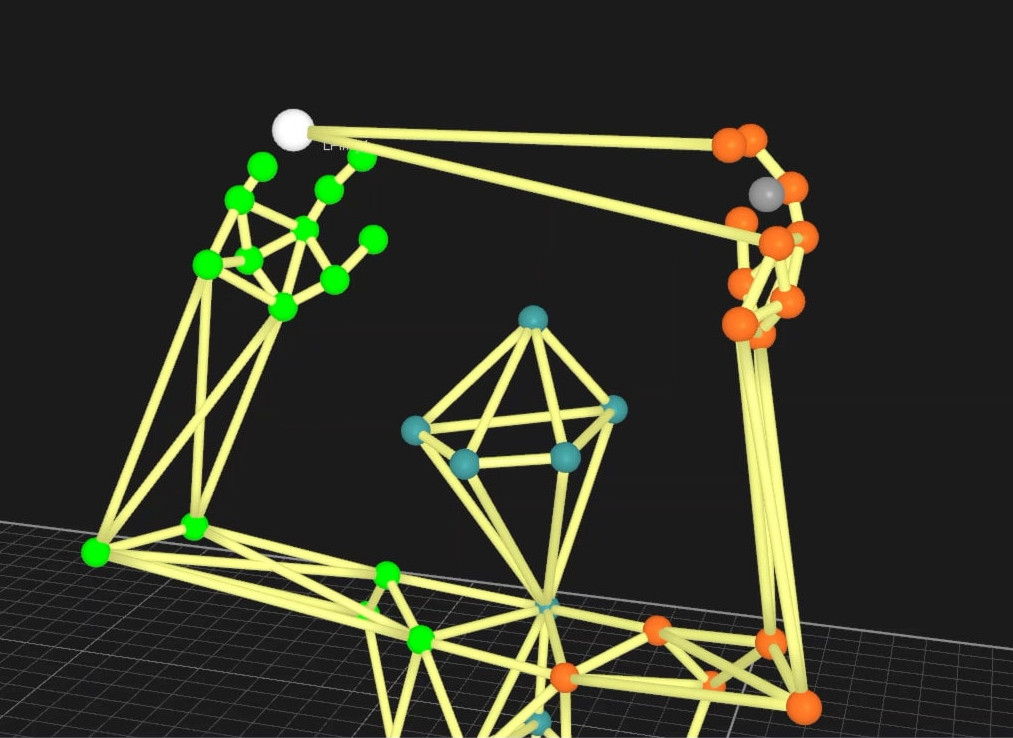
-
It’s recommended to open the trajectory in the trajectory editor to more easily see where it needs to be split.
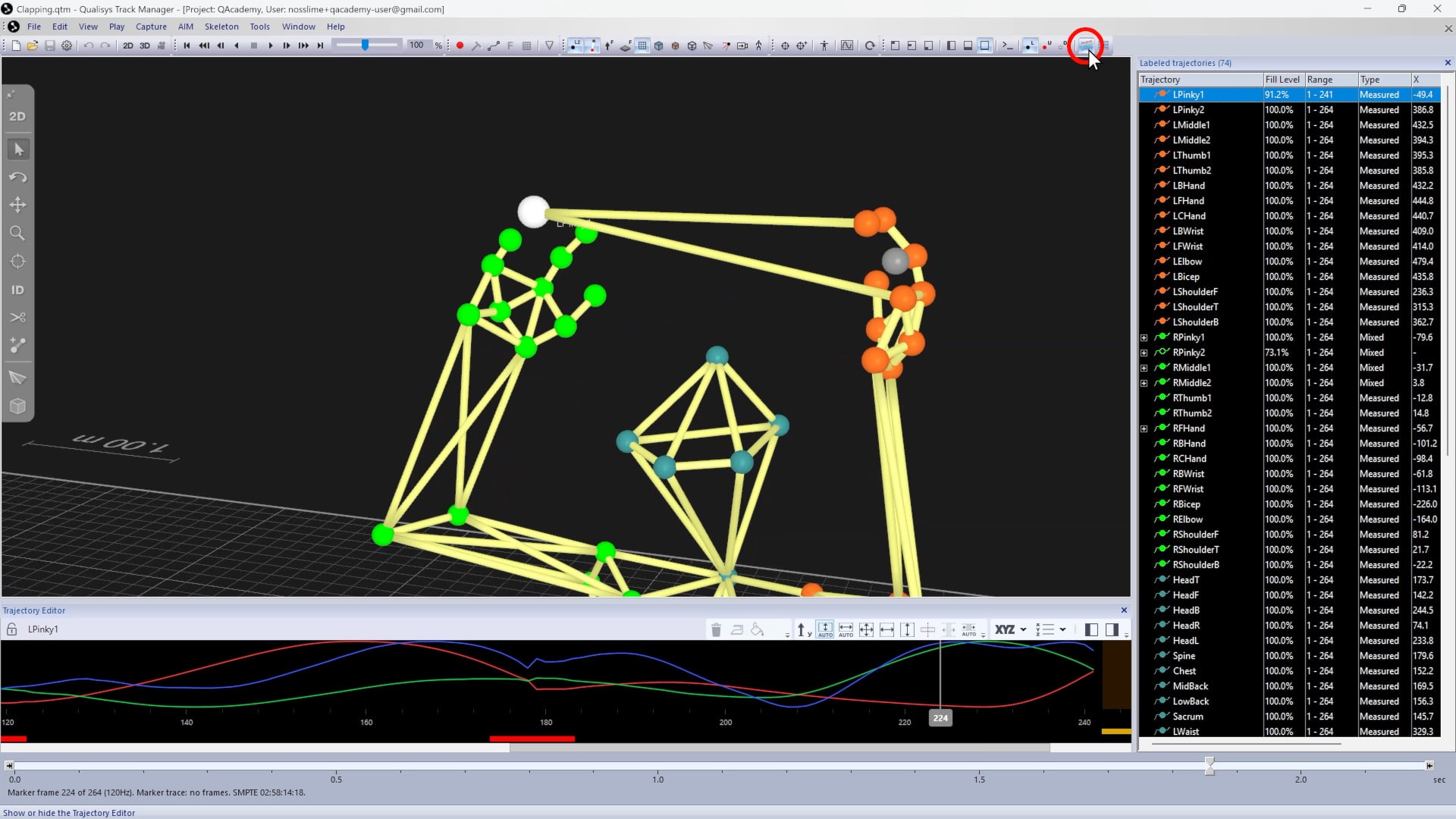
-
Move the hourglass slider on the timeline to the last frame before the split should happen.
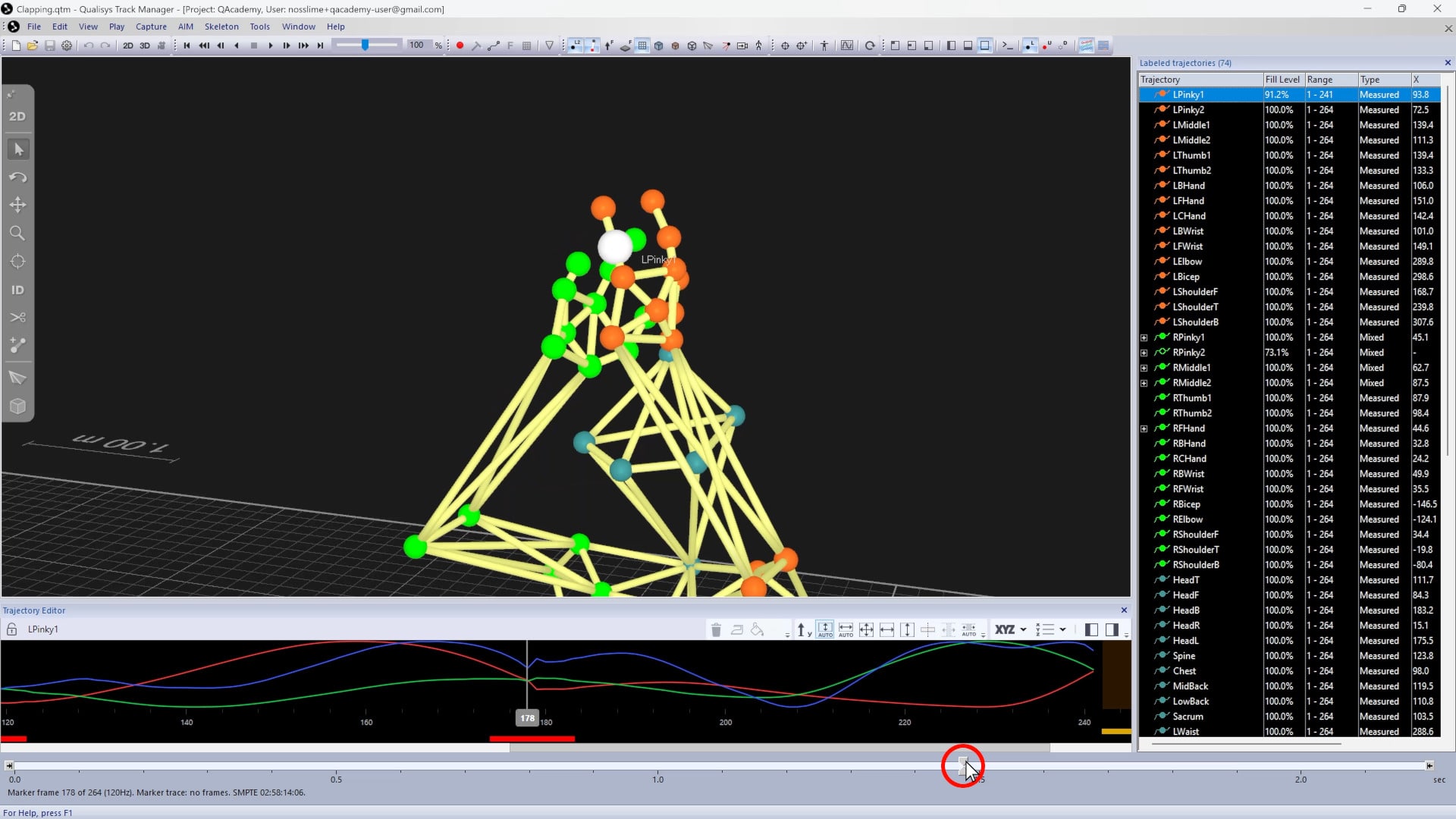
-
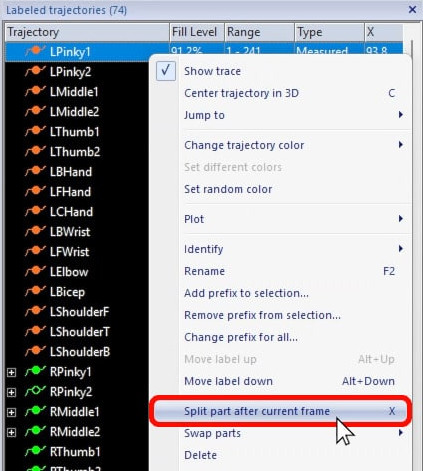
Then, right-click on the trajectory and select “Split part after current frame” or type X.
-
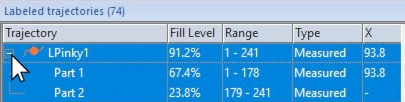
In the info pane, you will see the trajectory split into two parts—one up to the current frame and one for everything after.
When splitting a trajectory, you may find it useful to expand its traces.
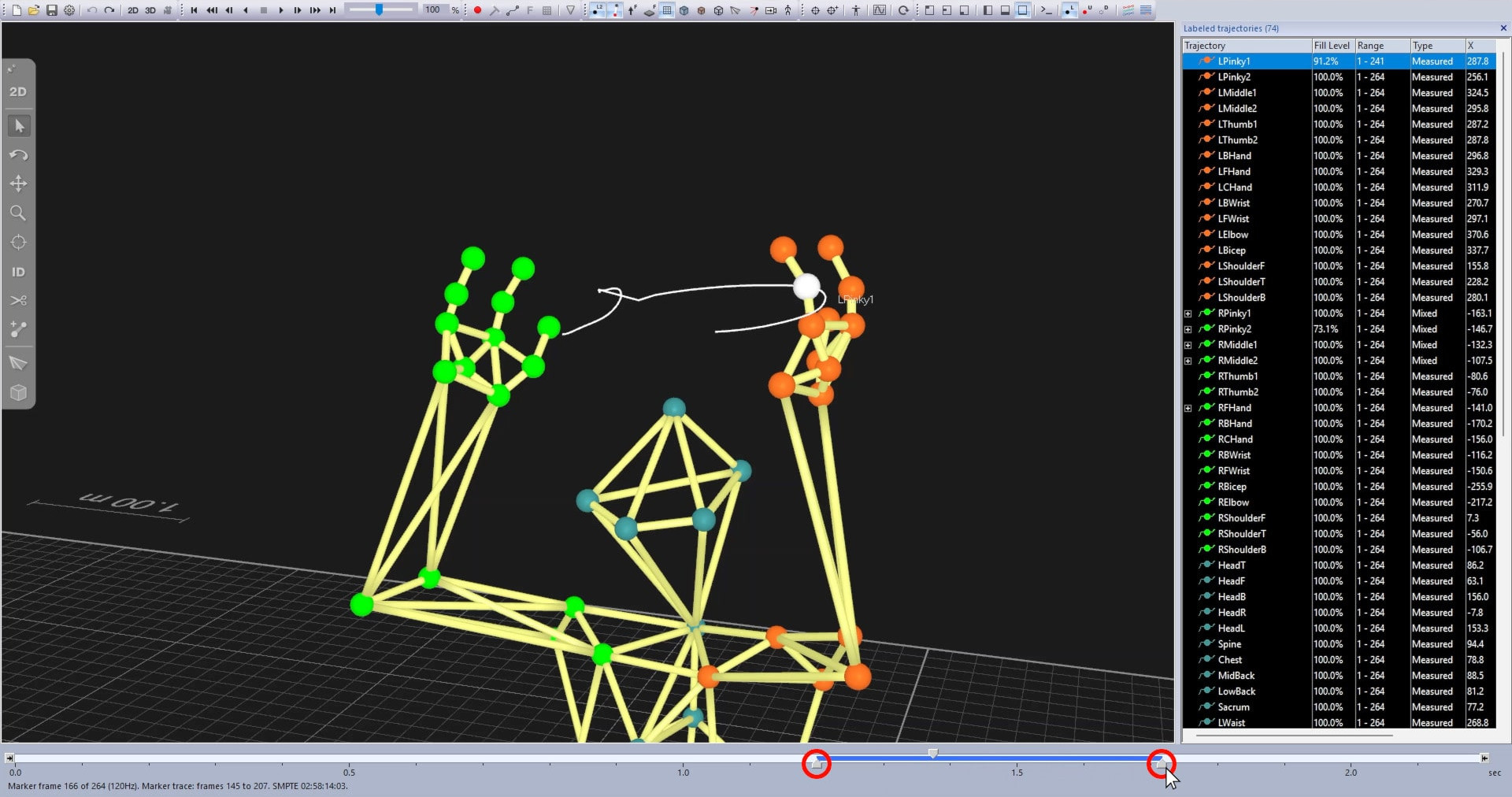
Use the “Cut trajectory trace” tool to click on the trace where you want the trajectory split.
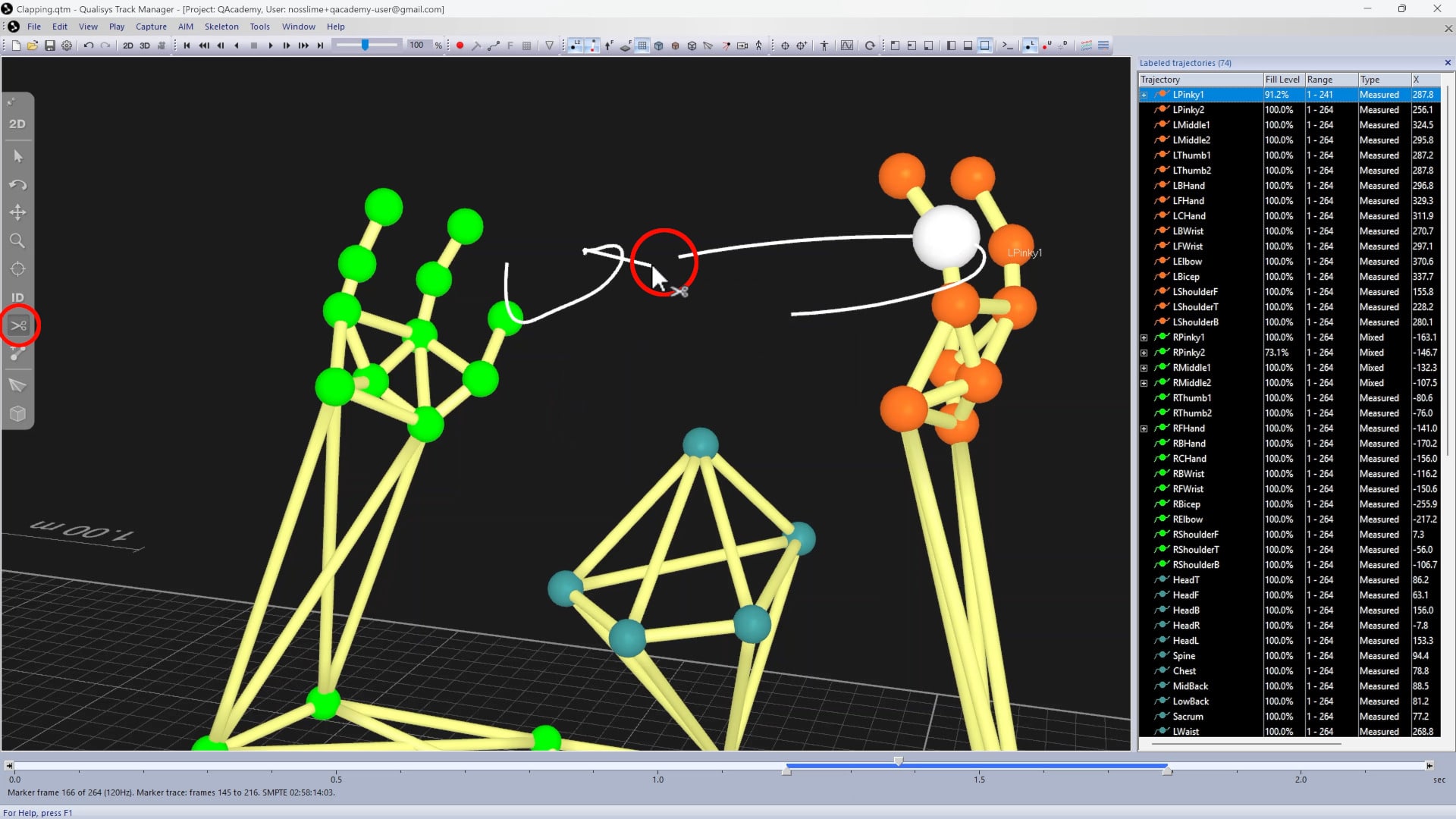
Once the new parts have been created, you can un-identify, re-label, swap, or discard them as needed.