Creating a label list
You can speed up the process of naming trajectories by loading a label list for the marker set you’re using. A label list is a template that stores the markers’ names as well as their colors and the visual connections between them.
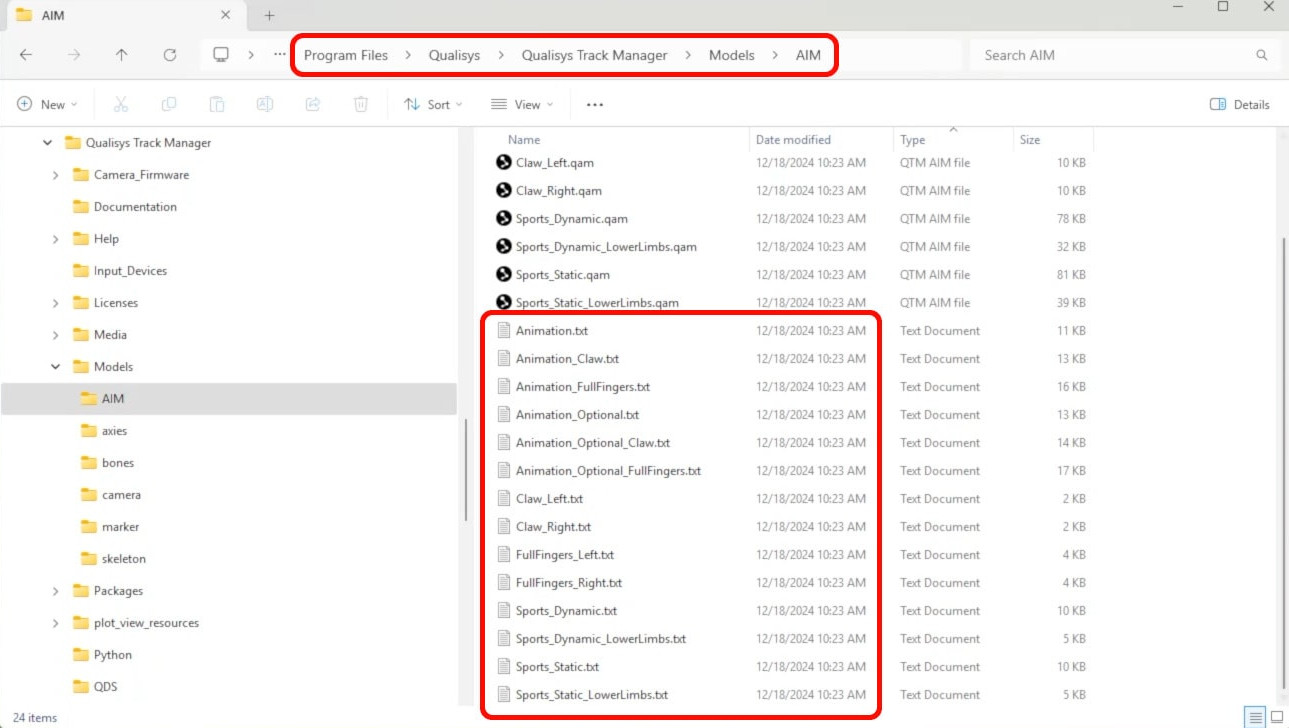
Your QTM AIM folder already includes label lists ready to use with Qualisys marker sets, but you can create your own label list for other setups.
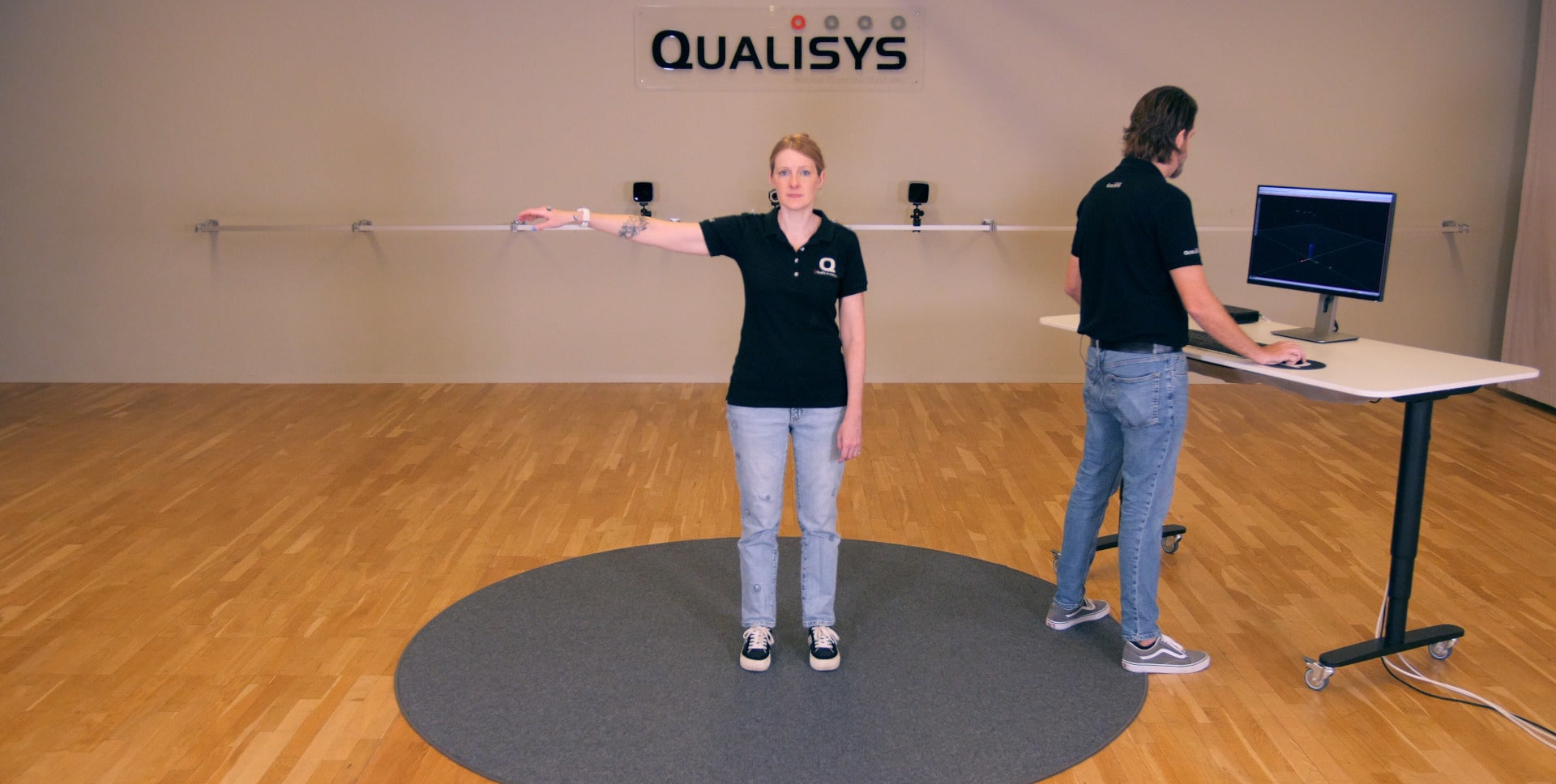
First, capture a short recording of your marker set:
-
If tracking a human subject, you may want to have them start in a pose that will make it easy to identify the markers in QTM. It’s recommended that they then perform a full range of movement so you can use the same recording to generate an AIM model.
-
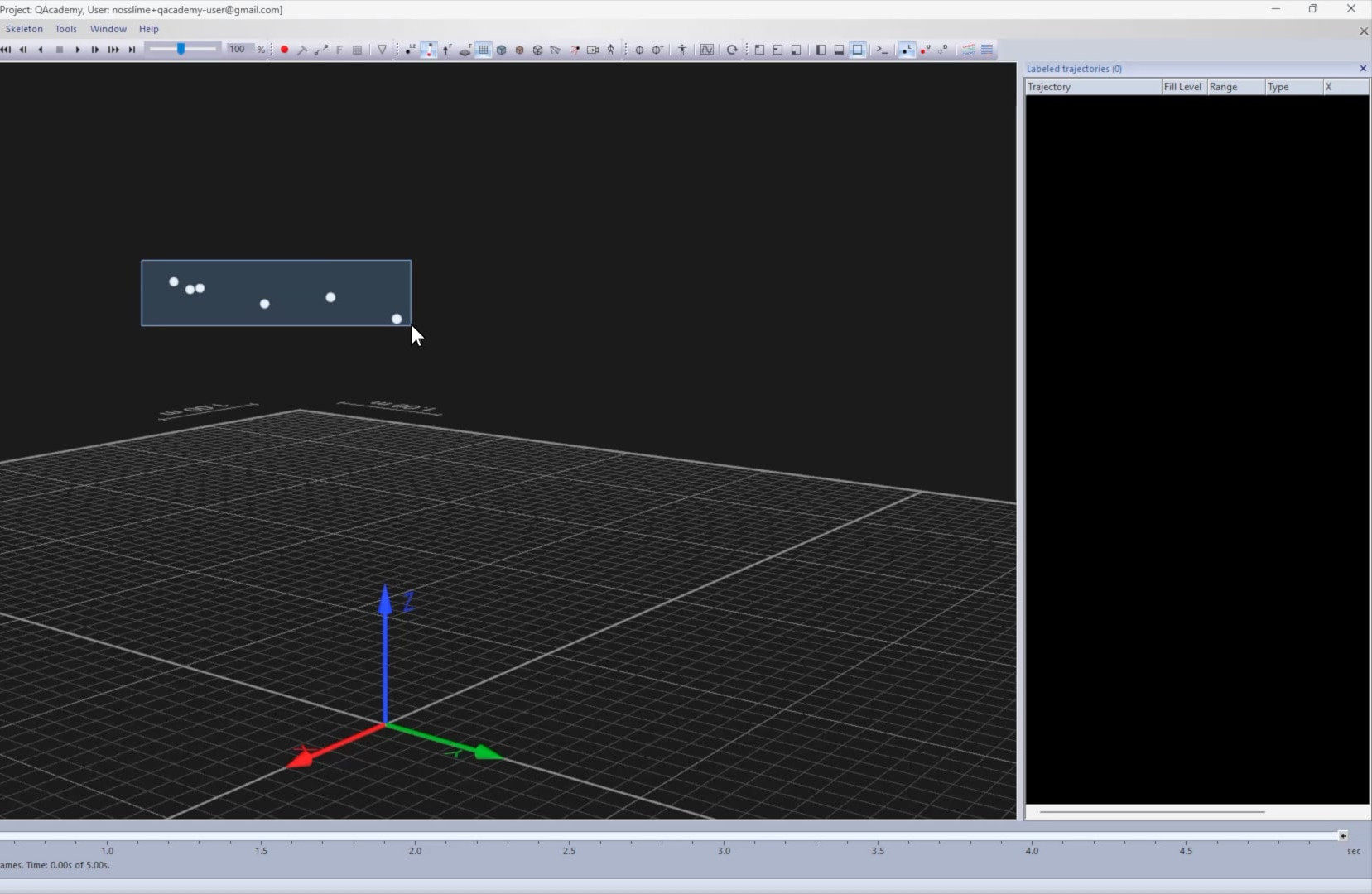
Once the recording ends, hold down Shift while drawing a box to select all of the markers.
-
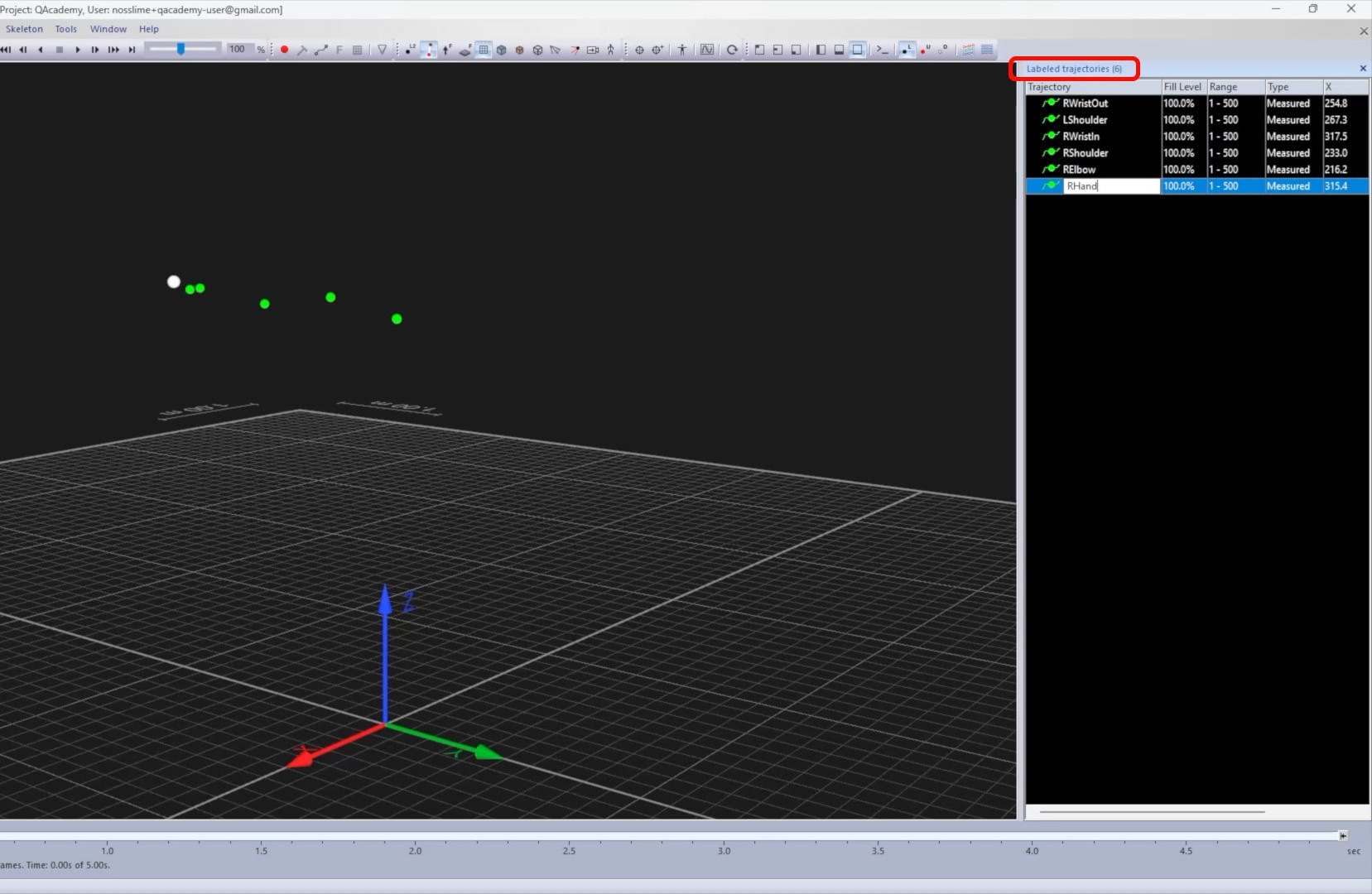
Drag the markers into the “Labeled trajectories” pane and name them.
If desired, you can choose colors and a connective structure for the trajectories, which will automatically apply to markers labeled with this list in the future:
-
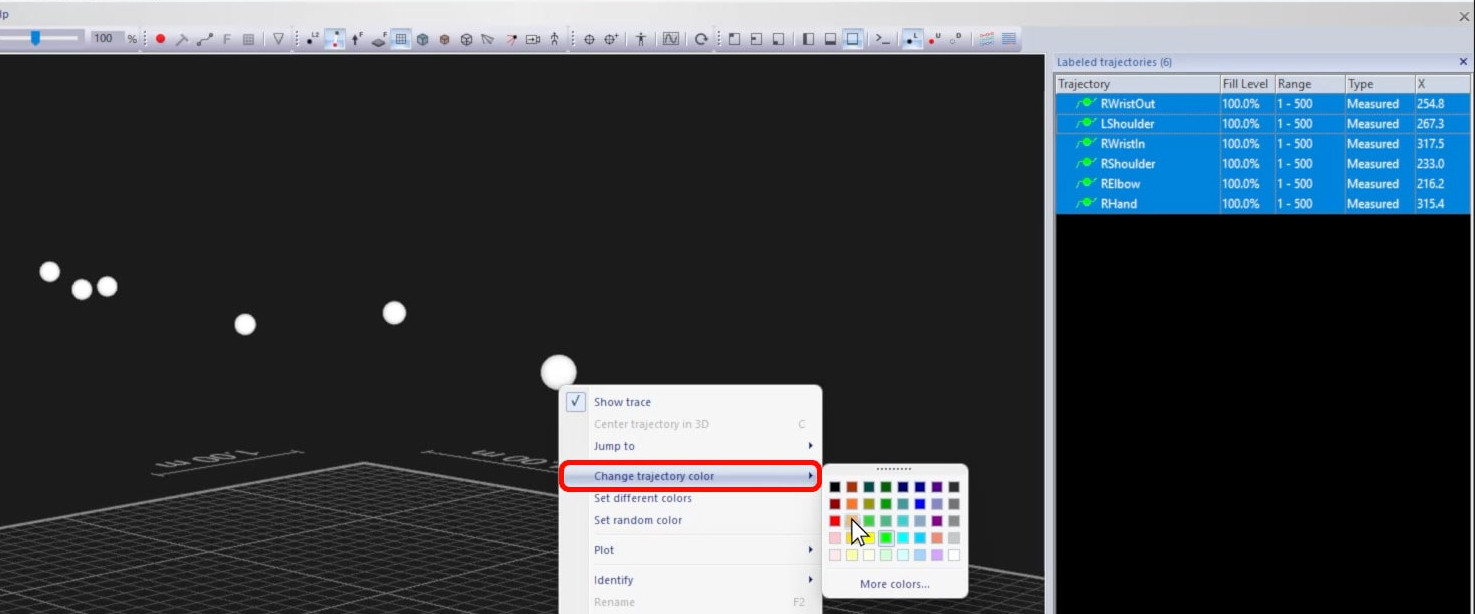
Right-click on a selection of markers and select “Change trajectory color” to pick a new one.
-
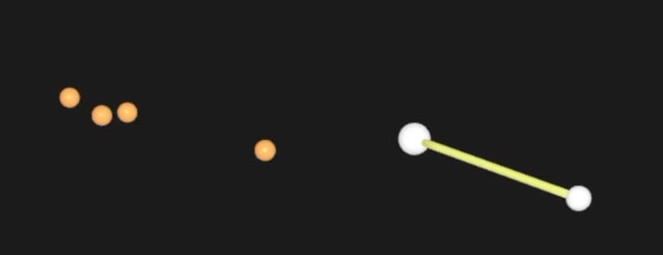
To draw a connecting line between two markers, select them both while holding down Ctrl, then type B to create a line between them.
-
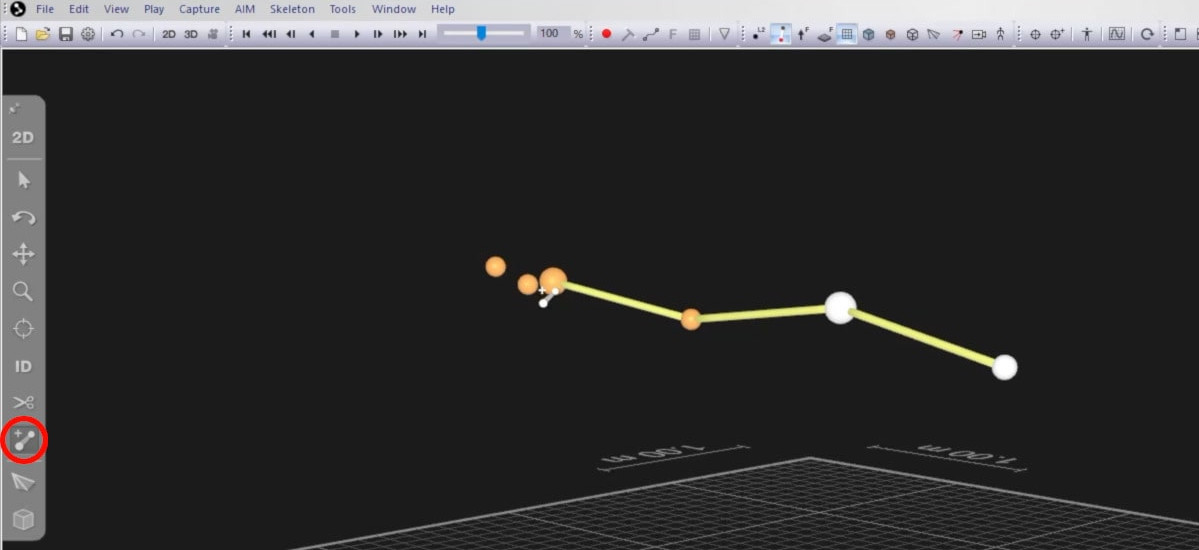
To more easily draw a sequence of connections, select the Bone tool from the 3D viewer toolbar, then click on the markers in the viewer to create lines between them.
-
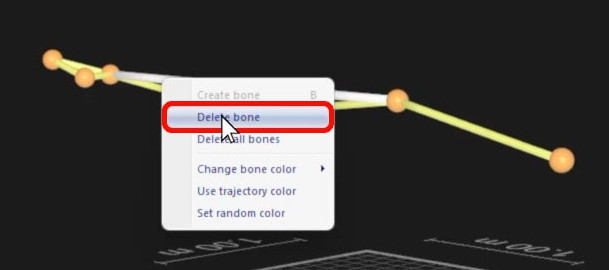
If you place a bone by mistake, simply type Ctrl+Z to undo or right-click on the line and select “Delete bone.”
-
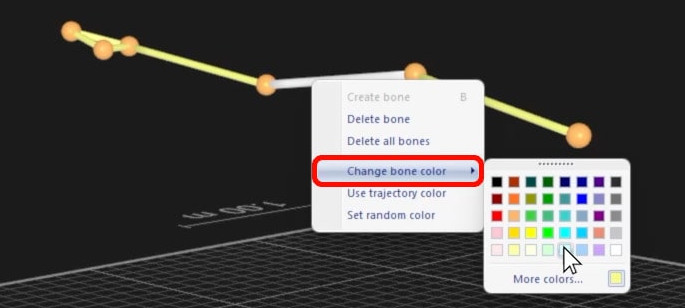
Right-clicking on a bone also gives you the option to change its color.
-
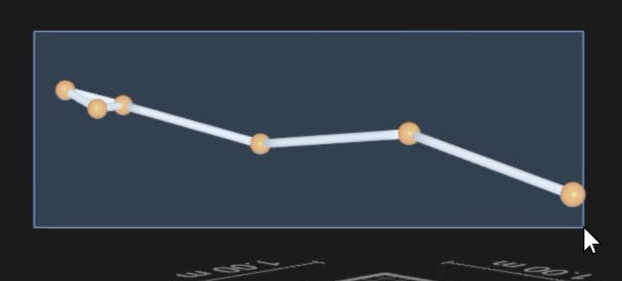
To change the color of all the bones at once, click on a single one, then hold the Shift key while drawing a box to select the entire structure.
-
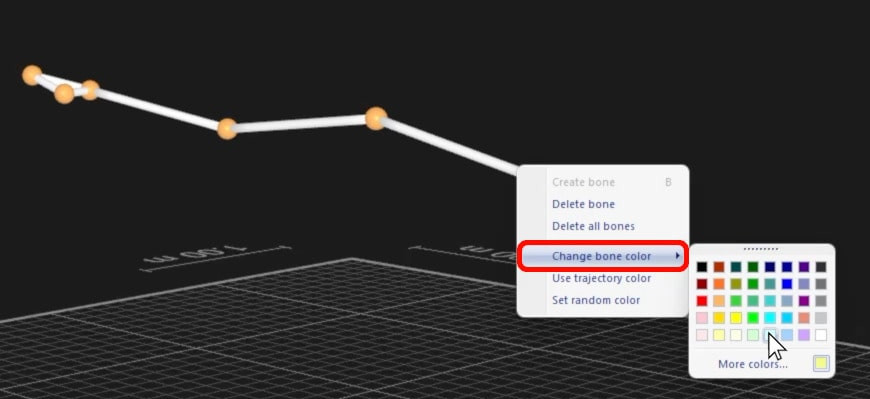
Then, right-click on any of the bones and select “Change bone color.”
Once you’re satisfied with the appearance of your template, save it as a label list:
-
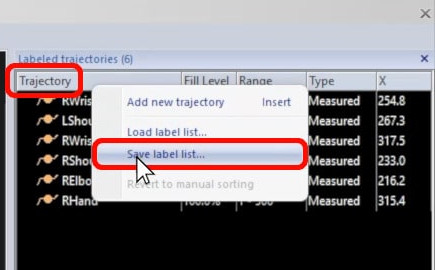
Right-click on “Trajectory” in the “Labeled trajectories” pane and select “Save label list.”
-
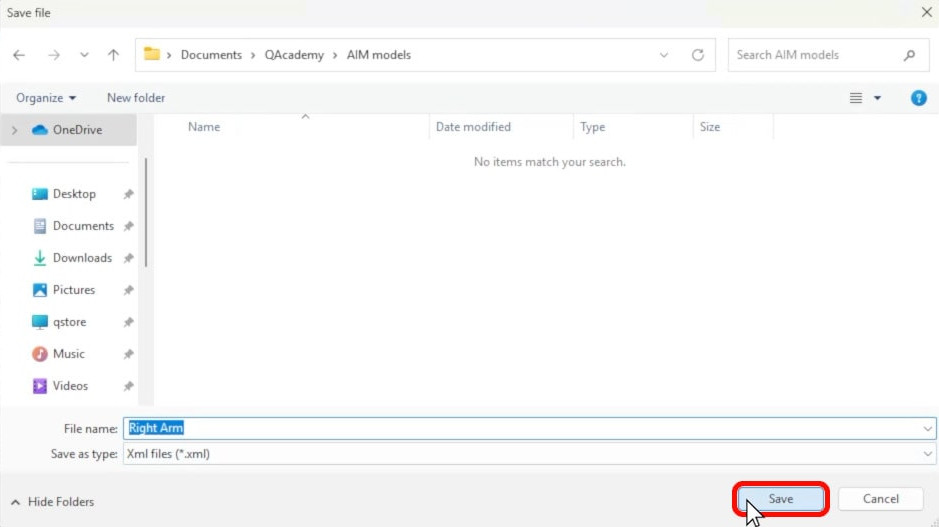
Choose a save location, such as your project’s AIM folder, and name the file.
This label list can be used from now on to easily identify and visualize the markers from this marker set. This can be useful on its own or to speed up labeling when creating or training AIM model.