Troubleshooting real-time streaming
Real-time streaming takes a large amount of processing power, and you may find the need to optimize your setup.
When streaming live, check in the QTM status bar that the real-time frequency is the same as the capture frequency.
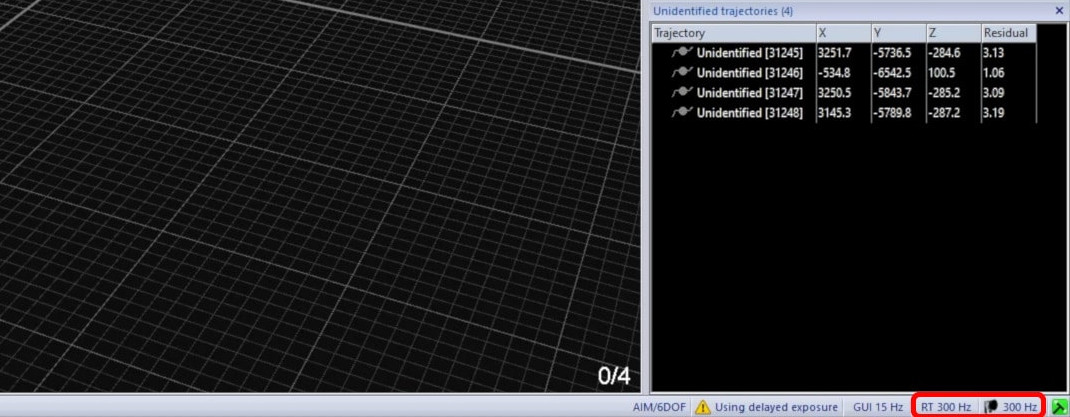
If the real-time frequency is decreased, there are some steps you can take to optimize it:
-
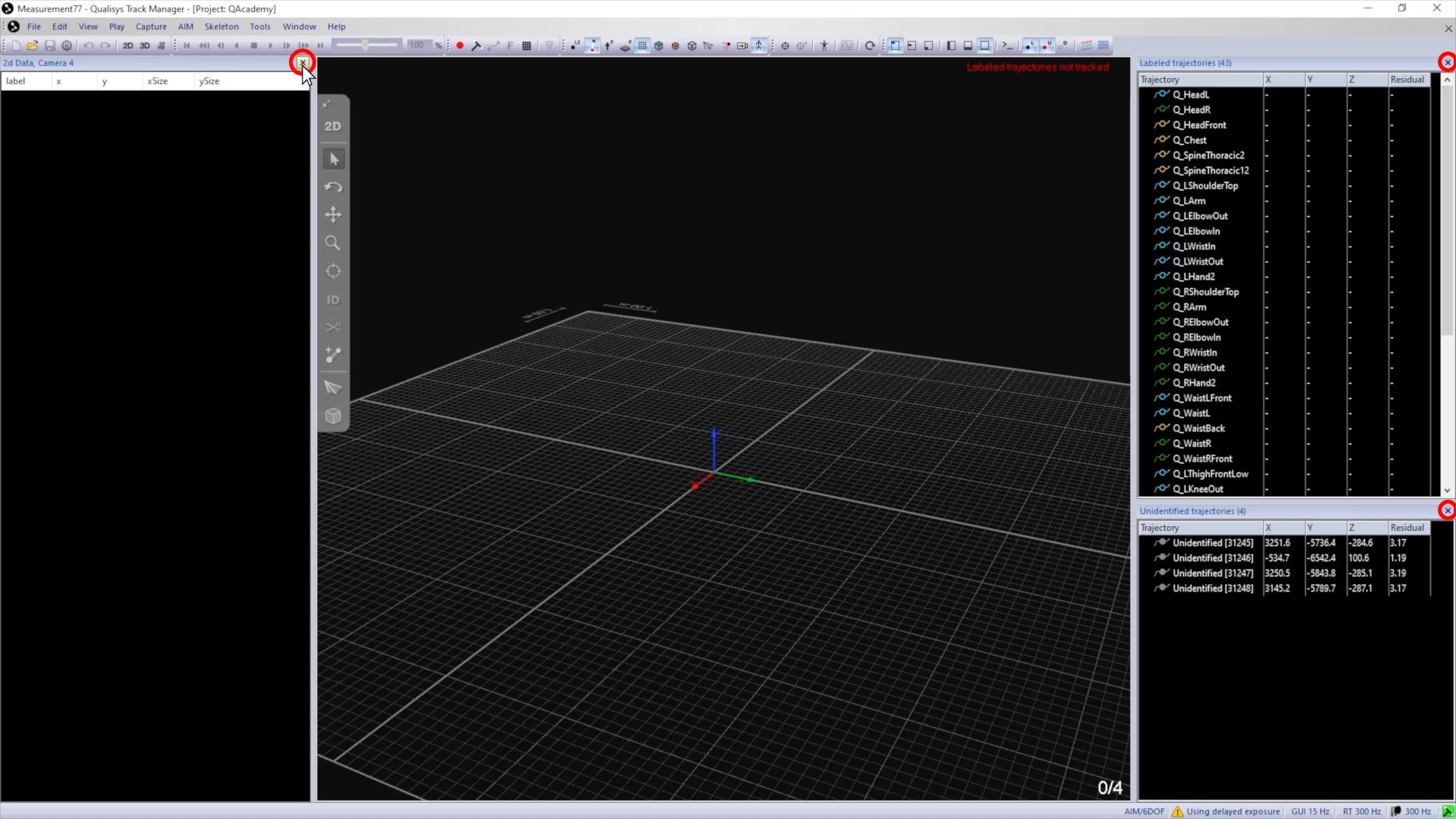
First, close any unnecessary windows in QTM, such as the data and trajectory info panes.
-
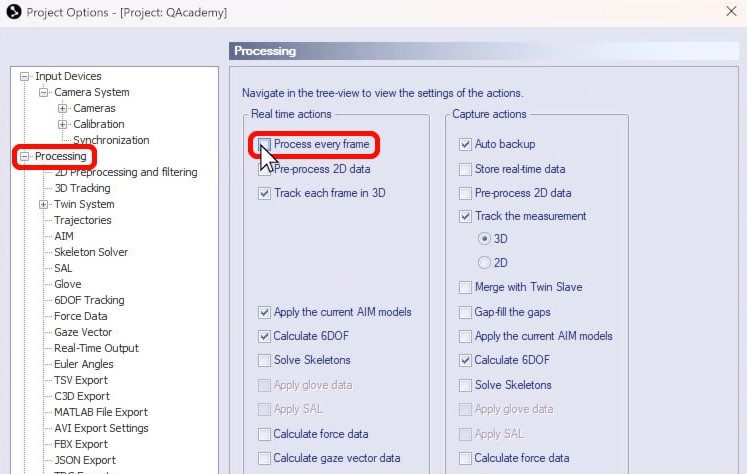
Then, open Project Options, navigate to “Processing,” and make sure that “Process every frame” is not selected and that only the necessary processing steps are enabled.
-
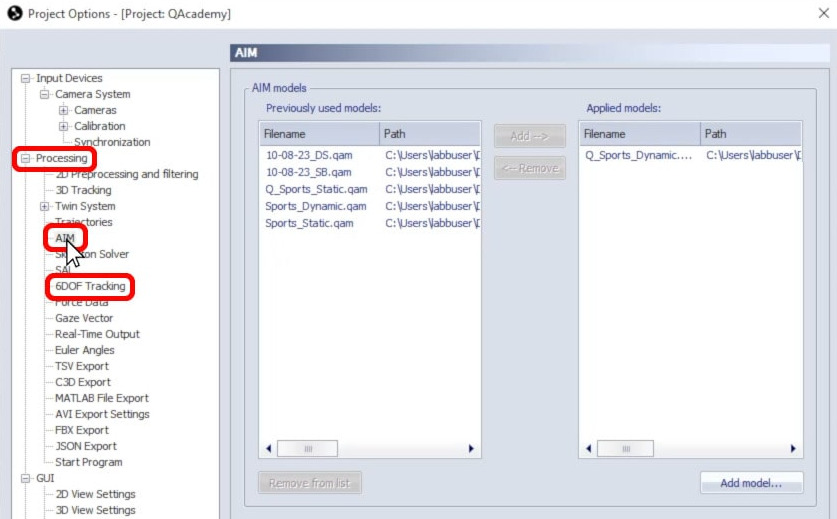
If AIM models or 6DOF calculations are enabled, check the individual settings pages to make sure that no unnecessary models or rigid bodies are included.
-
Next, navigate to “GUI” to check the screen update frequency. You can lower the real-time mode or even deselect the checkbox to disable the QTM display during preview. This will reduce the load on QTM, freeing up its capacity to process the data.

-
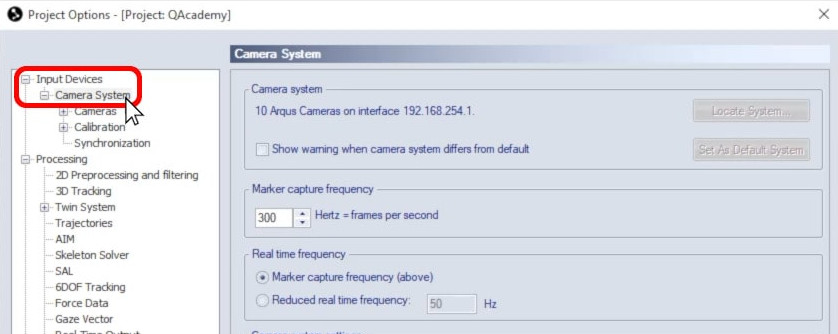
You can also navigate to “Input Devices” à “Camera System” to lower the real-time frequency.
-
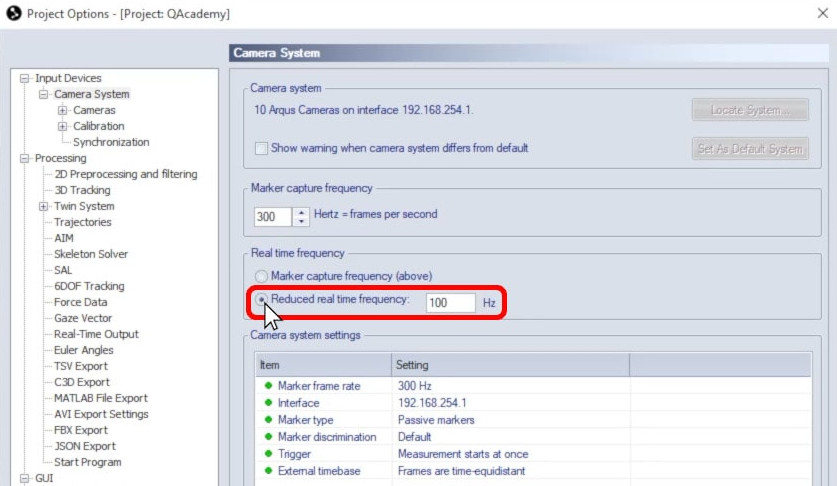
By default, it is set to the same as the marker capture frequency, but you can select “Reduced real time frequency” to apply a lower value.
-
Click “OK” to save your settings.
If QTM is still struggling to process your real-time data, some of the following steps may help:
-
Close any unnecessary software running on your computer.
-
If streaming to an external program, you may have better performance running the program on a different computer connected to the same network.
-
You can also try starting QTM in server mode to minimize interference.
-
Finally, you may want to consider capturing with a reduced number of cameras so that QTM has less data to process.