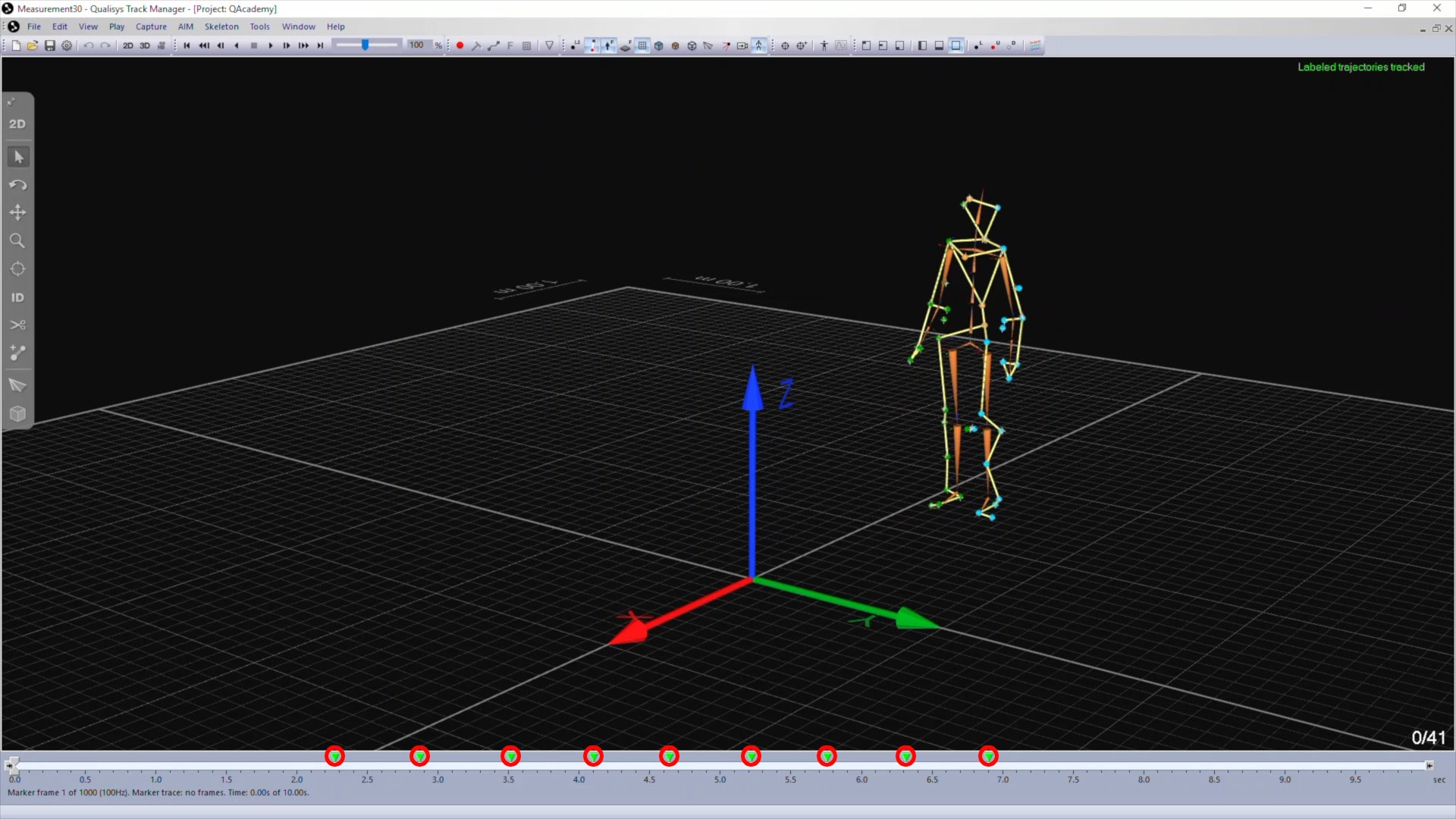
Triggering recordings and events
Once your synchronization settings are ready, the trigger can be used for captures and events.
-
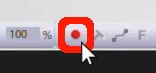
Open the Capture dialog by clicking icon or typing the keyboard shortcut Ctrl+M.
-
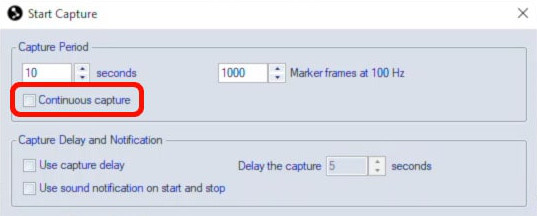
Enable continuous capture if you want measurements to continue until triggered to stop.
-
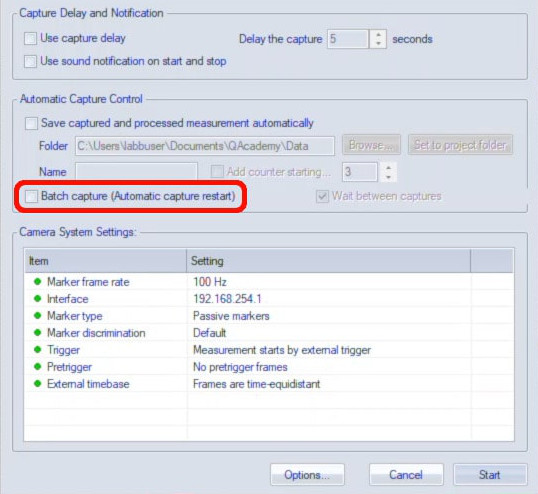
You can also enable batch capture so that QTM will automatically proceed to a new measurement when one finishes.
-
Once you click “Start,” QTM will follow the trigger functions that you set.
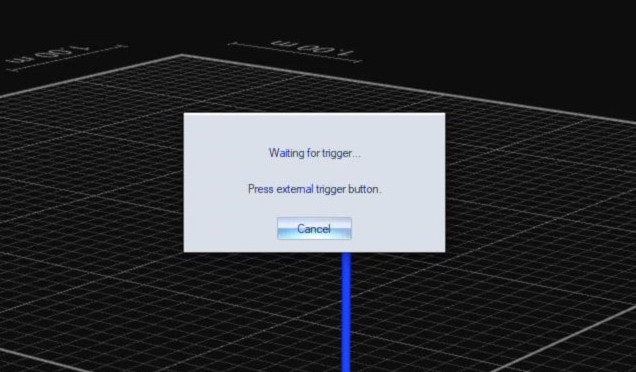
If you’ve set the trigger to start capture, QTM will wait for the trigger signal to begin recording a measurement.
External devices linked to the trigger will begin capturing data in sync with your Qualisys cameras.
Any events that you create during the measurement will be added to the QTM file and can be viewed or edited after the capture has finished.