Trigger settings in QTM
Once a trigger is plugged in, its function and other synchronization options are set up in QTM.
-
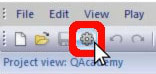
Open Project Options (keyboard shortcut Ctrl+W).
-
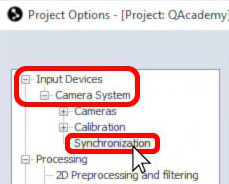
Navigate to “Input Devices” à “Camera system” à “Synchronization.”
-
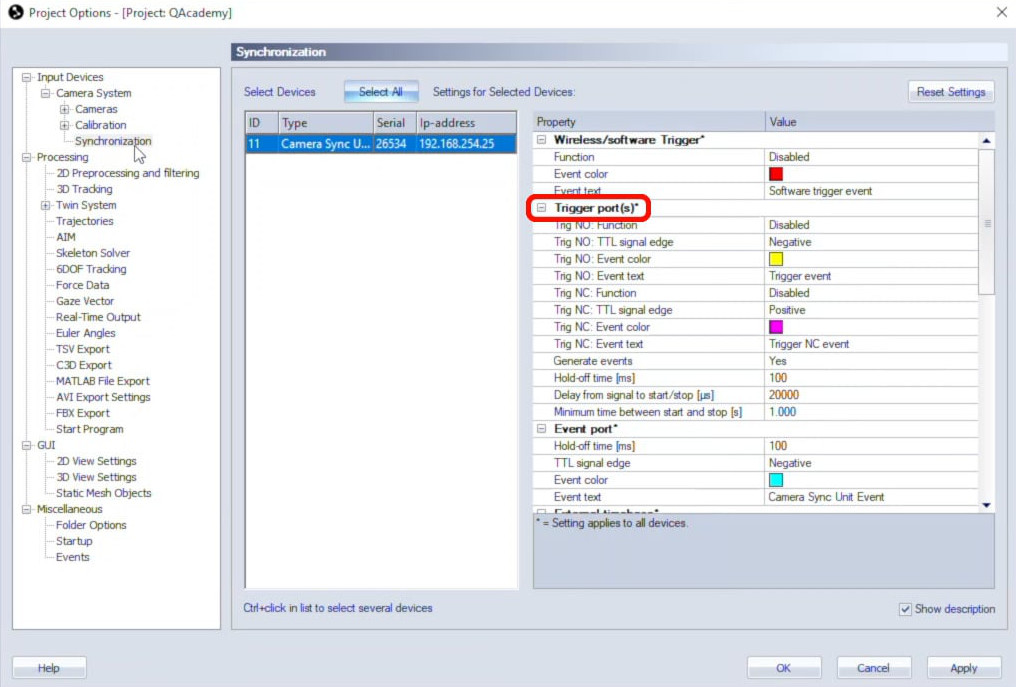
If your trigger is plugged into a trigger port on the sync unit or into an Oqus camera, you’ll find the settings under “Trigger port(s).”
-
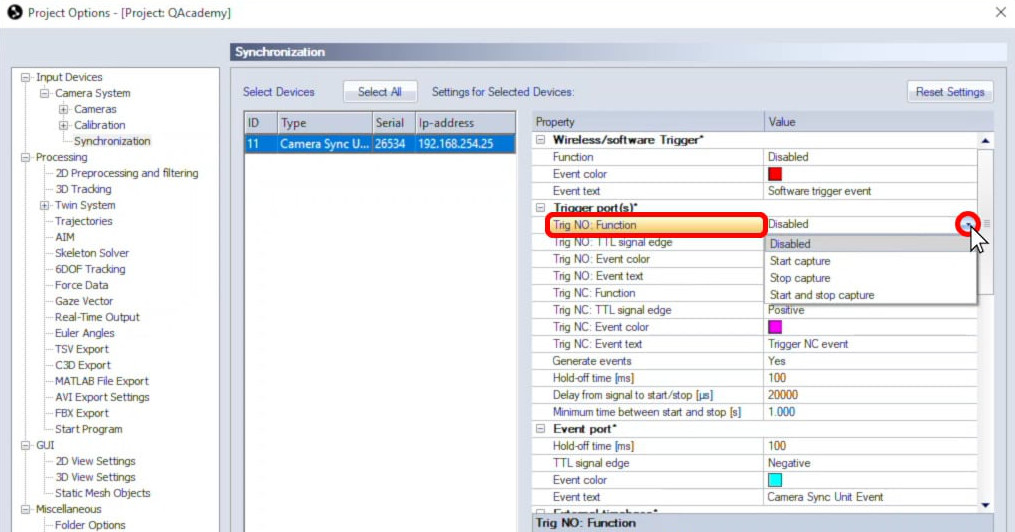
From here, you can set the function of the trigger to start capture, stop capture, or both. Keep in mind that if the trigger is set to stop capture, it cannot be used to create events. If start and stop capture are both disabled, the trigger will only add events.
-
Beside “TTL signal edge,” choose the signal polarity that QTM will recognize as a trigger. In the case of a Qualisys wired trigger, pressing the button produces a negative signal, so setting the TTL edge to “Negative” means that actions will be triggered when the button is pressed. If using a different trigger device, refer to its documentation for which signal edge it uses.
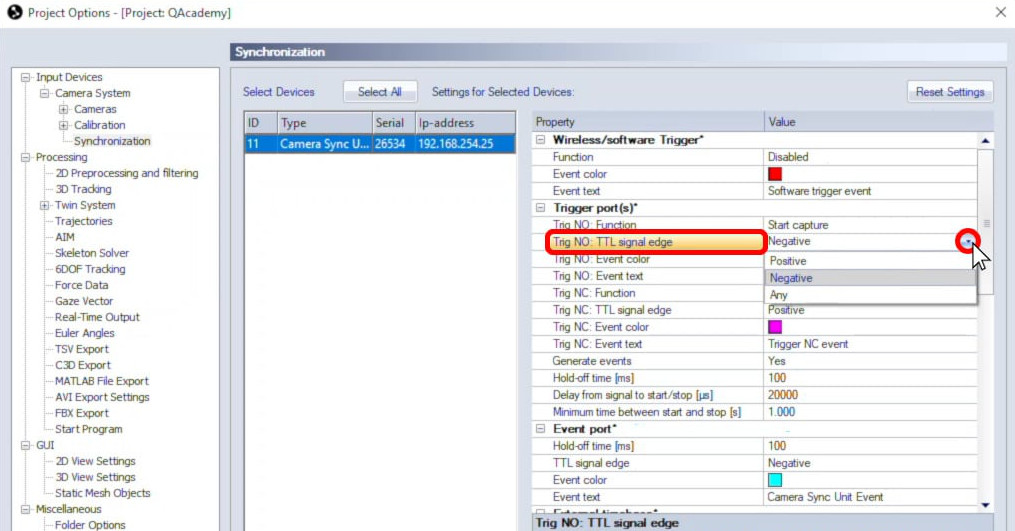
-
If you will be creating events with the trigger, you can choose the color and text to be associated with them.
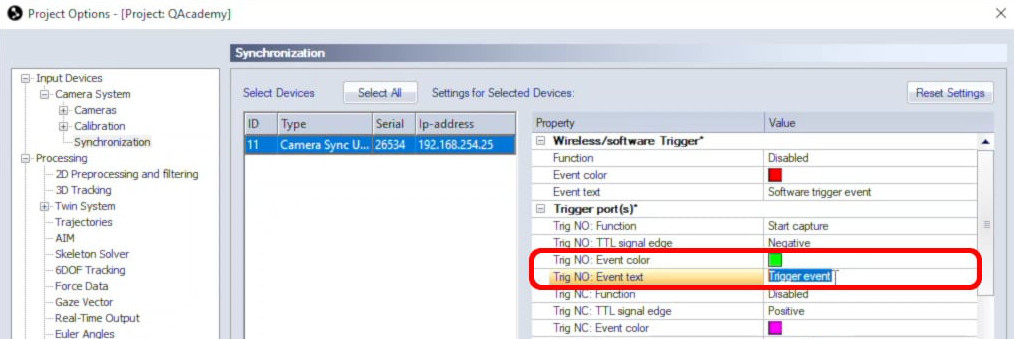
-
Another option is to disable “Generate events” if you only want to use the trigger for starting captures.
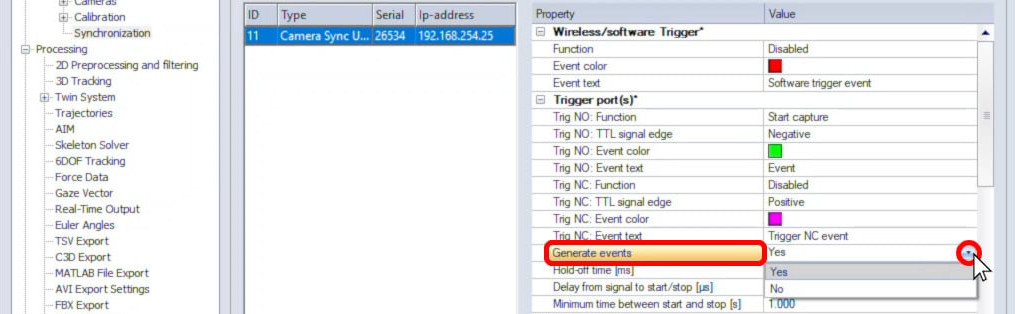
-
“Hold-off time” refers to the number of milliseconds after a triggered action before a new one can be generated. This helps to avoid accidentally creating spurious events if the trigger button is jiggled. You can increase the hold-off time if needed—for example, if you notice that you are generating extra events by pressing the trigger button for too long.
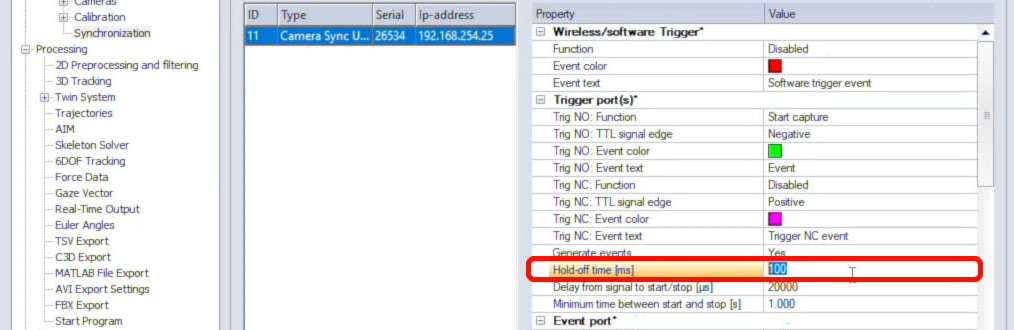
-
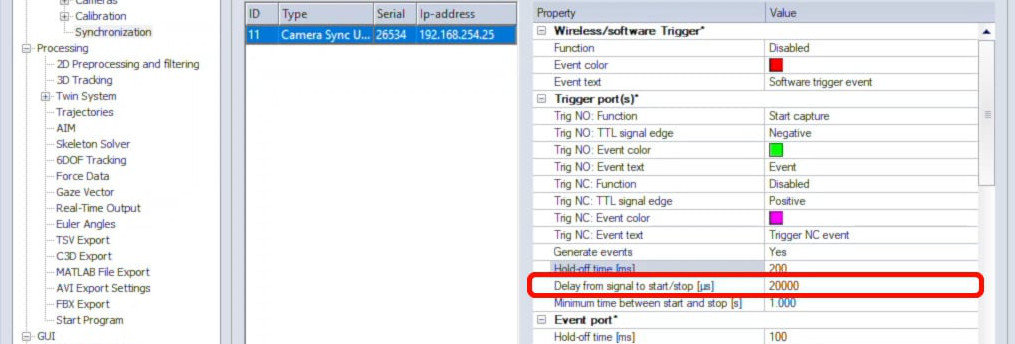
The delay is the amount of time between the trigger start or stop signal and the corresponding action. The minimum delay required by QTM is 20 milliseconds, which should be taken into account for aligning with external data.
-
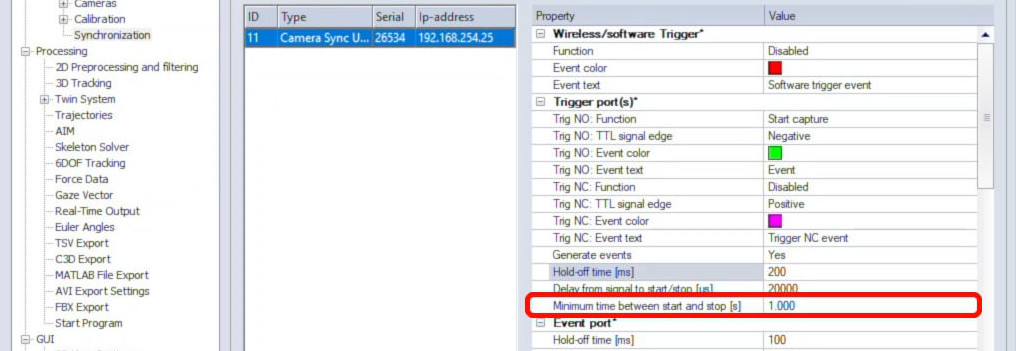
Finally, the minimum time between start and stop helps avoid accidentally stopping a capture as soon as it has started.
-
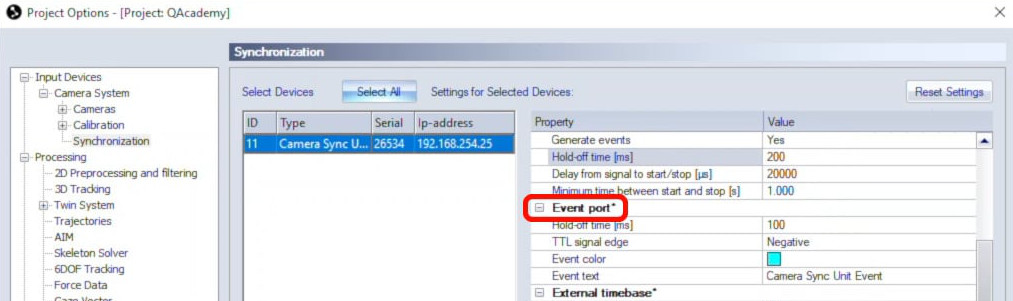
If your trigger is plugged into the EVENT port on the sync unit, scroll down to “Event port” to change the hold-off time, TTL signal edge, and event color and text.
-
Click “OK” to save your settings.