Marker masks
The marker mask tool in QTM lets you block unwanted reflections from the views of individual cameras.
-
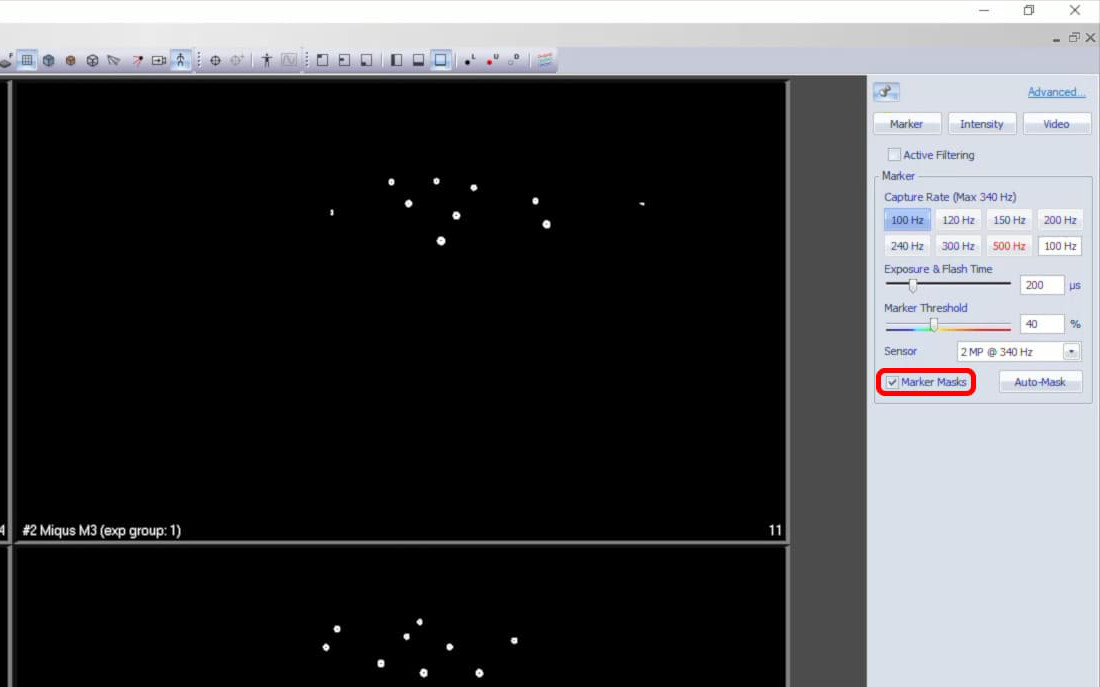
With the cameras running in live preview mode (Ctrl+N) and displayed in the 2D viewer (2), make sure that “Marker Masks” is enabled in the camera settings sidebar.
-
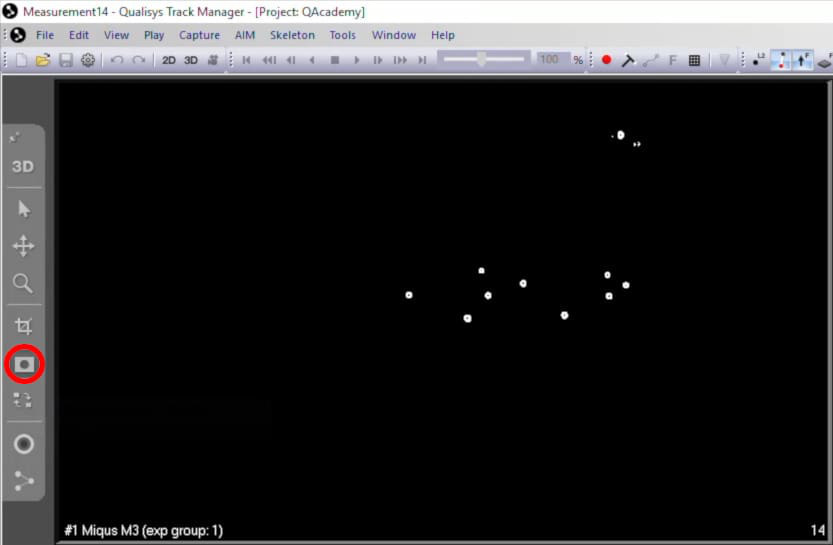
From the 2D viewer toolbar, select the Marker Mask icon.
-
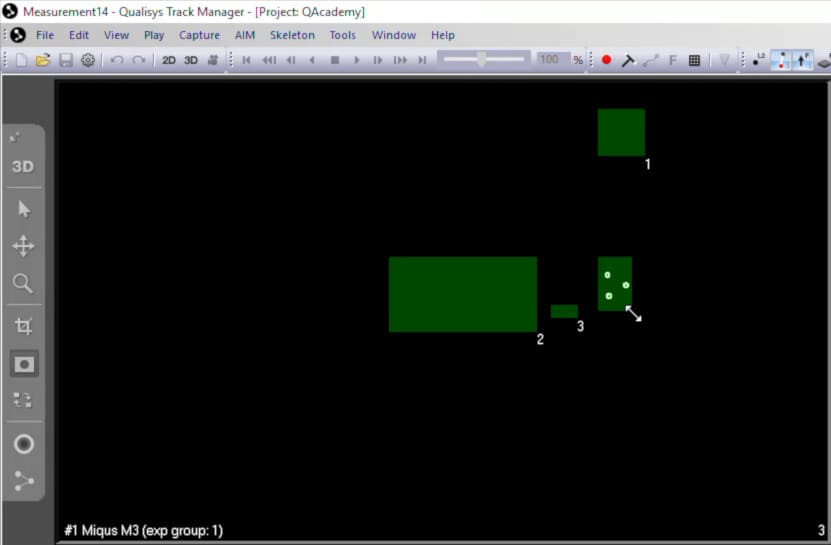
Click and drag to draw masks over any unwanted reflections. QTM supports up to 20 masks per camera for Arqus and Miqus models and up to 5 for Oqus cameras. The masked areas will be discarded, so be careful that the masks won’t block genuine marker data from being captured.
-
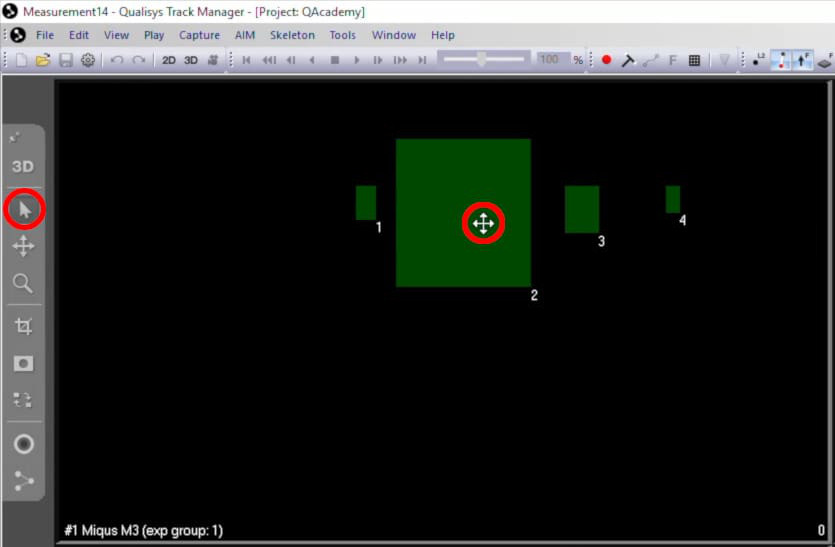
Switching back to the Selection tool will let you resize or move the masks.
-
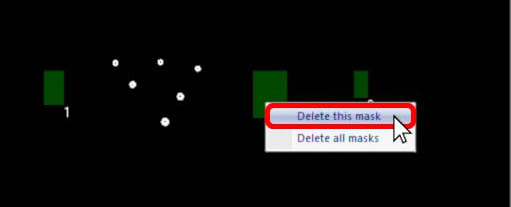
To delete a mask, right-click on it and select “Delete this mask.” Selecting “Delete all masks” will remove every mask from that camera.
To delete the masks from all the cameras at once:
-
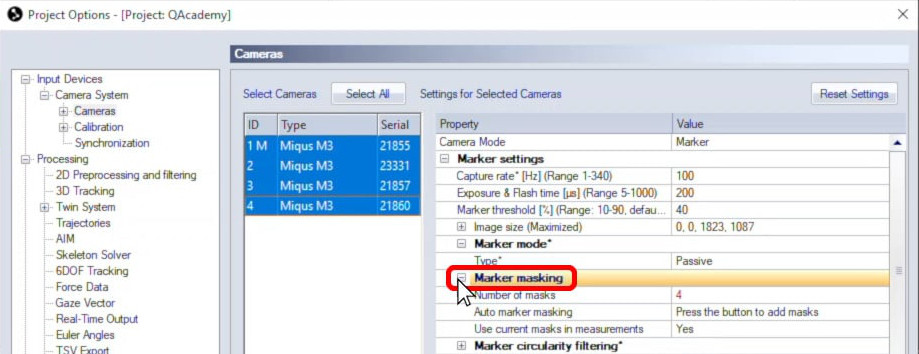
Reopen the “Cameras” page in Project Options, make sure all cameras are selected, and expand “Marker masking.”
-
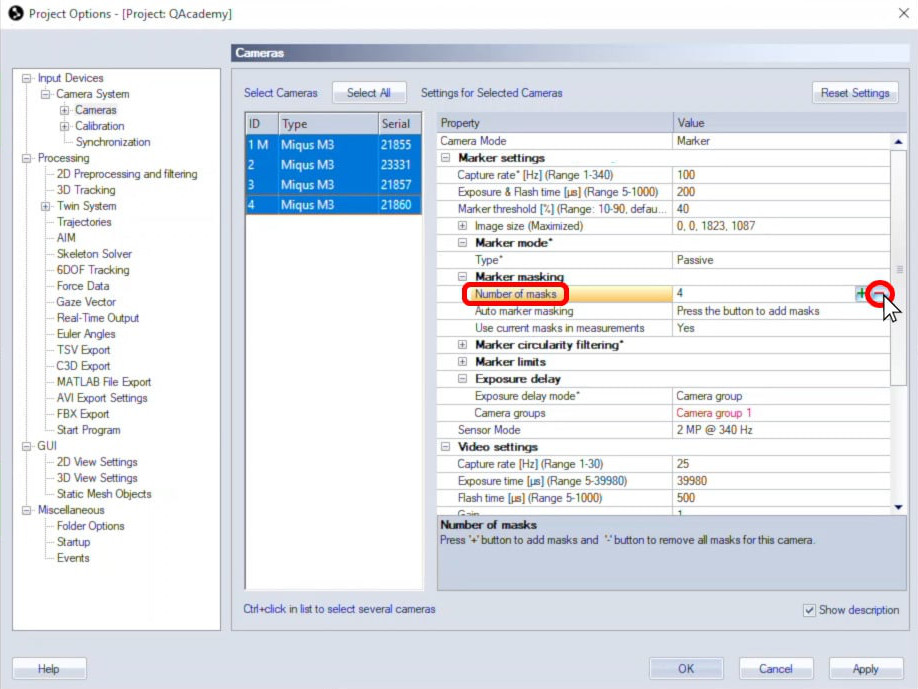
Select the number field beside “Number of masks” and click the minus button or input “0” to remove all masks from the selected cameras.
-
Click “OK” to apply your settings.