Auto-Mask
Another option is the Auto-Mask feature, which automatically masks all reflections.
-
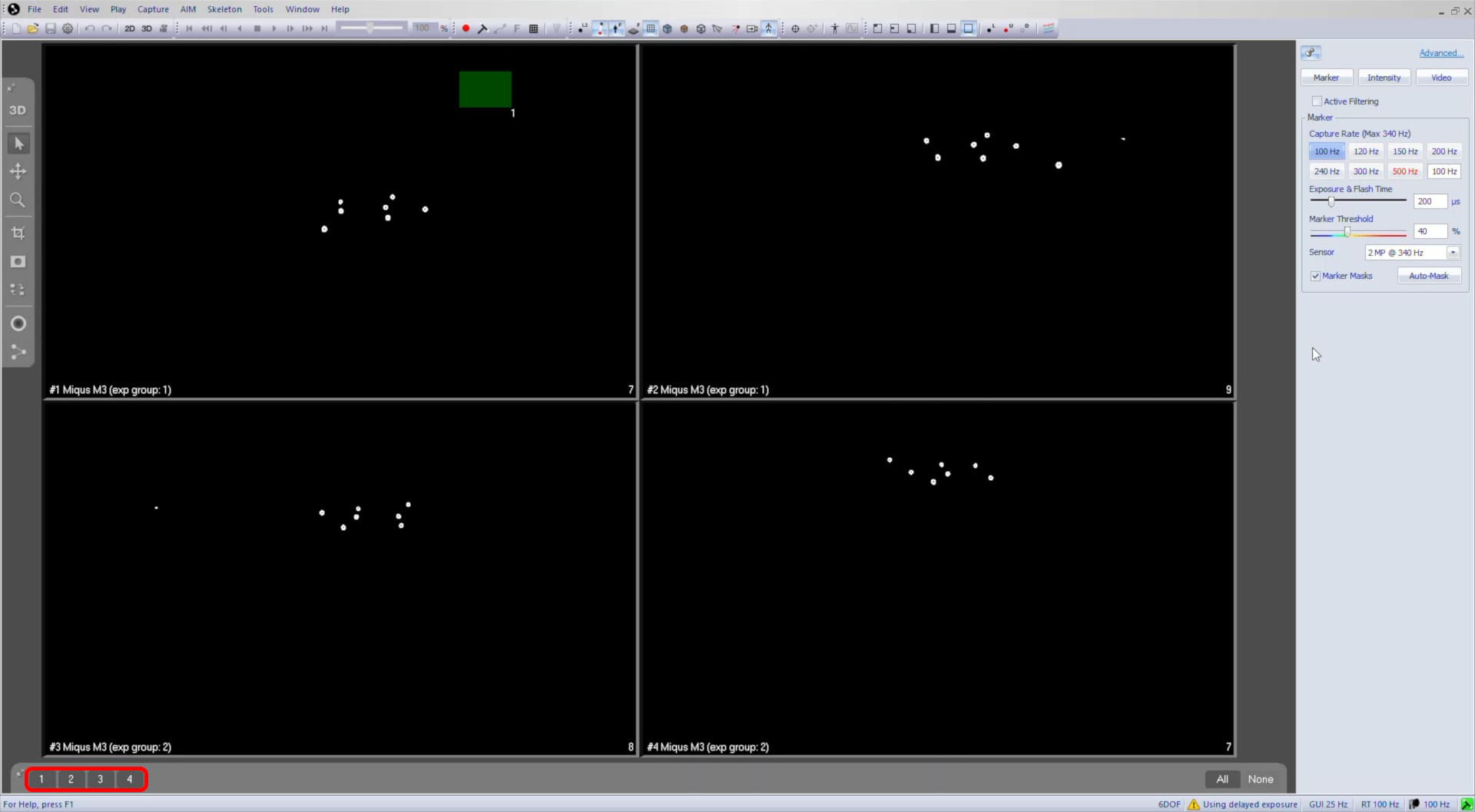
While still in the 2D viewer, select all of the cameras picking up unwanted reflections.
-
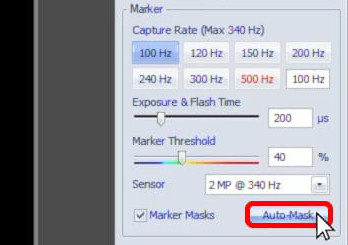
In the camera settings pane, make sure that “Marker Masks” is enabled, then click “Auto-Mask.”
-
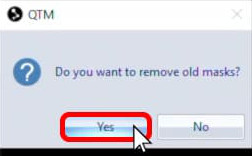
If there are already masks on the cameras, you can choose whether or not to keep them in addition to the new masks.
-
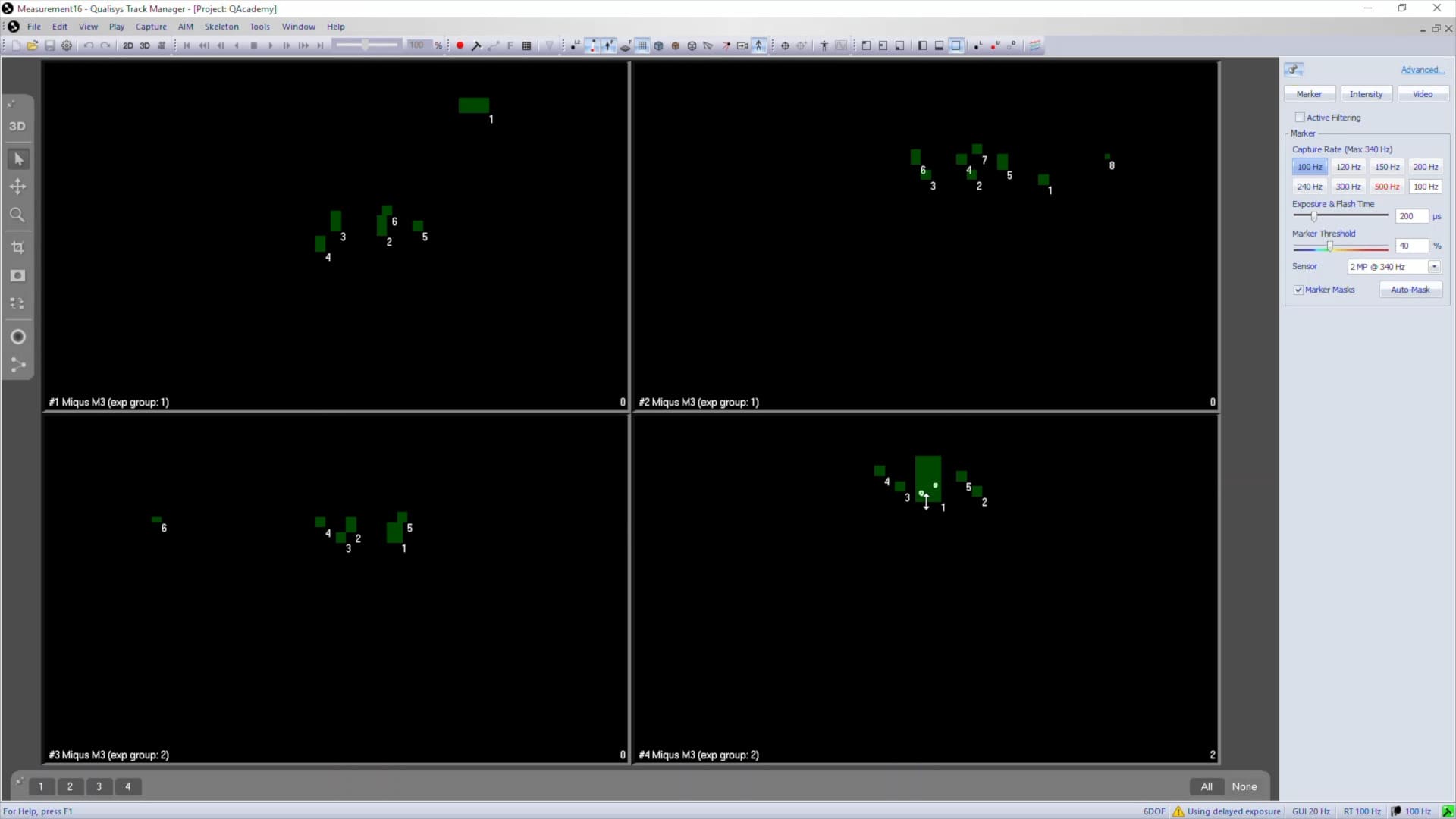
QTM will identify any reflections and generate masks up to the limits supported by those cameras. You can now move, resize, or delete the masks as needed.
You can temporarily disable the masks by deselecting “Marker masks” in the sidebar. This can be useful, for instance, to check whether or not the masks are covering up relevant data.
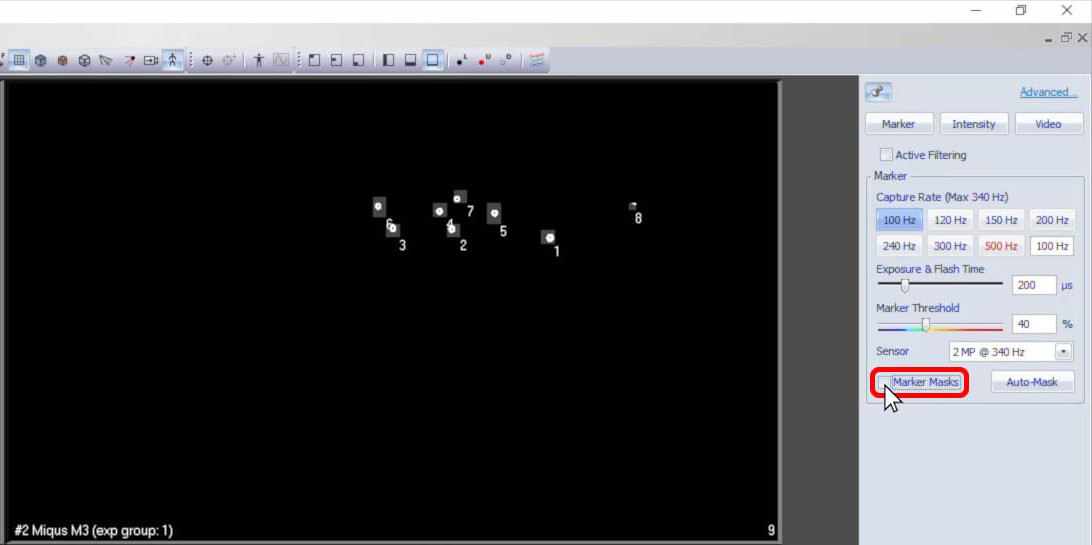
Once all of the reflections have been masked, you should see a “0” in the bottom right corner of each camera feed in QTM. You can now move on to calibrating the cameras and capturing data.
