Applying a biomechanical model
The first step in applying a biomechanical model to your data is selecting the static trial associated with the motion trials you want to visualize.
-
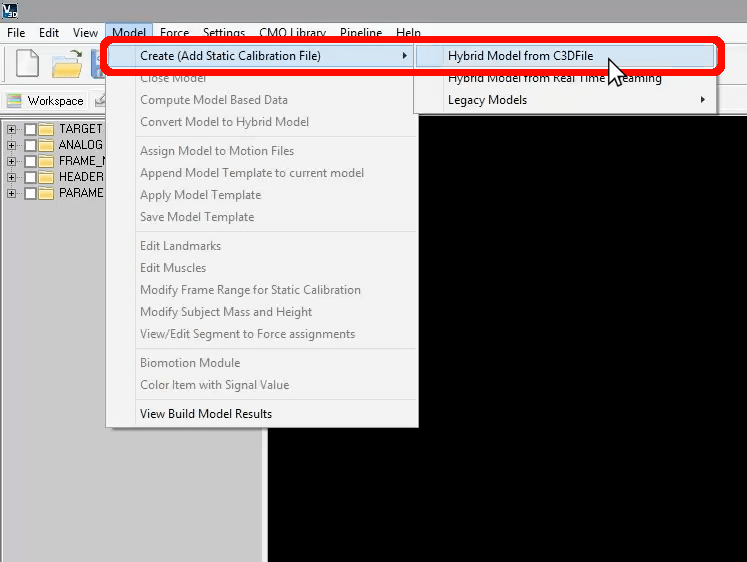
Click “Model” in the top menu bar and select “Create (Add Static Calibration File),” then “Hybrid Model from C3DFile.”
-
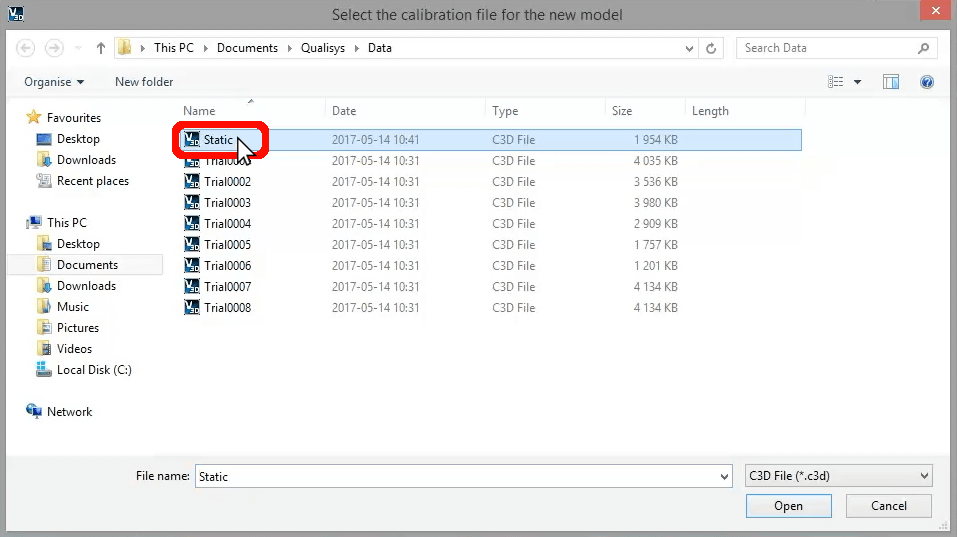
Select the C3D file of the static trial that you recorded when capturing your Qualisys motion capture data and click “Open.”
-
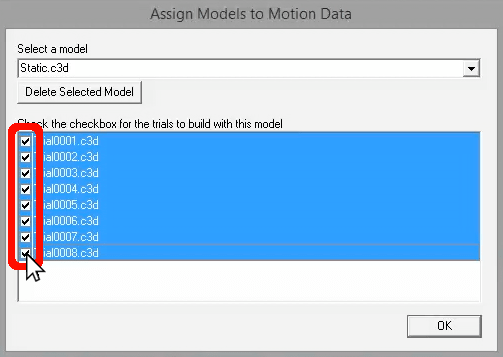
Click the checkboxes beside all of the trials to which you want to apply the model and click “OK.”
Now you can apply a previously created model template to the selected trials:
-
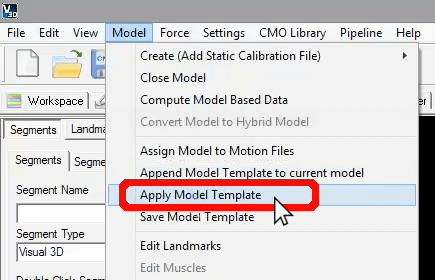
Click “Model” again in the top menu bar and select “Apply Model Template.”
-
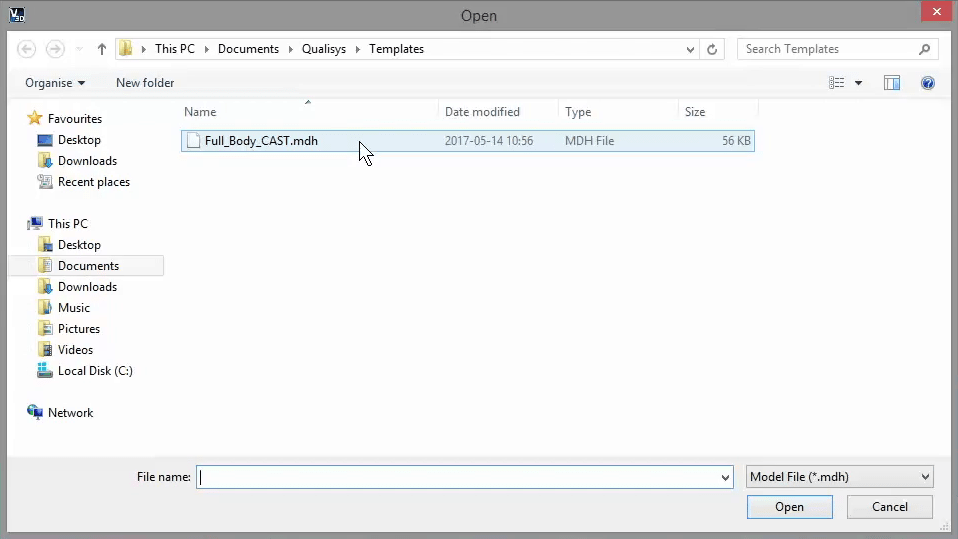
Navigate to the folder on the computer where you have saved the model template, select the MDH file, and click “Open.”
-
Visual3D will open the model and perform the necessary calculations to apply the model to the trials you selected.
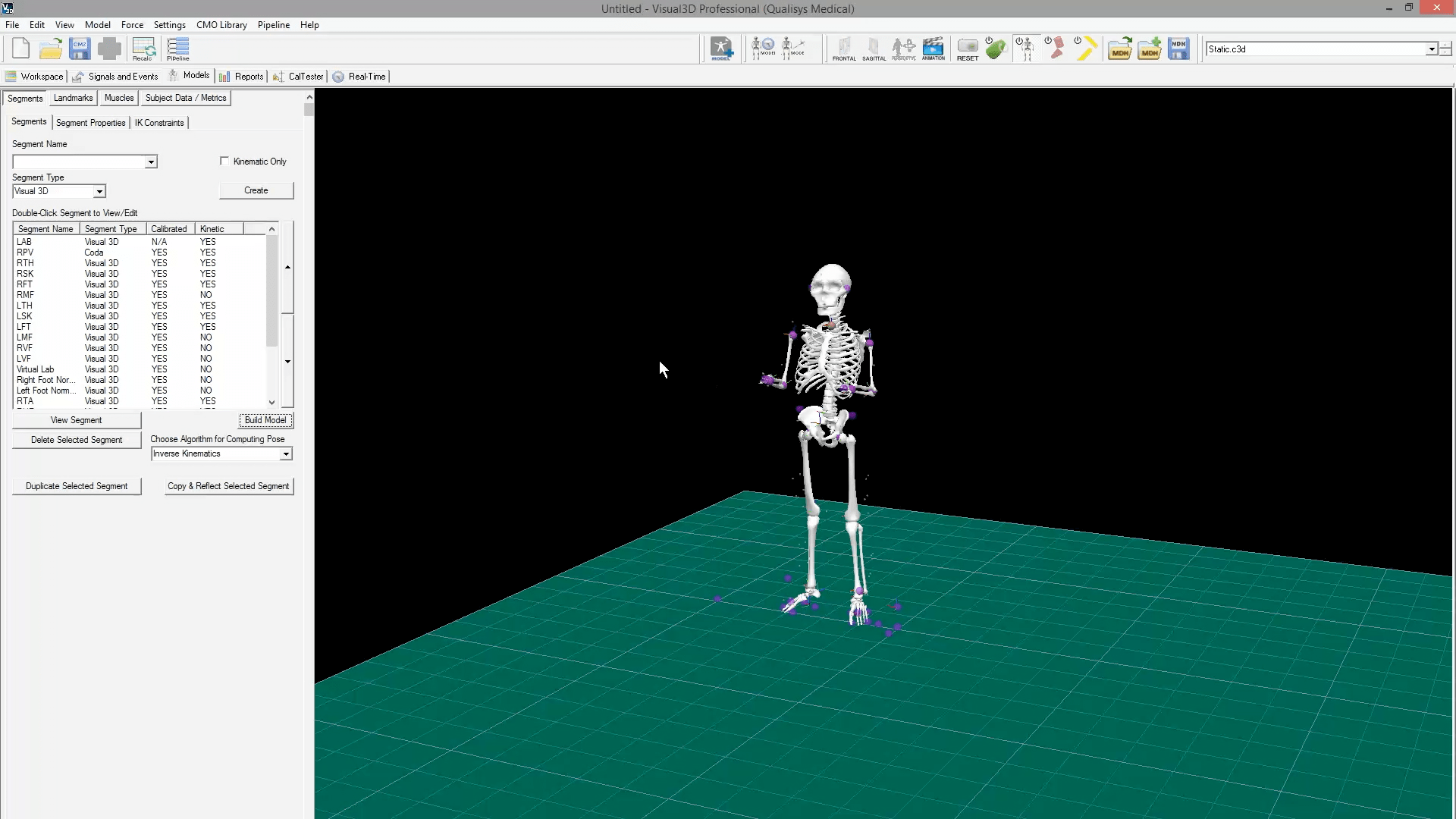
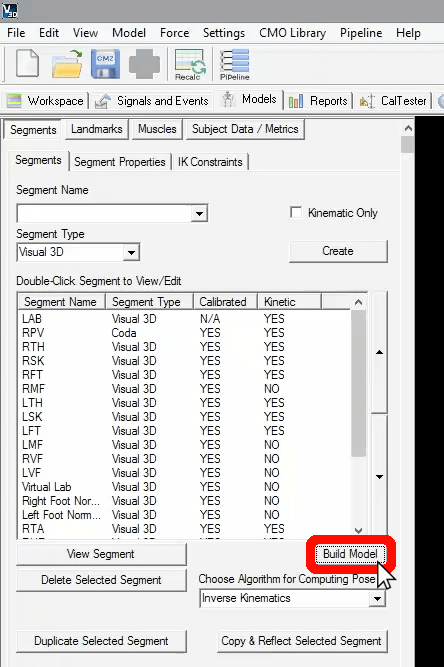
If you make any edits to the model, click “Build Model” in the left pane to save the changes.
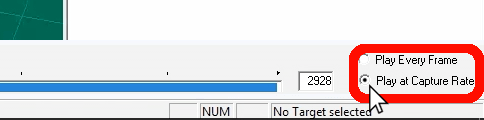
Back in the “Signals and Events” tab, you can play the trials again, this time with the markers overlaid on a skeleton to better visualize the movement. Make sure to select “Play at Capture Rate” in the lower right corner to view the motion at a natural speed.