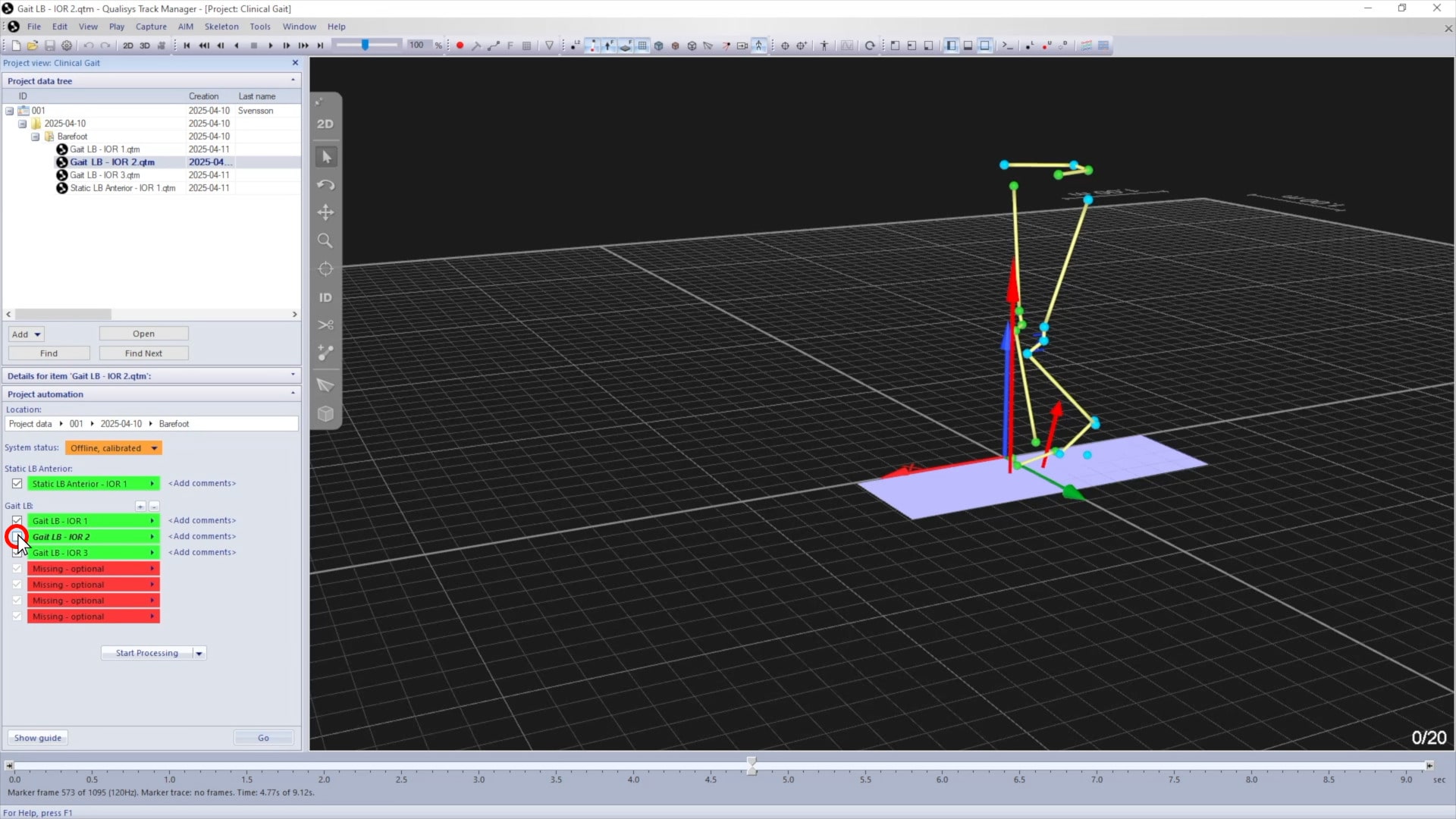
Dynamic trials
The type, duration, and quantity of dynamic motion trials to record depend on your application.
If you are using a QTM analysis module, the available trials will be listed in the project automation pane. All of the ones marked as “Missing – required” must be captured in order to run the subsequent processing steps.
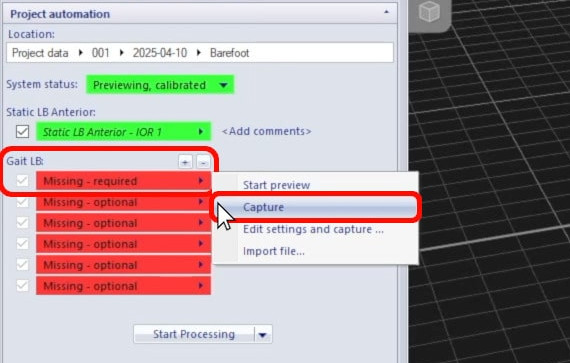
Once a dynamic trial has been captured, it’s good practice to review the file and edit it if necessary:
-
When tracking markers, you should ensure that all of them remain visible and correctly labeled throughout the file.
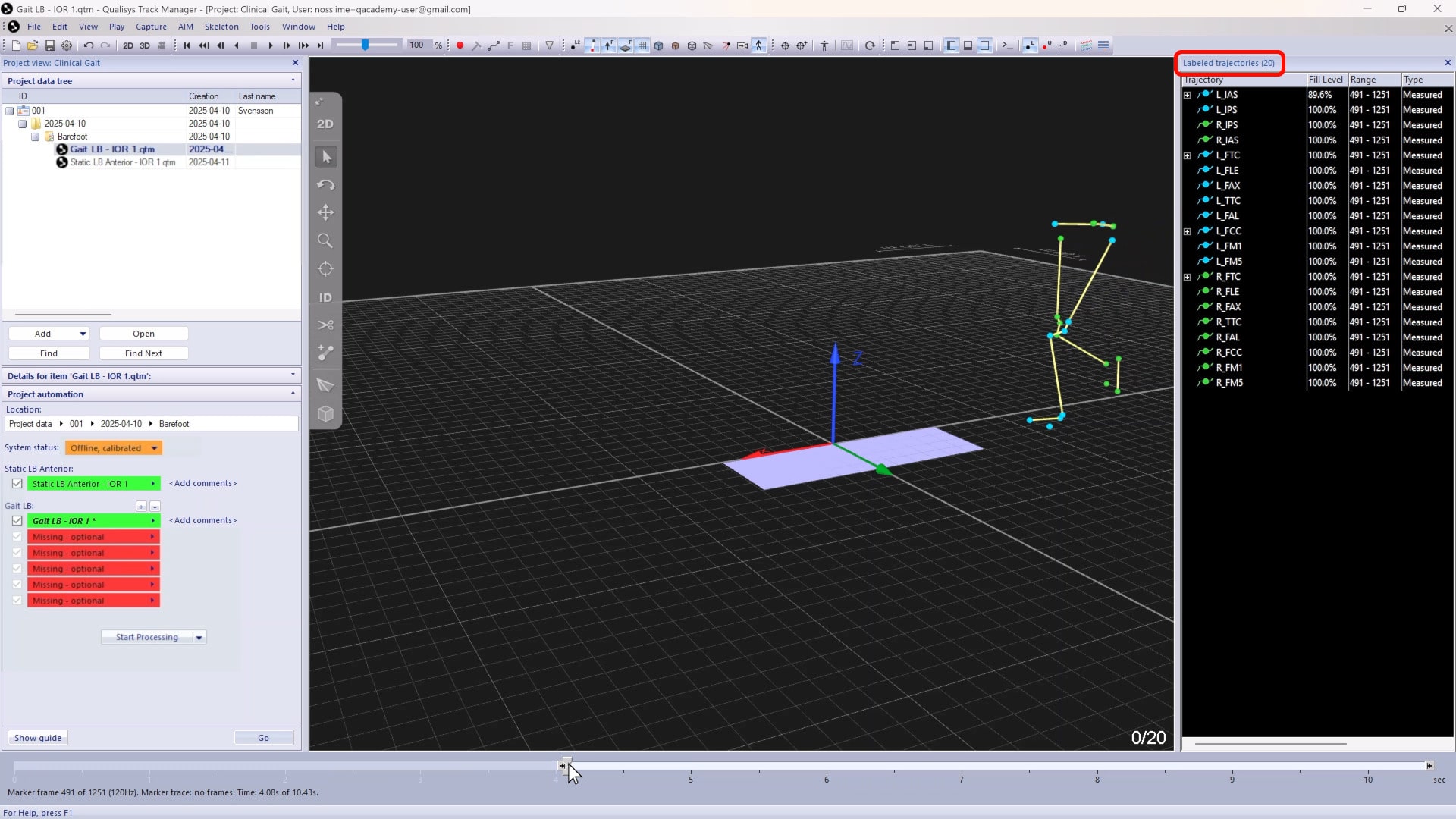
-
If using force plates, check for clean foot contact.
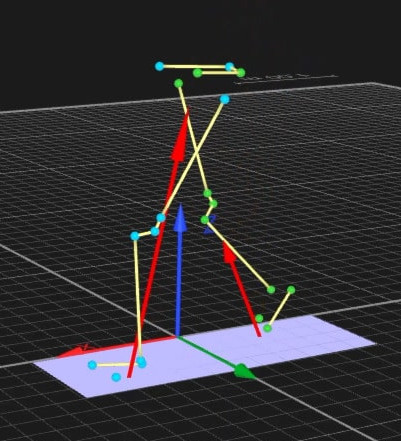
-
You can use the timeline slider to crop unnecessary data, which will speed up processing and improve the final report.
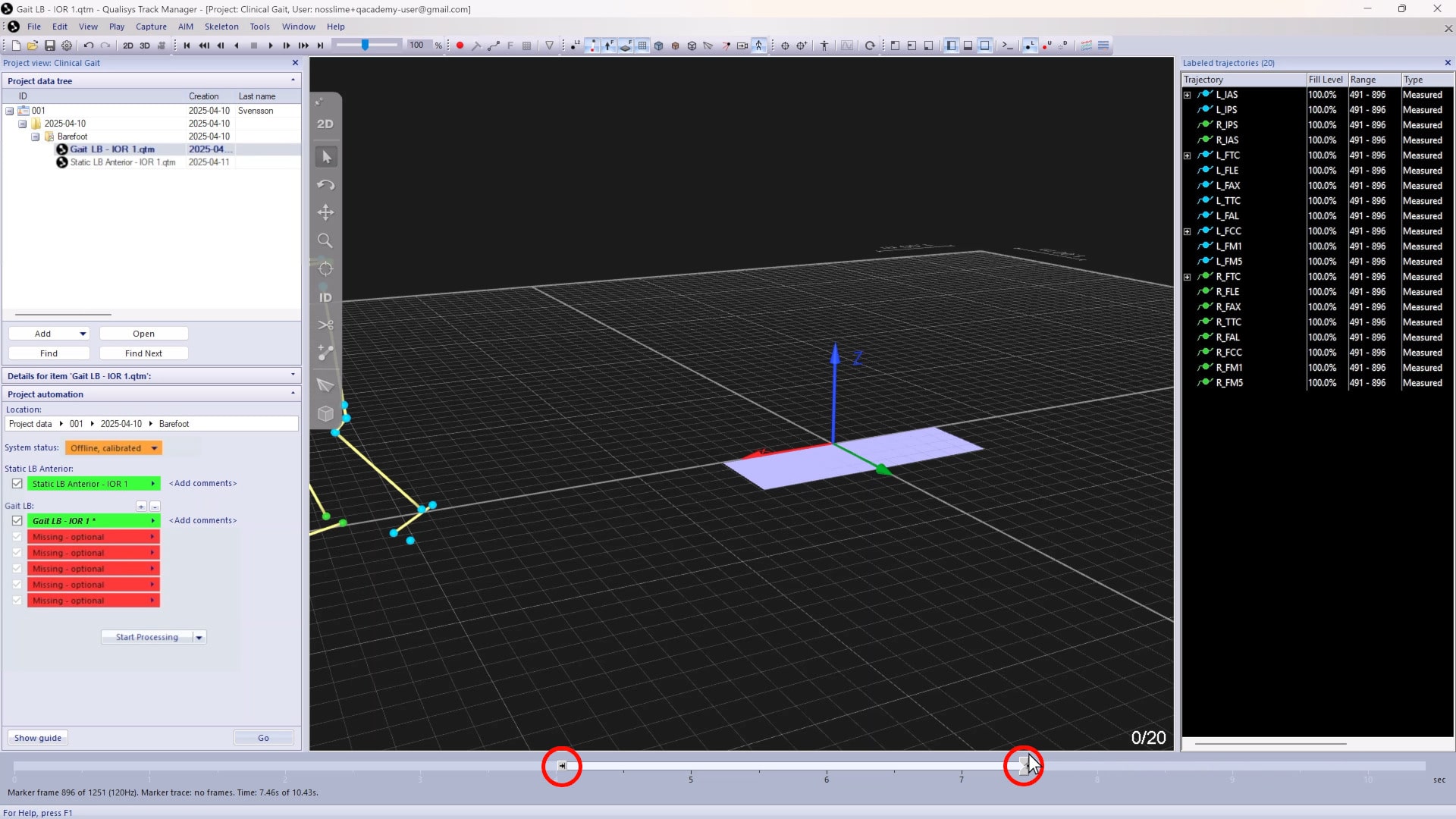
-
For markerless processing, it is particularly important to crop unneeded footage and then trim the data (Ctrl+Shift+T) to the selected range.
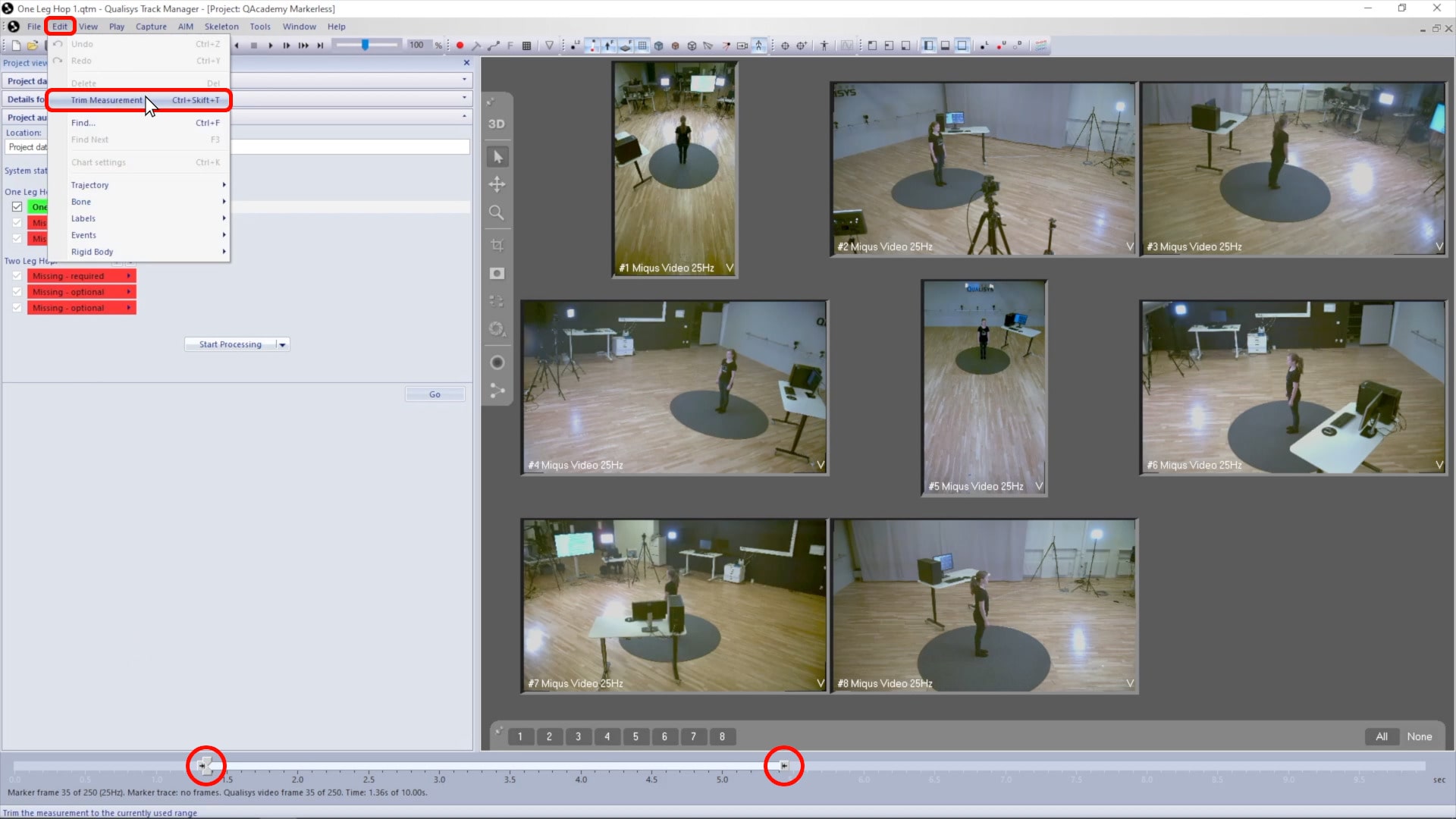
To view the force plate or EMG signals:
-
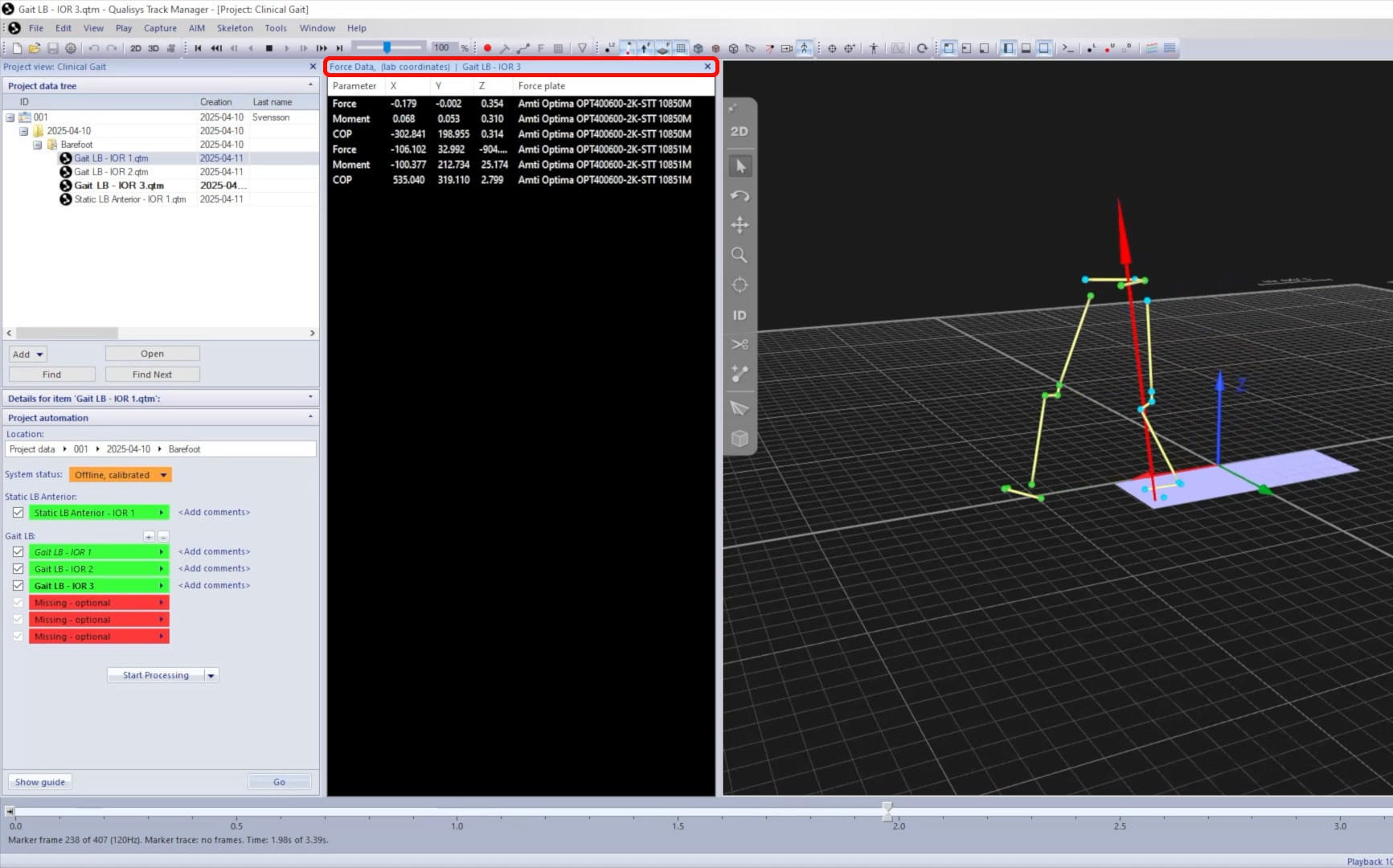
Open a data info window by clicking its icon in the top toolbar or by typing keyboard shortcut Ctrl+D.
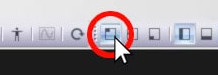
-
Right-click within the pane, and select a data type.
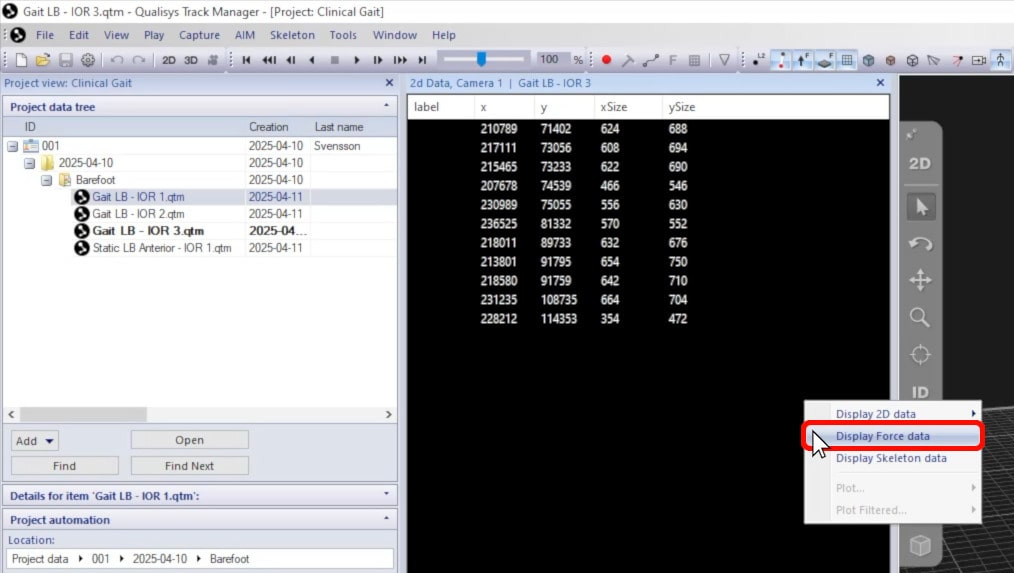
-
The window will show the relevant details in real time as you play the file.
-
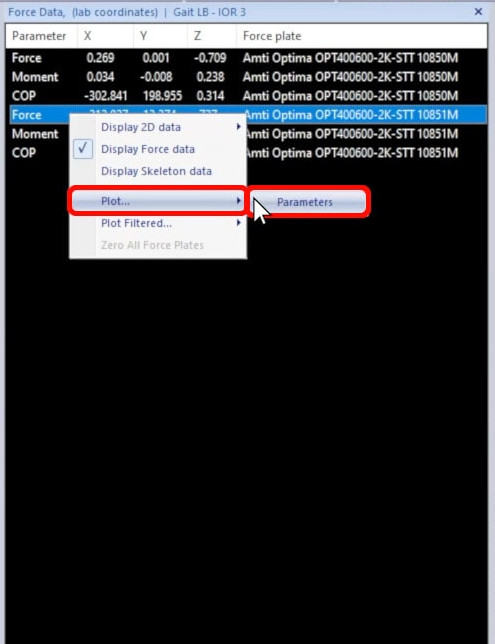
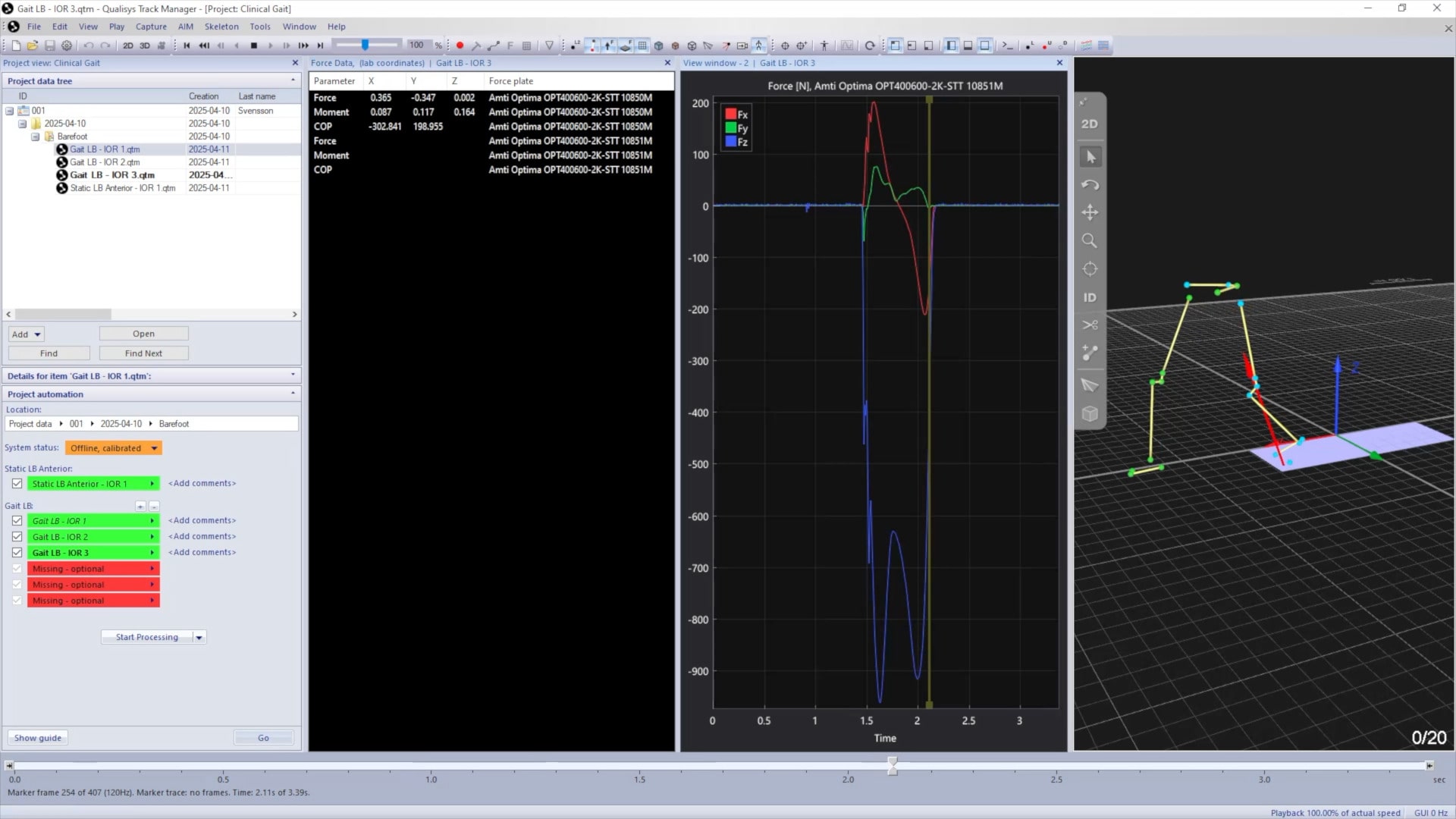
To further visualize the results, right-click on a selection from the data info pane, select “Plot,” and choose from the available options.
-
The parameter you selected will be graphed in the plot window.
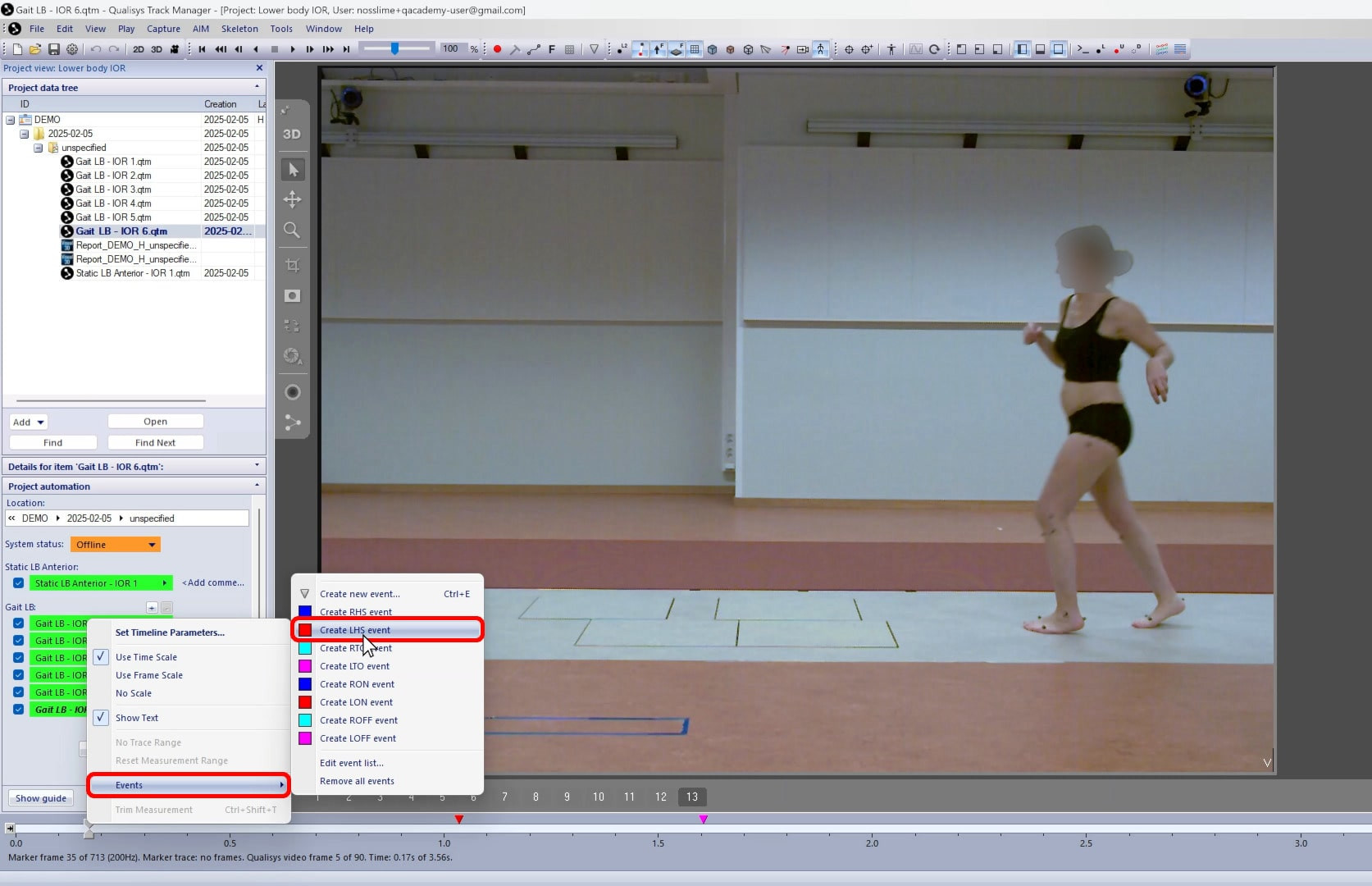
If you are using a QTM analysis module with a subject who has irregular gait or cannot make the expected force plate contacts, you may need to add events manually to the QTM timeline. For details on this, please refer to our QAcademy tutorial How to add manual events in QTM.
If the captured data does not meet the requirements for your biomechanical analysis, simply exclude the trial. You can then record a new one if needed.