QTM main functions
After opening QTM with a project, the QTM main window is displayed.
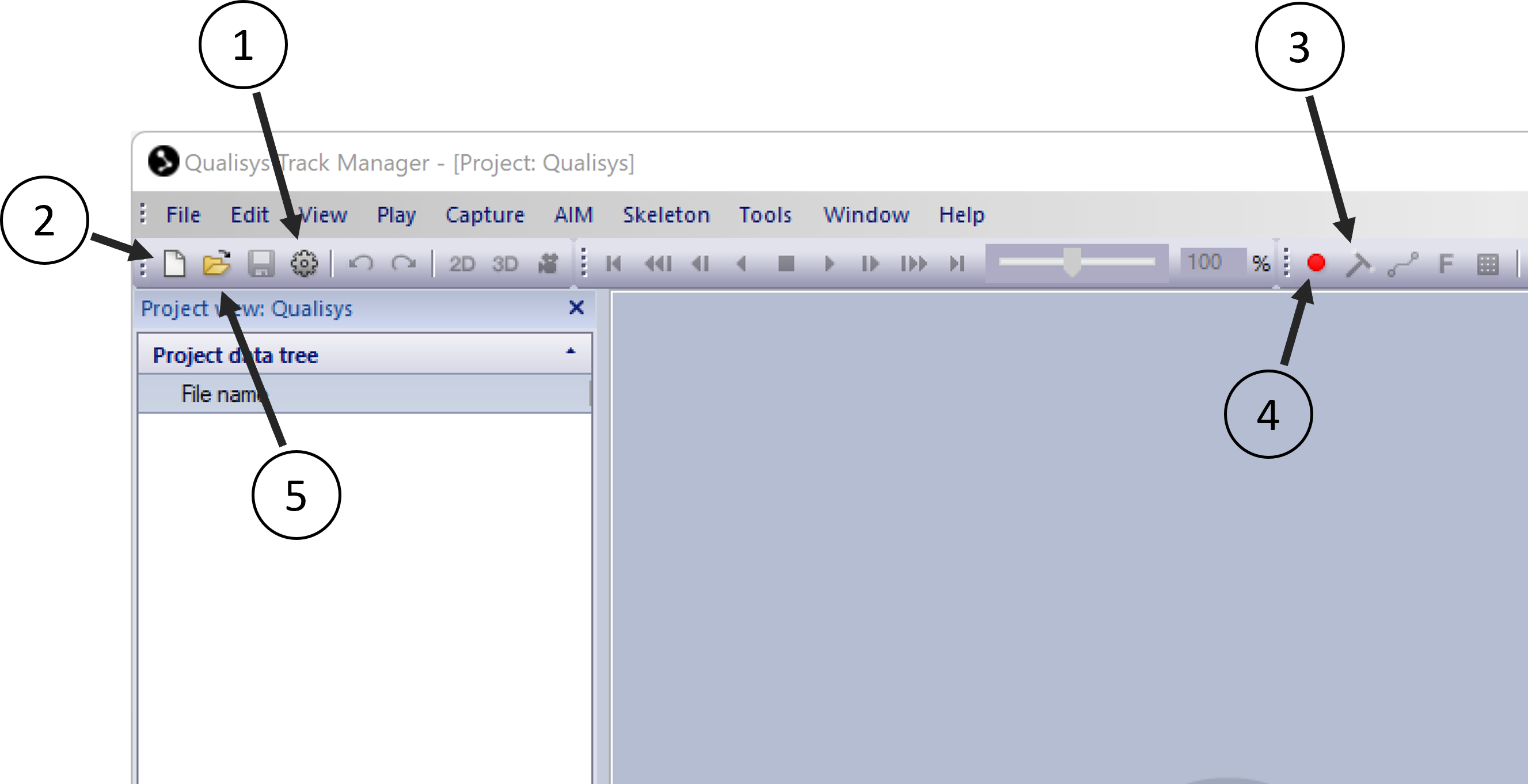
You can now start managing your project and capturing data. The main functions in QTM are:
-
Open the Project Options
This is the place where you can manage your camera system and other input devices, set up your processing steps and configure your QTM workspace, see chapter Project options.
-
Start a preview
Press the New measurement button (Ctrl + N) to start the cameras in Preview (real-time) mode. This requires that a Qualisys camera system is connected.
In Preview mode the motion capture data is displayed in real-time in the 2D and/or 3D View windows, see chapter View windows. The data can also be accessed via a real time TCP/IP protocol, see chapter Real-time streaming.
-
Start a calibration
Calibrate your camera system for capturing 3D motion data, see chapter Calibration of the camera system.
-
Start a capture
Start a capture to record your motion capture data in a file, see chapter Capturing data.
-
Open a file
Open an existing file with recorded motion capture data. QTM will display the data in File mode in which you can process, manage and edit the recorded motion capture data, see chapter Processing data.