Hardware setup
How to connect
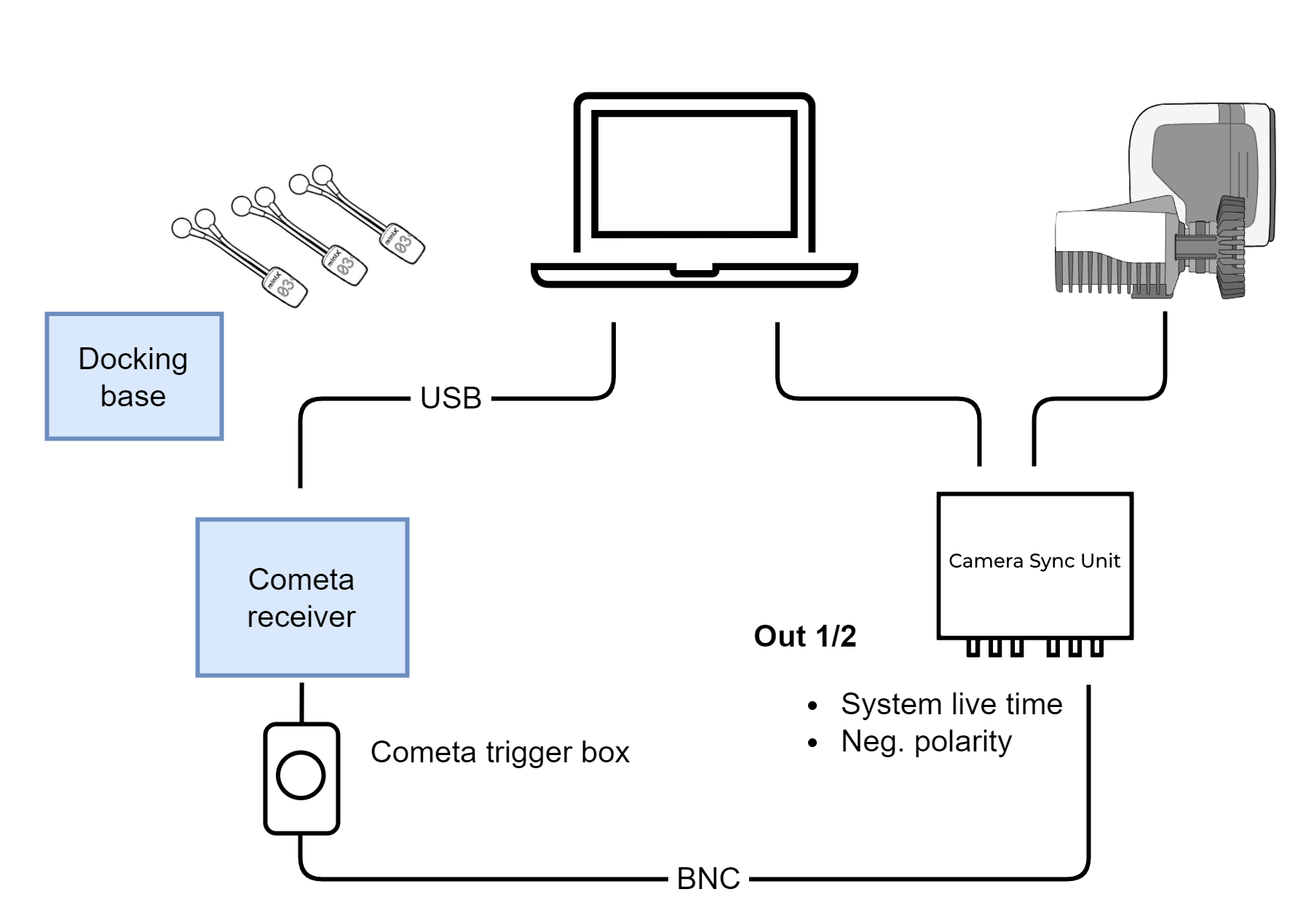
The Cometa system (WavePlus or WaveX) is connected as follows:
-
Connect the Cometa Receiver unit with USB to the computer running QTM.
-
Connect the Synchronization output (Out 1 or Out 2) of the Camera sync unit to the Cometa trigger box connected to the the Cometa Receiver. If you are using an Oqus camera as sync device, use the Sync out connector of the Sync/Trigger splitter.
For operating the Cometa system, please refer to Cometa documentation.
Sensor configuration
The sensor configuration is defined in the Cometa EMG and Motion Tools software. The software can be used to create sensor configuration files for both WavePlus and WaveX systems. The sensor configurations contain information about the sensor types and labels, that are required for the use in QTM. You can create multiple configurations, that can later be selected in the device setup in QTM.
The sensor configurations are created as outlined below. For detailed information, please refer to the Cometa documentation.
-
Open the EMGandMotionTools software. The device connection should be recognized.
-
Click the gear icon to open the Data Capture Configuration window.
-
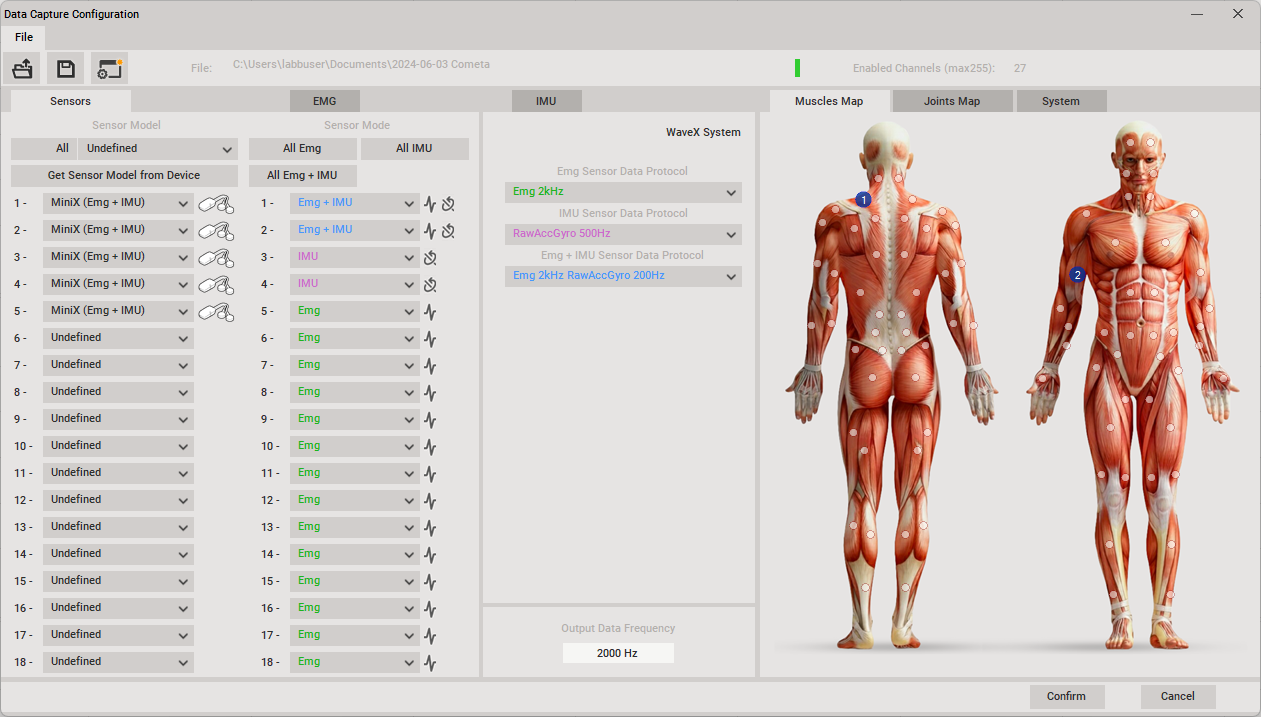
In the Sensors tab, select the sensor modes for the respective sensors and choose the data protocols used for the respective modes.
-
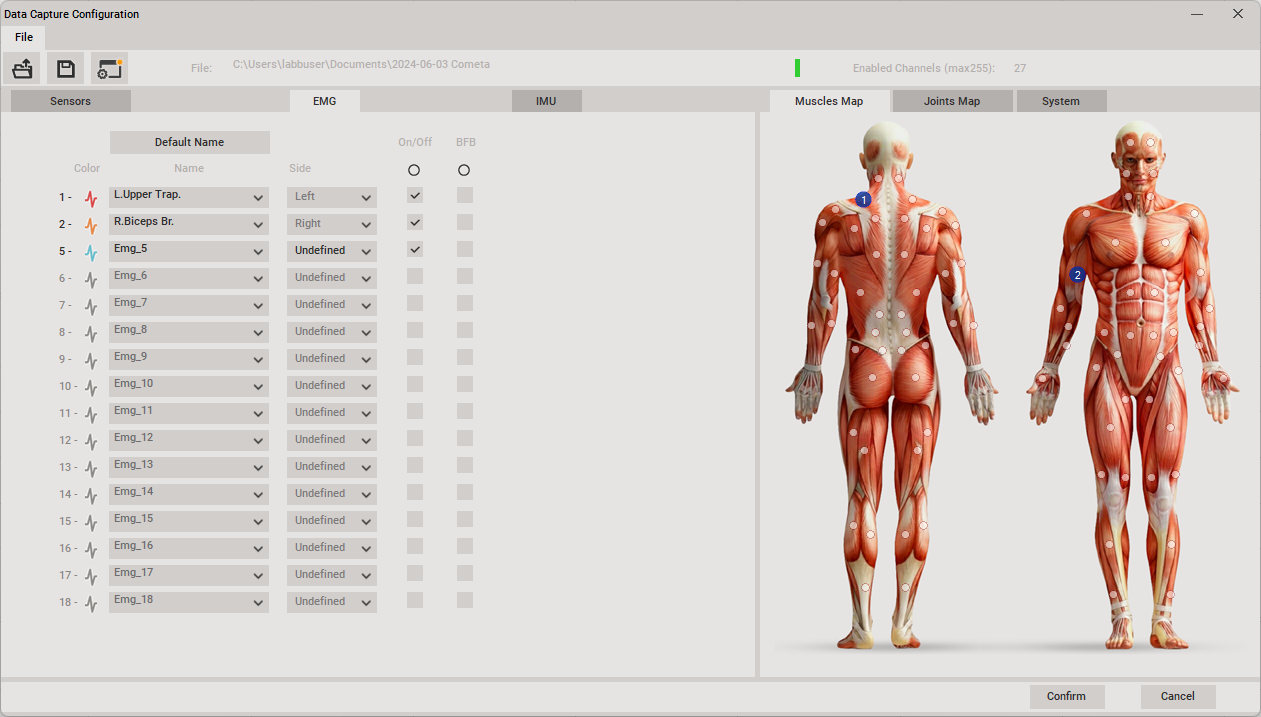
In the EMG tab, define the labels for the respective EMG channels. This can be done by dragging and dropping the muscles indicated in the Muscle map onto the channel name fields.
-
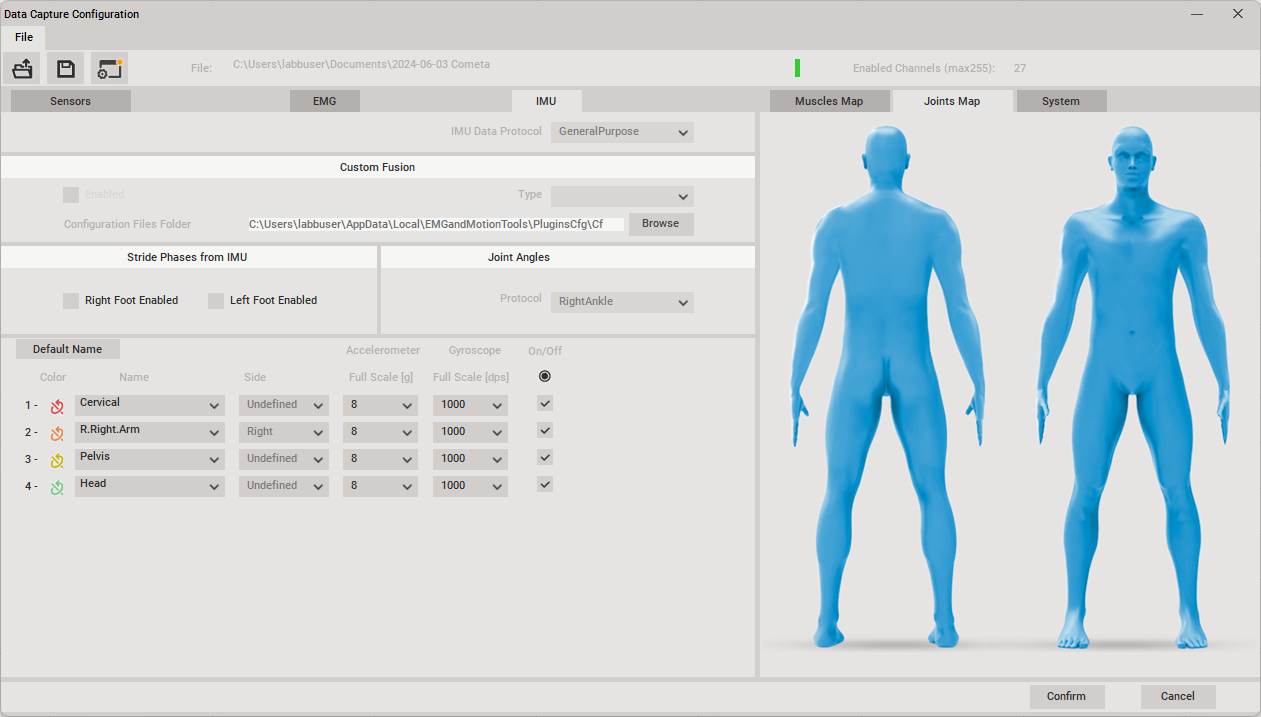
In the IMU tab, define the labels for the respective IMU sensors. This can be done by dragging and dropping the joints from the Joints map onto the sensor name fields.
-
When done, press the Save button to save the configuration. Choose a folder to save the configuration in and remember it for the device setup in QTM.