Adding licenses
Licenses for purchased software modules or integrations that can be added to QTM are managed via the Licenses dialog. To open the Licenses dialog, open the About Qualisys Track Manager dialog via the Help menu, and click the Licenses button.
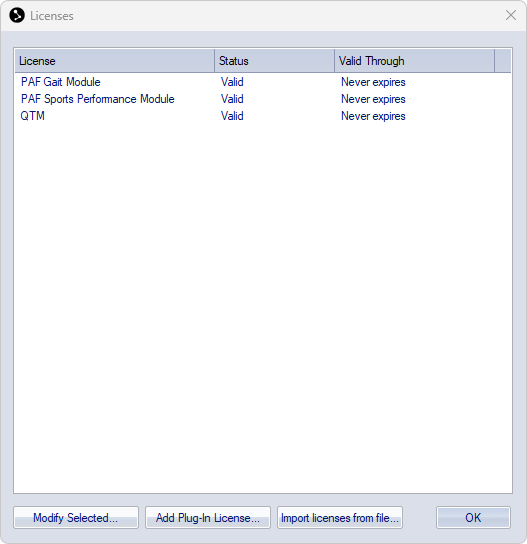
Licenses are registered in QTM in the following ways, depending on the license type:
-
Manual registration of license keys, for example for purchased analysis modules,
-
Online license registration, for example for the Prisma Pose integration.
For adding licenses, you need to have Administrator permissions on your computer.
Overview of licenses
You will find an overview of your licenses when logged in with your Qualisys user account at https://www.qualisys.com/my/licenses/. This page contains all Qualisys licenses that are associated with the customer account of your lab or organization. For more information about Qualisys user accounts, see chapter Qualisys user account.
Manual registration of license keys
To manually register a license key, follow these steps:
-
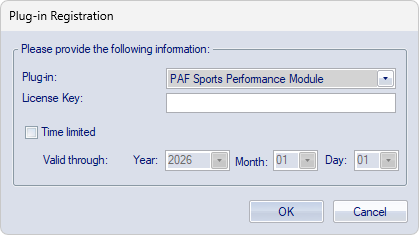
Click the Add plug-in license in the Licenses dialog. This will open a Plug-in Registration dialog.
-
In the Plug-in Registration dialog, make sure that the correct Plug-in is selected, and fill in the license key.
-
If the license is time limited, you must check the Time limited checkbox and enter the correct expiration date.
-
-
Click OK to close the dialog.
-
To complete the registration, click OK in the elevation dialog that pops up.
The elevation dialog may be hidden below the QTM main window.
Import licenses from a file
Alternatively, license keys can be imported from a text file. This can be practical if you need to register your licenses on multiple computers in your lab. The information in the file is organized per row in the following format:
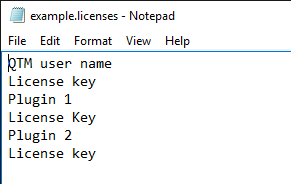
In the above example, replace text with registration data, using the exact names for the QTM user name and the plugins, which you can find at http://www.qualisys.com/my/. The text file must be saved with the extension ".licenses".
File import is not possible for time limited licenses.
Once you have prepared the licenses file, import the licenses as follows:
-
Clicking the Import licenses from file button.
-
In the file dialog, locate your licenses file, and click OK to close the dialog.
-
To complete the registration, click OK in the elevation dialog that pops up.
The elevation dialog may be hidden below the QTM main window.
Online license management
Online licenses are a type of license for software components that are managed online, for example the Prisma Pose license. These licenses have the following properties:
-
Licenses are associated with the customer account of a lab or organization
-
The number of activations per license is limited
-
Activation requires that a computer is registered
-
An activated license is only valid on a single computer
-
Activated licenses have a limited offline validity time
-
Licenses can be time-limited or perpetual
The following requirements must be fulfilled to manage online licenses on a computer:
-
The computer must run Windows 11
-
The computer must be equipped with a TPM 2.0 security chip
-
You must have Administrator permissions on the computer
-
You must have a Qualisys user account associated with the customer account of your lab or organization
Registration of the computer
Before you can use online licenses on a computer in QTM, you must first register the computer. Follow these instructions to register a computer:
-
Make sure that the computer is connected to the internet.
-
Make sure you are logged in to QTM with your Qualisys user account.
-
To log in, click Help and Login, and fill in your user credentials in the Qualisys Authentication dialog.
-
-
Click Help and About Qualisys Track Manager....
-
In the About dialog, click Licenses.
-
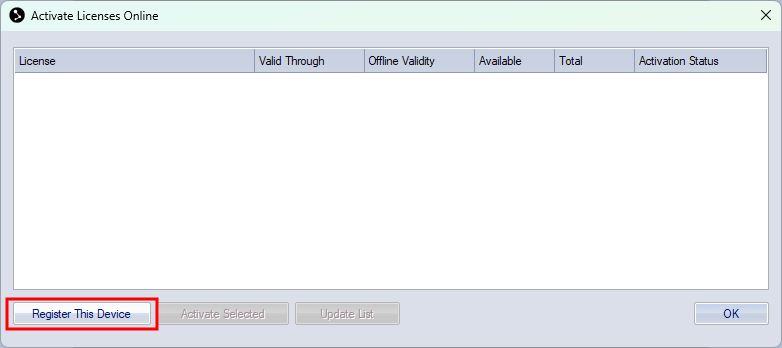
In the Licenses dialog, click the Activate Online... button to open the Activate Licenses Online dialog.
-
If the computer is not registered yet, click the Register This Device button.
-
Click Yes in the Activate Licenses Online dialog to confirm adding the computer to your lab.
-
Click Yes to confirm to make changes to the computer in the Windows User Account Control dialog.
-
After a successful registration QTM shows "This device was successfully registered to the lab: <QTM username>".
Activation of online licenses
To activate an online license, follow these instructions:
-
Make sure that the computer is connected to the internet.
-
Make sure you are logged in to QTM with your Qualisys user account.
-
To log in, click Help and Login, and fill in your user credentials in the Qualisys Authentication dialog.
-
-
Click Help > About Qualisys Track Manager....
-
In the About dialog, click Licenses.
-
In the Licenses dialog, click the Activate Online... button to open the Activate Licenses Online dialog. If the computer is registered for online licensing, the list shows the online licenses that are available to the lab.
-
If needed, click the Update List button to make sure the list gets updated, for example if a lab manager has just deactivated a license on the website.
-
-
Select the license that you want to activate in the list, and click the Activate Selected button.
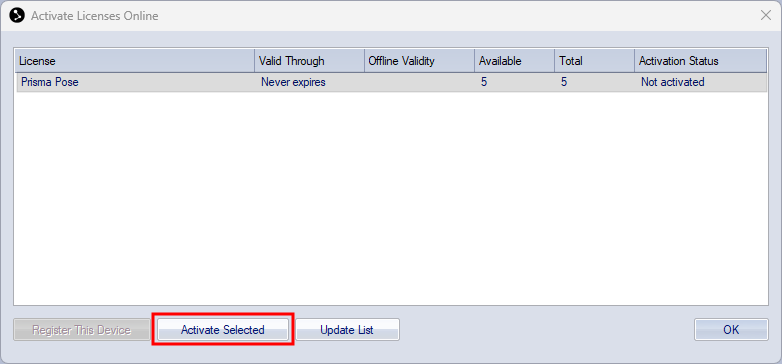
After a few seconds, the Activation Status of the license changes to Activated, the Available count decreases by one, and the Offline Validity column shows a date.
The offline validity date is the date until which the license works without an internet connection. QTM renews it when the computer is online.
-
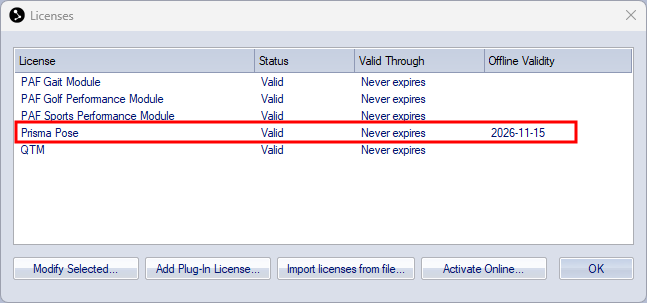
Click the OK button to close the Activate Licenses Online dialog. The Licenses dialog now includes an entry for the activated license and a column with the Offline Validity date.
Managing of online licenses via your Qualisys user account and deactivation of licenses
You can manage your online licenses via your Qualisys user account by logging in to https://www.qualisys.com/my/ and navigating to the Manage Licenses page.
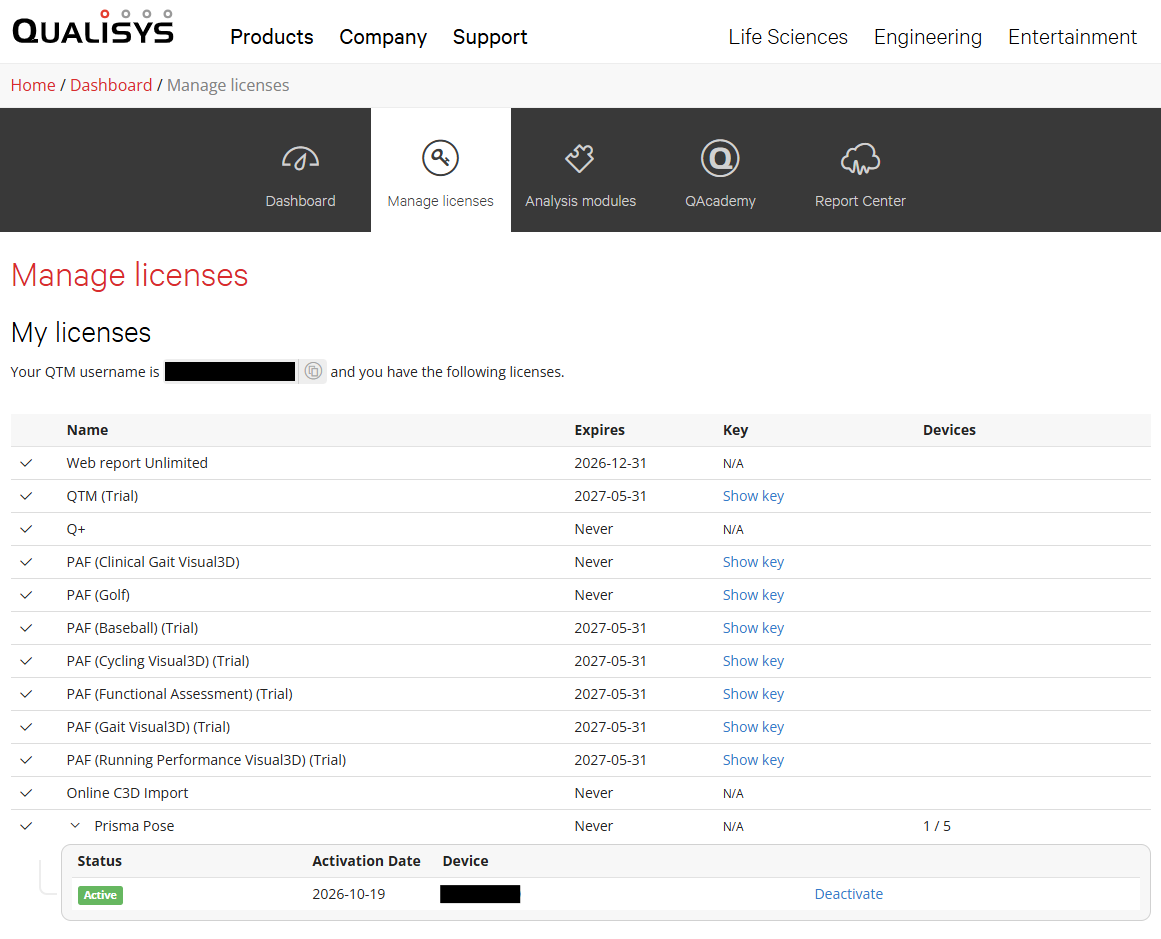
On the Manage Licenses page, you can view the status of your online licenses and see which computers have claimed them. Lab managers can deactivate licenses here, for example when a lab computer is being replaced.