Open topic with navigation
Step 8 – Processing
Marker-based session
-
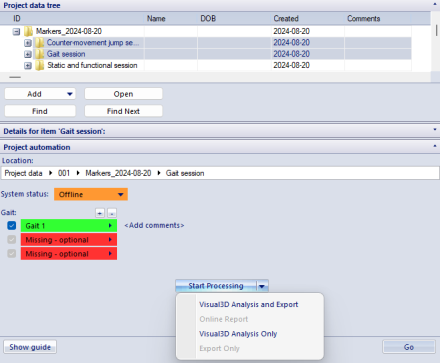
When the minimum required number of files has been captured, the Start Processing button is available:

The following types of analysis are available:
- Analysis (LH/RH): Data processing and creation of Visual3D report.
- Web report (LH/RH): Upload of Web report. It is necessary to run Analysis (LH/RH) at least once before running the Web report (LH/RH) type of analysis
Click the small triangle to choose the type of analysis.
-
When the Start Processing button is clicked, QTM automatically exports any file that has its checkbox checked to c3d and runs a pipeline in Visual3D.
Note: this process may take several minutes (depending on the number of files) and Visual3D may seem unresponsive.
-
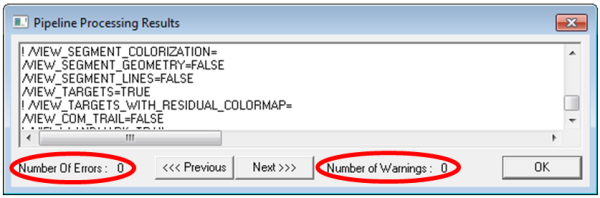
The pipeline should be completed automatically and with no errors nor warnings. (It is possible that there are warnings if, for a particular measurement, it was not possible to compute all variables. Usually this is caused by mislabeled markers or gaps/occlusions. The analysis should be repeated after fixing the problem).
Markerless session
For markerless session, processing is done automatically in two consecutive steps. Processing starts with Theia3D by processing all videos and creating primary c3d files. Then Visual3D will open and merge c3d files created by Theia3D with c3d files containing analogue data and club marker data created by QTM. At the end Visual3D report is generated.
Note that capture rate for club markers can be higher than capture rate of videos but it must be an integer multiple of video rate.
Theia3D behaviour can be modified by settings files located at [your project]\Templates\Assets\Theia\. The list of options is extensive but only a few settings are important:
Theia can identify and process data for more then one subject if more persons are in the volume. The subject that yields best data is typically selected but sometimes other person is wrongly chosen. If that happens, there is an option to choose which c3d file is actual subject. To select other c3d, activate the measurement, in PAF pane navigate to 'Theiac3d file' field and chose number of Theia file. To find out what c3d files Theia has created, go to working directory of active session, open 'TheiaFormatData' folder, open folder of active measurement and review 'pose_filt_*.c3d' files in Visual3D.
Batch processing
Since QTM version 2026.1 it is possible to do batch processing in PAF pane. Batch processing will execute chosen analysis from 'Start Processing' menu on all selected sessions/subsessions. To use batch processing, Ctrl+click desired sessions/subsessions and while multi-selection is still active, click small arrow next to "Start Processing' and select analysis type. Note that only sessions/subsessions that contain the same analysis type will be processed.
Note: When using batch processing on analysis type that includes Visual3D processing, parallel processing of Visual3D can run on number of Visual3D instances that is not larger then number of CPU cores.