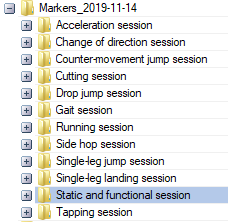
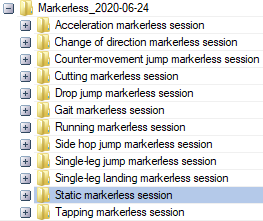
When the minimum required number of measurements has been captured for each task. It is necessary to start by processing 'Static and functional session'/'Static markerless session'.
After Start Processing button is clicked, Visual3D is started ans 'Static*.cmz' file is created. Check that model in Visual3D looks right.

After Static session is processed you can proceed to any task and click Start Processing inside the task. Visual3D processing will start and report will be generated.
For markerless session, processing is done automatically in two consecutive steps. Processing starts with Theia3D by processing all videos and creating primary c3d files. Then Visual3D will open, merge c3d files created by Theia3D with c3d files containing analogue data created by QTM and Visual3D report is generated.
Theia3D behaviour can be modified by settings files located at [your project]\Templates\Assets\Theia\. The list of options is extensive but only a few settings are important:
in theia_batch_commands.txt:
SAVEWORK - Defines whether to save workspace or not when processing with Theia. Default to FALSE.
in theia_preferences.pxt:
FILT_FREQ - Lowpass filter cut-off frequency in Hz. Default is 12.
B_USE_FREE_FEET - Enables a free joint (six degrees of freedom) at the ankles. Default is false.
MAX_PEOPLE - Maximum number of people being tracked. Default is 1 meaning that only the main person will be tracked. If -1, all people will be tracked.
Theia can identify and process data for more then one subject if more persons are in the volume. The subject that yields best data is typically selected but sometimes other person is wrongly chosen. If that happens, there is an option to choose which c3d file is actual subject. To select other c3d, activate the measurement, in PAF pane navigate to 'Theiac3d file' field and chose number of Theia file. To find out what c3d files Theia has created, go to working directory of active session, open 'TheiaFormatData' folder, open folder of active measurement and review 'pose_filt_*.c3d' files in Visual3D.
Note: It is required that Static session is processed first.
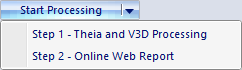
Since QTM version 2026.1 it is possible to do batch processing in PAF pane. Batch processing will execute chosen analysis from 'Start Processing' menu on all selected sessions/subsessions. To use batch processing, Ctrl+click desired sessions/subsessions and while multi-selection is still active, click small arrow next to "Start Processing' and select analysis type. Note that only sessions/subsessions that contain the same analysis type will be processed.
Note: When using batch processing on analysis type that includes Visual3D processing, parallel processing of Visual3D can run on number of Visual3D instances that is not larger then number of CPU cores.
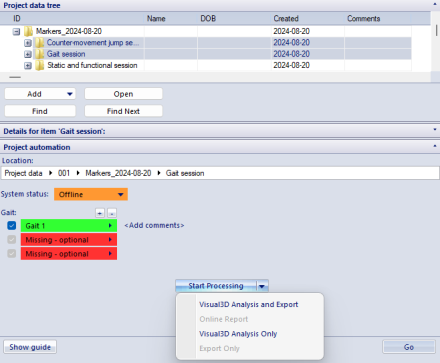
When the Start Processing button is clicked, QTM automatically exports any selected measurement to .mat files and runs QBE. After the processing is finished, Word report is opened.
Note: This process may take several minutes (depending on the number of the files and their size).