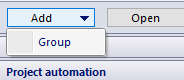
Add a new group of subjects or select an existing group from the data tree.
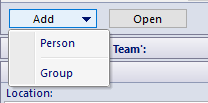
Enter subject details:
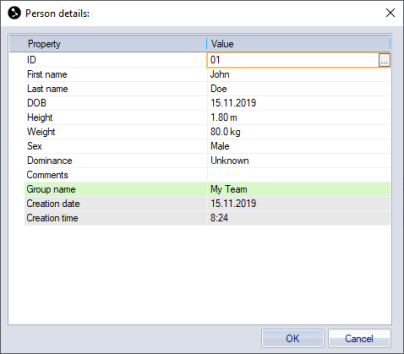
Note: it is important to enter the body height of the person as it is used when calculating the position of some of the body joints.
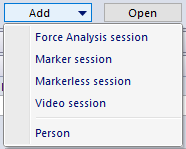
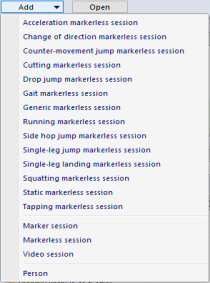
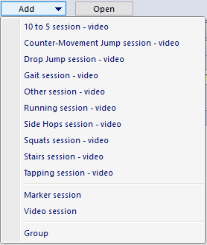
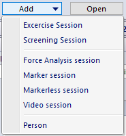
Click Add and select which session type you want to collect:
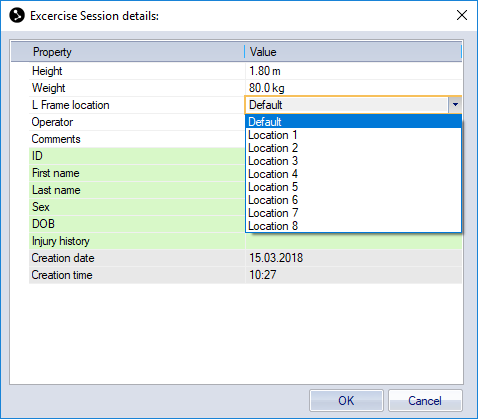
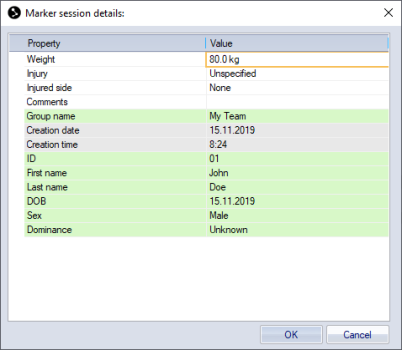
Enter session details:
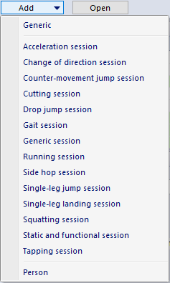
Click Add and select which task you want to collect. For Marker session 'Static and functional session' is required. For Markerless session 'Static markerless session' is optional.
- Force Plates (default): Visual3D will use automatic event recognition for both legs based on ground reaction data. This event mode best works with two force plates but with some limitations it can also be used with a single force plate . If only one force plate is available Counter-movement jumps, Drop jumps and Tapping must be performed so that only one foot gets into contact with force plate. For example Bilateral drop jump will be performed repeatedly, in first trial only left foot touching the force plate, in second trial only right foot touching the force plate.
- No Force Plate (automatic): when force plates are not available it is possible to use this mode to detect events. The mode uses foot velocity to detect foot strikes and lift-offs. For event detection to work properly, it is sometimes necessary to crop measurements. For Acceleration and Cutting, measurements must be cropped at the beginning so that first foot contact is a contact in focus. Note for markerless session cropping can not be used as it would cause issues when videos are processed by Theia3D. Use trimming instead.
- Manual: events must be identified by hand in QTM, useful if no force plates are present and for other reason it is not possible to use automatic event recognition. Name manual events LON, LOFF, RON, ROFF.
- Note: It is also possible to edit events in Visual3D. To use this approach run 'Visual3D Analysis only', edit events in Visual3D, save Visual3D workspace, run 'Export only' and then run 'Online report'.
- Note: When force data exist and Manual event mode is selected, kinetics graphs will be empty.
- Note: It is not supported to add manual events and choose 'Force Plates' or 'No Force Plate (automatic)' mode. This would create a duplicate events.
Generic session: It is possible to collect any other task not predefined in the session list. For that purpose, Generic session can be used but you should be aware of a few limitations. By default generic session is named 'Generic' and it is possible to rename it by changing 'Task name' field on session level. If you wish to change Task name, please do it before capturing any measurements, otherwise measurement name will not be consistent with session name. Analogically, do not rename session after data were collected. Events cannot be defined automatically, so they must be set manually in QTM. Use LON/RON event names for start of the plots and LOFF/ROFF for end of the plots. There can be multiply cycles (occurrences of ON and OFF events) within a measurement. If events are not manually specified, ON and OFF events will be placed at the beginning and at the end of measurement.
Isometric session: Note: available only for specific customers. This is a special session that uses only a single force plate and weight lifting rack. No cameras are needed for this session. Single leg calf raises and mid-thigh pulls are performed in an isometric contraction. Report shows force, rate of force development and related metrics. For this session to work properly it is important to place 'Onset' event correctly. This can be challenging task as there is only force data available. We recommend to enter Onset event manually in QTM by plotting vertical force and identifying moment when person starts pushing against the bar. To do so open Data window or press Ctrl+D, right click on the Data window, select 'Display Force Data', right click on Force parameter, select Plot.... Then use time bar to find a moment when vertical force exceeds the body mass. Press Ctrl+E and add event label. Event must be named 'Onset'. Module will attempt to identify the Onset event automatically, if not set manually.
Force Analysis session:
-
Exercise Session: includes Counter Movement Jump, Drop Jump and Gait measurements.
Note: body mass (in kg) is required to generate reports. The mass can either be set here or calculated directly from the force plates data (see Collect data section). For better accuracy, it is recommended to use the later.
-
Screening Session: includes Walking, Drop Jump, Single Leg Landing Left/Right, Hop for Distance. Single Leg Hop Left/Right, Cutting and 10 to 5 measurements.
Note: This session type is set up for data collection and qualitative analysis only. There are no automated analyses or reports available.
-
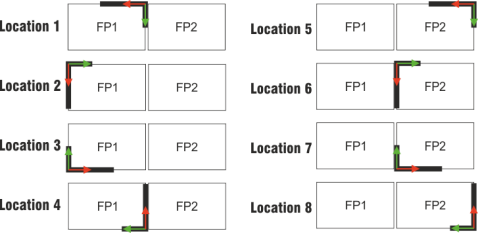
Modify the body weight if necessary for repeated sessions, add other details if required and specify L frame location as explained in the picture below, . Default L frame location is set to Location 1. Default value can be modified in [project]/Templates/Settings/SessionDefault.xml.