Purpose of report created by Visual3D is mainly to verify that all data has been processed correctly.
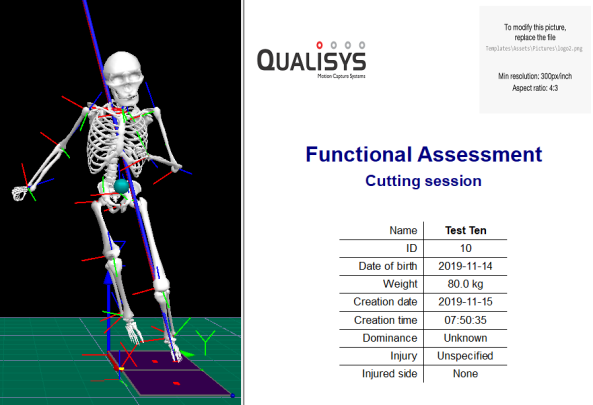
Purpose of report created by Visual3D is mainly to verify that all data has been processed correctly.
Shows an interactive and elaborated html report in your default web browser (we recommend Google Chrome).
Each time a report is generated you will have the choice to "Skip claiming and view report" or "Claim report as". The latter option ("Claim report as") is recommended as it will connect the report to your Qualisys user account. Use your Qualisys.com credentials to log in when you are claiming the report.

Once done, you will be able to view the html report in your web browser.
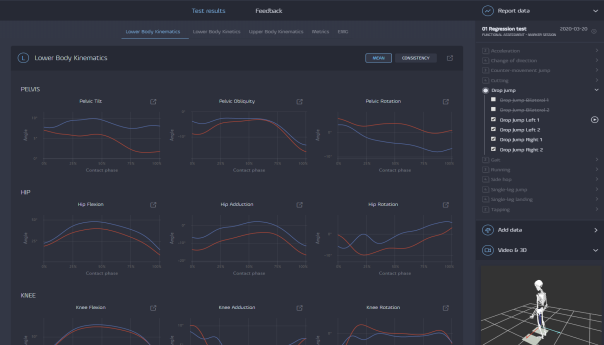
It is possible to select multiple tasks by holding Crtl or Shift while clicking on icon in front of task name. Task group can be collapsed/uncollapsed by second click on active task. Please note that having many tasks with several trials might slow down web report loading time and responsiveness.
Note that only active task is exported to PDF. It is not possible to export several task into a single PDF document.
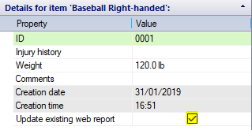
Note: If the same report for a given session is uploaded multiple time, previous versions are hidden and only the latest one will be available in your Report Center. If you would like to generate a new report instead of overwriting the previous report, go to QTM > PAF pane, right-click your session and select "Edit details", then uncheck "Update existing web report" checkbox.
Reports are stored online and previously created reports are accessible via Report Center (report.qualisys.com). For details on how to use Report Center please see separate online documentation.
Note: There is a limit on how many videos can be uploaded within a single web report. The actual number of videos differs depending on the computer but under normal conditions the limit should be around 500 .avi files per entire session.
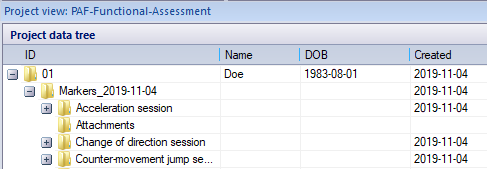
It can sometimes be useful to include files generated by other software in a report. To do this, you can use attachments.
Force Analysis session can generate only Word report.
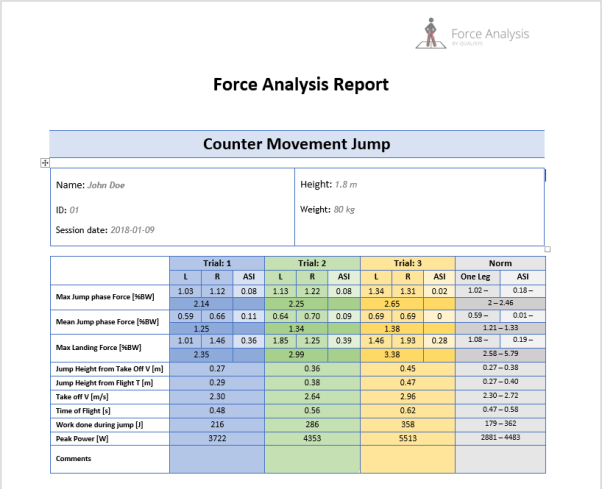
Report can be customized (e.g. adding logo, lab name). To do so, open report template stored at [QTM project folder]\Templates\Assets\Reports\template.docx and edit it.