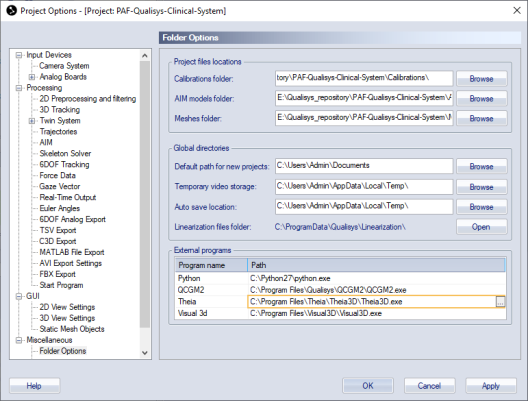
The biomechanics calculations are performed by Visual3D.
Theia3D must be also installed separately, if you want to use markerless setup. Note that Visual3D is still required when using Theia3D to obtain raw kinematics data.
CGM2 session type is processed by QCGM2 engine. For details about CGM2, please refer to https://pycgm2.netlify.app/.
It is necessary to specify path to several external programs after the first installation of the module.
Not required unless using open source CGM2 (pyCGM2). With open source version of CGM2 it is possible to run the pyCGM2 code directly. This would be useful for customers who want to modify functionality of QCGM2.
Please refer to https://pycgm2.netlify.app/api/ for installation instructions.
Optionally you can use open source project from Qualisys GitHub (https://github.com/qualisys/qualisys_CGM2_workflow/).
Required for CGM2 session only. You cal leave it empty if not planning to use CGM2 session.
In QTM, go to Project Options > Miscellaneous > Folder Options and set the path for QCGM2 to C:\Program Files\Qualisys\QCGM2\QCGM2.exe.
Note: QCGM2 is based on an open source project pyCGM2 (see https://pycgm2.netlify.app/). For the convenience we use compiled version of the project in PAF module.
Required for markerless session only. You can leave it empty if using only nmarkerbased sessions.
In QTM, go to Project Options > Miscellaneous > Folder Options and set the path for Theia3D to C:\Program Files\Theia\Theia3D\Theia3D.exe.
It is required for Word report only. You can leave it empty if not generating Word reports.
It is installed automatically by module installer. It is used for Word report to generate patient's pictures from videos and overlay graphics information over the pictures. In QTM, go to Project Options > Miscellaneous > Folder Options and set the path to C:\Program Files\Qualisys\video-overlay-exporter\video-overlay-exporter.exe.
Always required, except CGM2 session.
In QTM, go to Project Options > Miscellaneous > Folder Options and set the path for Visual3D to C:\Program Files\Visual3D\Visual3D.exe.
It is required for Word report only. You can leave it empty if not generating Word reports.
It is installed automatically by module installer and is used to populate Word report with data. In QTM, go to Project Options > Miscellaneous > Folder Options and set the path to C:\Program Files\Qualisys\ReportGenerator\ReportGenerator.exe.