Open topic with navigation
Step 9 – Report
Visual3D report
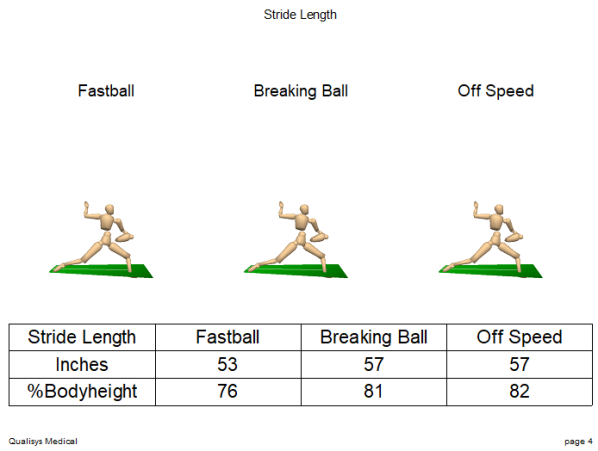
Purpose of report created by Visual3D is mainly to verify that all data has been processed correctly.
Three report templates are available for Baseball Pitching. 'default' template uses traditional way to analyse data, 'extended' and '8 Cylinders' templates show more detailed analysis. To switch between templates, go to [Templates]\settings.php and change $v3d_report = 'extended' or '8 Cylinders'. Note that 'default' report shows only 'Fastball', 'Breaking Ball' and 'Off Speed' measurement types. If you collect 'Pitch' measurements, 'extended' or '8 Cylinders' reports must be used to populate the report.
Only one report template exists for Baseball Hitting and Softball Pitching.
Several settings are available to customize Baseball Pitching Visual3D report. Settings can be activated from [Templates]\settings.php:
- $pitchA_heading and $pitchB_heading are the strings that are shown in report tables for Breaking Ball and Off speed trials. So if default naming of trials does not fit actual pitch type it is possible to overwrite trials type name shown in Visual3D report.
- $plotstart_event and $plotend_event set range in which graphs are shown in report. Note that this setting applies only to default and extended reports.
- $timing_zero specifies event that is considered zero for timing of kinematics sequences. So that timing can be set independently from plotting events.
- $segment_graphics is used to specify is Visual3D shows either mannequin or skeleton.
- On extended report moments are normalized. Changing $moments_normalization variable allows to change normalization parameter.
Web report
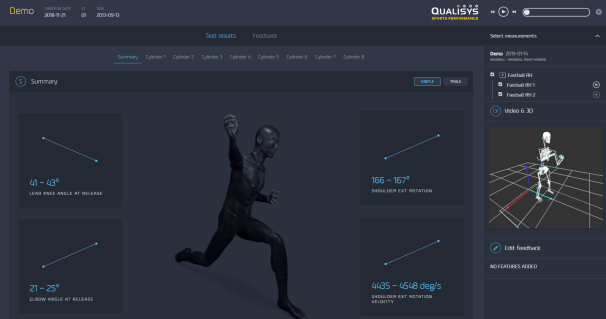
Shows an interactive and elaborated html report in your default web browser (we recommend Google Chrome).
Each time a report is generated you will have the choice to "Skip claiming and view report" or "Claim report as". The latter option ("Claim report as") is recommended as it will connect the report to your Qualisys user account. Use your Qualisys.com credentials to log in when you are claiming the report.

Once done, you will be able to view the html report in your web browser.
Note: If the same report for a given session is uploaded multiple time, previous versions are hidden and only the latest one will be available in your Report Center. If you would like to generate a new report instead of overwriting the previous report, go to QTM > PAF pane, right-click your session and select "Edit details", then uncheck "Update existing web report" checkbox.
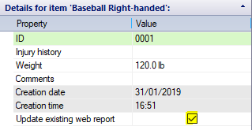
Reports are stored online and previously created reports are accessible via Report Center (report.qualisys.com). For details on how to use Report Center please see separate online documentation.
Note: There is a limit on how many videos can be uploaded within a single web report. The actual number of videos differs depending on the computer but under normal conditions the limit should be around 500 .avi files per entire session.
Attachments
It can sometimes be useful to include files generated by other software in a report. To do this, you can use attachments.
Attaching files to a report
- Open the data folder of your current session. In QTM, go to Project view > Right click measurement > Open folder in explorer.
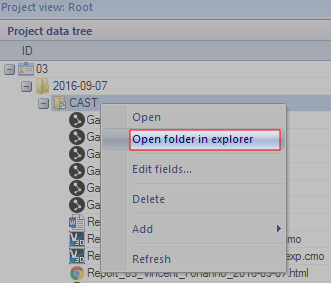
- In Explorer, create an empty folder and name it 'Attachments'. It should reside next to the .qtm files of your session folder.
- Place one or more files in the new folder. These files will now be embedded in the next report you generate.
Viewing attachments in a report
- Go to the Attachments tab.
- Your attachments can now be viewed or downloaded.
- To view an attachment, simply click on it.
- To download an attachment, click on the attachment you want to download.
Reboot Motion report
Reboot report is available for Baseball only. It requires additional license agreement with Reboot Motion. Please contact Reboot Motion to create an account. Reboot will provide values for following parameters: Reboot bucket, Reboot key id and Reboot secret key. These parameters must be entered to [your project]\Settings\User Settings.paf.
Reboot bucket:
Reboot region: us-west-1
Reboot key id:
Reboot secret key:
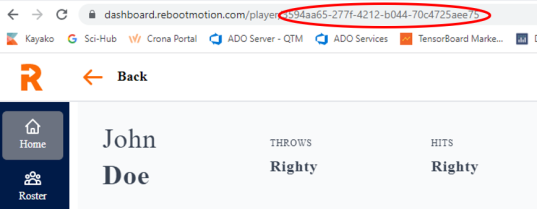
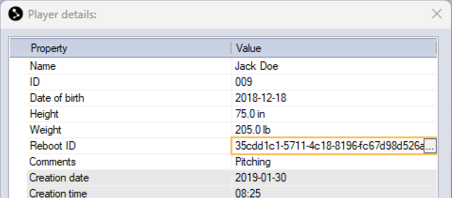
Furthermore, before uploading the report to Reboot dashboard, it is necessary to coordinate with Reboot to register the players and obtain their IDs. Next step is to create player in PAF pane and copy ID to field 'Reboot ID' in PAF pane. ID can be also found on dashboard URL.
When 'Reboot Motion report' analysis is clicked, data are exported and uploaded to Reboot S3 bucket. The successful upload is indicated by a green screen in the default browser. After approximately 3 seconds you will be redirected to Reboot dashboard. Please note that it might take some time for your report to appear on the dashboard.